Selecting tools
As a general rule, you should use the Hand tool when browsing through PDF
documents. However, you can select a number of other helpful tools from the toolbars.
Note: You may notice that certain tools, such as commenting tools, are available in some
documents but not in others. When you open a document with additional usage rights, the
tools that you need to work with the document are added to the work area. (See About
Adobe PDF documents with additional usage rights.)
To select a tool:
Do one of the following:
● From the Tools menu, choose the toolbar name, and then choose the tool.
● To select a visible tool in a toolbar, click the tool, or press the appropriate keystroke. (See
Keys for selecting tools.)
● To select the Hand tool temporarily, without deselecting the current tool, hold down the
spacebar.
● To select the Zoom In tool temporarily, press Ctrl (Windows) or Command (Mac OS) and
hold down the spacebar.
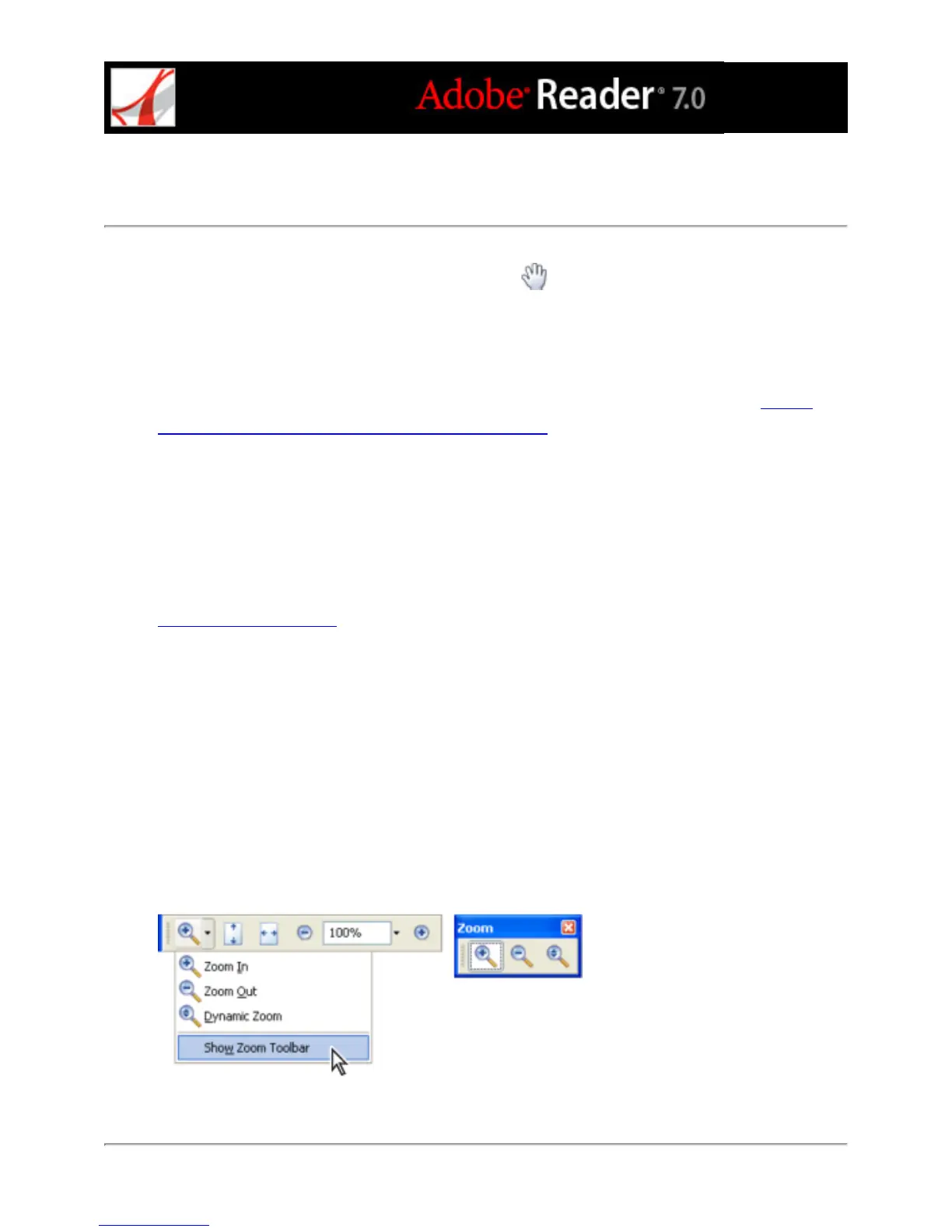
● To select a hidden tool, hold down the mouse button on either the related tool or the
triangle next to the related tool until the additional tools appear, and then drag to the tool
you want.
● To replace a visible tool with a hidden tool, click the related tool or the triangle next to it
until the additional tools appear, and click the name of the hidden tool.
● To display hidden tools alongside the other tools, click the related tool or the triangle next
to it and choose Expand This Button. To collapse the hidden tools, click the left-pointing
arrow to the right of the expanded button.
Click the triangle next to a tool to open a hidden group of tools.



 To Next Page