129
ADOBE AUDITION 1.5
User Guide
To reduce noise:
1 In Edit View, select a range that contains only noise and is at least half a second long.
To select noise in a specific frequency range, use the Marquee Selection tool. (See
“Selecting audio frequencies in Spectral View” on page 88.)
2 In the Effects tab of the Organizer window, expand Noise Reduction, and double-click
Capture Noise Reduction Profile.
3 In the waveform display, select the range from which you want to remove noise.
4 In the Effects tab of the Organizer window, double-click Noise Reduction.
5 Set the desired options.
For more information, search for “Noise Reduction options” in Help.
Filtering audio
Filter effects change the frequency content of audio, letting you adjust tonal range to
enhance audio or create special effects. (Be aware, however, that significantly boosting a
frequency can cause clipping.)
Using the Dynamic EQ effect
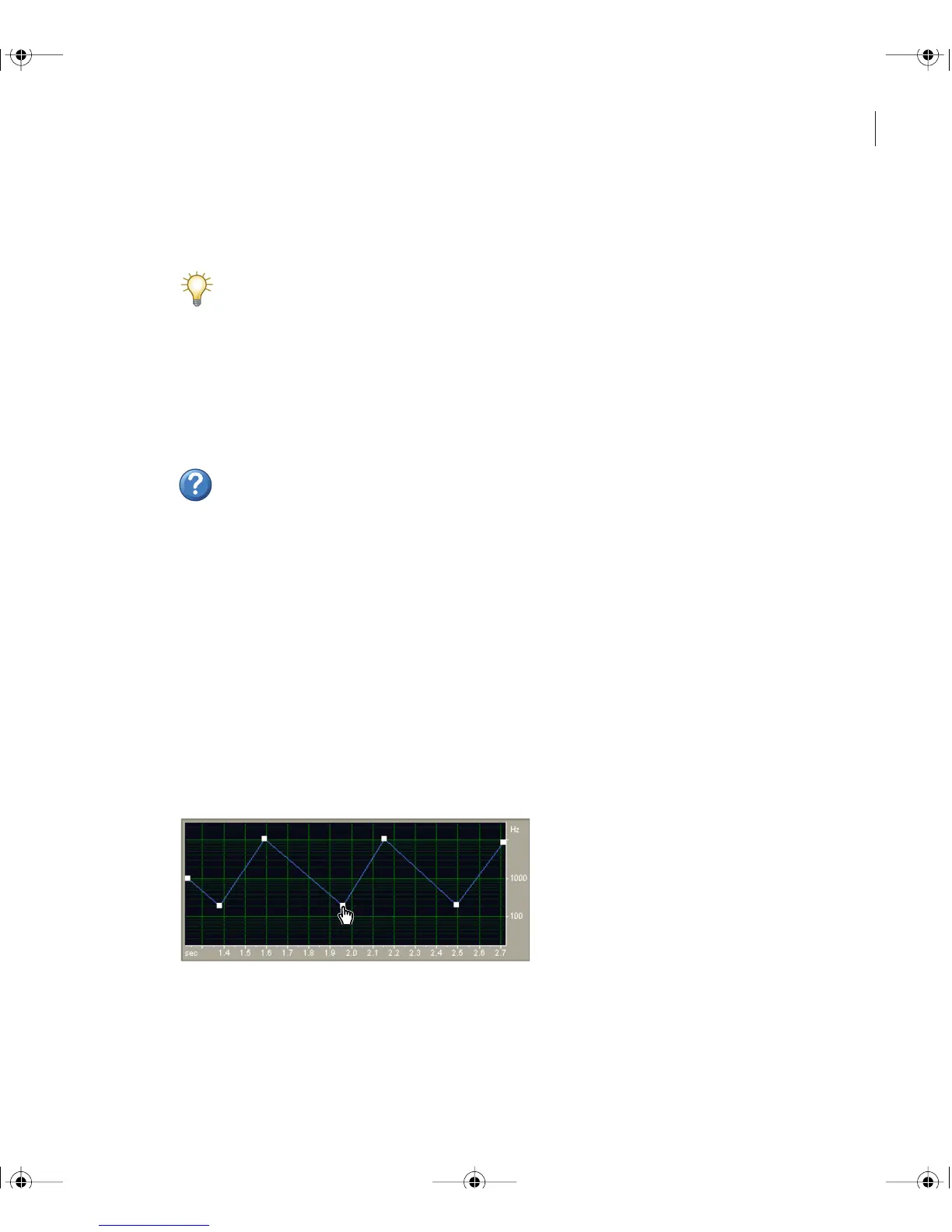
The Dynamic EQ effect varies the amount of equalization over time. For example, during
the first half of a waveform, you can boost high frequencies; during the second half, you
can change the bandwidth of affected frequencies. The Dynamic EQ dialog box provides
three areas of controls: Gain, Frequency, and Q (bandwidth).
Frequency graph of the Dynamic EQ effect in Edit View (Rhythmic Sweep preset)
ug.book Page 129 Tuesday, March 16, 2004 1:29 PM



 To Next Page