145
ADOBE PHOTOSHOP ELEMENTS
User Guide
You can set the spacing and anti-alias options by
selecting the brush from the pop-up palette in the
options bar and clicking the brush sample. If you
make changes, click the New Preset button ( ) to
save your changes as a new preset item.
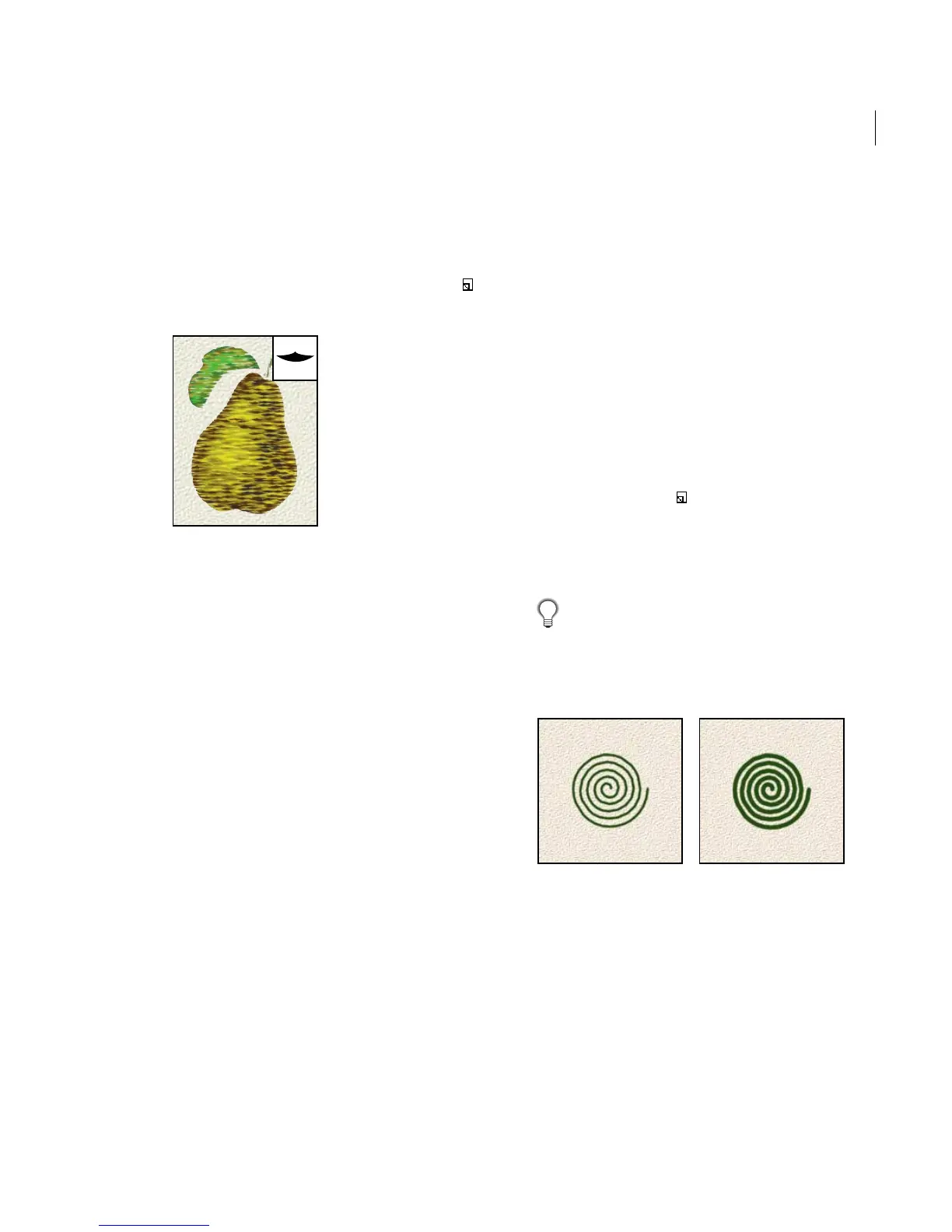
Pear painted with custom
brush shown in inset
You can easily save, load, replace, or delete brushes
using the pop-up palette menu. You can also
customize the view of the pop-up palette.
(See “Using pop-up palettes” on page 35.) You can
also load or save brushes using the Preset Manager.
(See “Working with presets” on page 35.)
Exiting Photoshop Elements saves the contents of
the current pop-up palette in the Preferences file.
Setting brush options
You can define a number of options for the default
brushes. For custom brushes, only the name,
spacing, and anti-aliased options can be changed.
To set brush options:
1 Do one of the following:
• To edit the current brush, click the brush sample
in the options bar.
• To edit a different brush, select the brush you
want in the pop-up palette, then click the brush
sample in the options bar.
2 Set the options for Diameter, Hardness,
Spacing, Angle, and Roundness. For custom
brushes, enter a new name if desired, then set the
options for Spacing and Anti-aliased.
3 Click New Preset ( ) to create a new
preset brush.
Diameter Controls the size of the brush. Enter a
value in pixels or drag the slider.
While using a preset brush, you can press the
[ key to decrease the brush width by 10 pixels.
Press the ] key to increase the width by 10 pixels.
Press Shift+ the ] key to increase the brush hardness.
Press Shift+ the [ key to decrease the brush hardness.
Brush strokes with different diameter values



 To Next Page