171
ADOBE PHOTOSHOP ELEMENTS
User Guide
The selection contents appear in the same position
relative to the image boundaries.
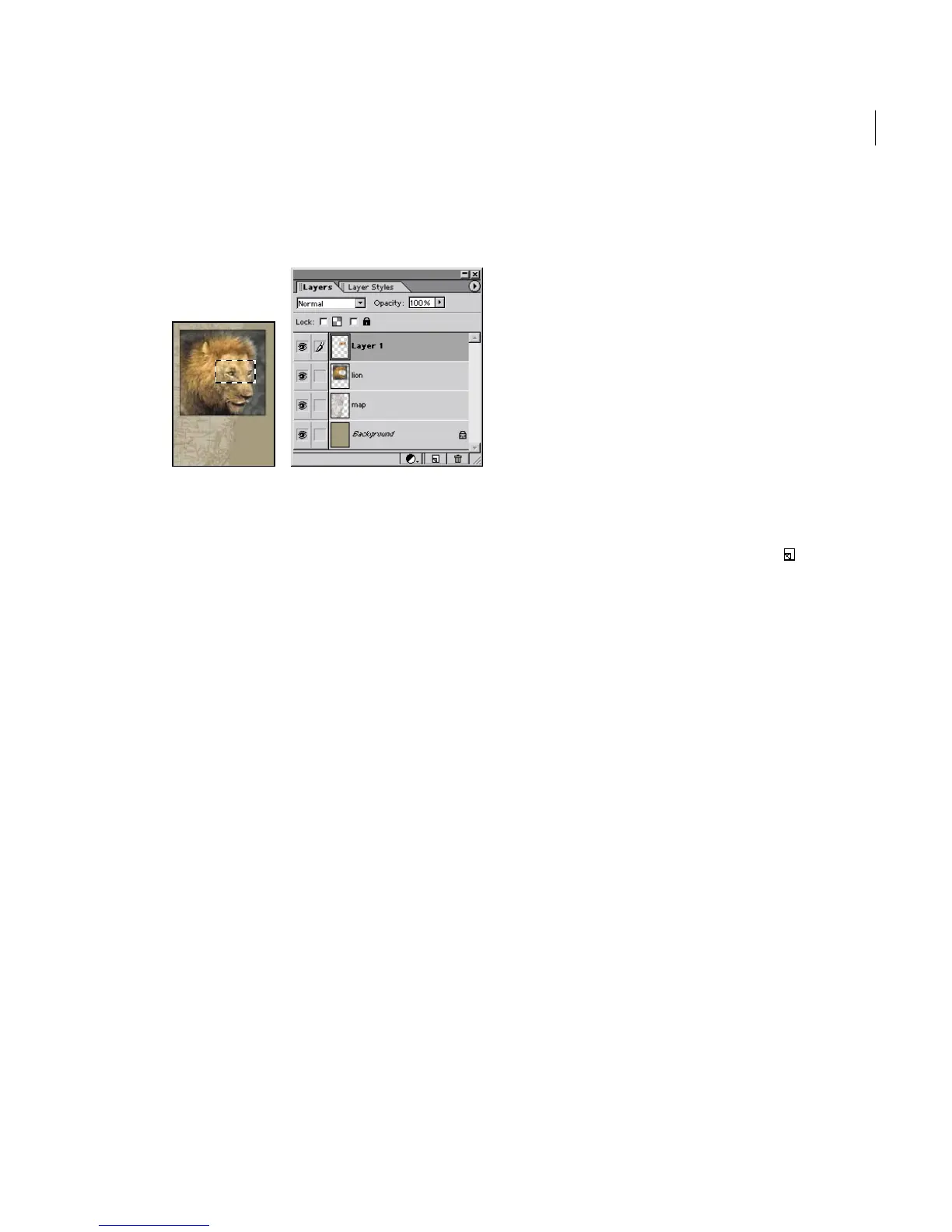
Selection cut and pasted into new layer
To convert a background into a layer:
1 Do one of the following:
• Double-click Background in the Layers palette.
• Choose Layer > New > Layer from Background.
2 Rename the layer, and click OK.
To convert a layer into a background:
1 Select a layer in the Layers palette.
2 Choose Layer > New > Background from Layer.
Duplicating layers
You can duplicate any layer (including the
background) within an image. And you can copy
any layer (including the background) from one
image to another.
When copying layers between images, keep in
mind that the printed size of the copied layer
depends on the resolution of the destination
image. (See “About image size and resolution” on
page 46.)
To duplicate a layer in an image:
1 Select the layer in the Layers palette.
2 Duplicate the layer:
• To duplicate and rename the layer, choose
Layer > Duplicate Layer, or choose Duplicate
Layer from the Layers palette menu. Name the
duplicate layer, and click OK.
• To duplicate without naming, select the layer
and drag it to the New Layer button ( ) at the
bottom of the Layers palette.
• (Windows only) Right-click on the layer bar (not
the thumbnail) and choose Duplicate Layer.
To copy a layer between images:
1 Open the two images you want to use.
2 In the Layers palette of the source image, select
the layer that you want to copy.
3 Do one of the following:
• Drag the layer’s name from the Layers palette of
the source image into the destination image.



 To Next Page