EasyManua.ls Logo

Adrenaline Amusements TOUCH FX TFX1 - User Manual

Adrenaline Amusements TOUCH FX TFX1
33 pages
Print Icon
To Next Page IconTo Next Page
Loading...
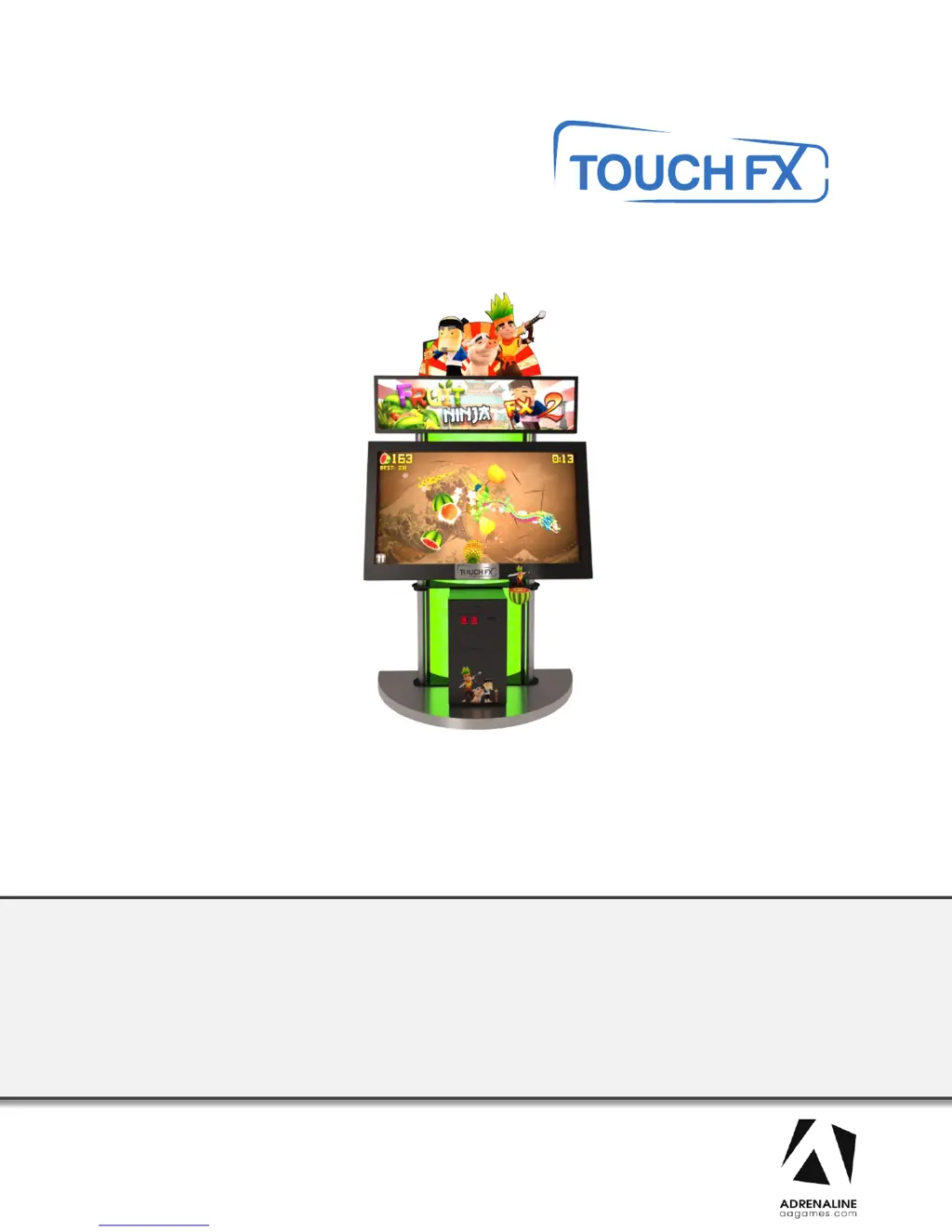
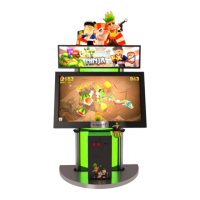
TFX1 Fruit Ninja FX 2
FN-46-1020
Operation & Service Manual
Version 1.0
* Read this manual before use

Questions and Answers

  • A
    Ann FordAug 18, 2025
    What to do if Adrenaline Amusements TOUCH FX TFX1 show Windows Blue Screen?
    • N
      Nicholas BrownAug 18, 2025
      If your Adrenaline Amusements Arcade Game Machine displays a Windows blue screen, you will need to restore your hard drive. Unplug the USB cable between the monitor and the cabinet and plug in a USB keyboard. Power up the unit and press “F11” when the first splash screen appears to access the boot menu. Use the arrows on the keyboard to select: USB: …, then press “Enter.” The restore process will start and will take about 20 minutes; when done, the computer will restart by itself.
  • N
    Natasha MartinezAug 21, 2025
    Why Adrenaline Amusements TOUCH FX TFX1 unit won’t accept credits?
    • J
      jamescraneAug 21, 2025
      If the Adrenaline Amusements Arcade Game Machine isn't accepting credits, verify if the USB cable between the cabinet and the computer is connected. If it seems well connected but you still get no response, verify your power supply inside the cash cabinet access. It needs to output 5 volts and 12 volts in the proper outputs. If everything is plugged in correctly and power is well adjusted but there are still no credits going in, try using another USB cable to connect the board straight to the computer.
  • P
    Patty TuckerAug 27, 2025
    Why Adrenaline Amusements Arcade Game Machines have framing problems on Samsung monitors?
    • T
      Timothy RiveraAug 27, 2025
      To resolve framing problems on Samsung monitors for Adrenaline Amusements Arcade Game Machines: place your remote control straight up against the glass aiming down in the lower right hand corner of the screen, usually 6 inches from the corner. Press “Menu”, find Eco Solution under Mode or Plug and Play depending on the model you have. Reset all timers to OFF. Plug and Play / General / Game Mode / On. P.Mode on your remote / Screen Fit. If you encounter other issues with your monitor you may reset it to factory settings. Press “EXIT” for about 30 seconds then OK your monitor will shut OFF. Turn it on set Language to English, Home Use, D, D, D (blue button on remote) then OK. Set to HDMI4 then set to required settings on top of this page.
  • A
    Amber CoxAug 30, 2025
    What to do if Adrenaline Amusements Arcade Game Machines picture shutters?
    • A
      aphillipsAug 30, 2025
      If the picture shutters or freezes momentarily on your Adrenaline Amusements Arcade Game Machines, try disconnecting both USB cables from the computer itself and restart the unit. If the shuttering went away just plug back the USB cables one at a time and restart the computer every single time. If the USB cables get pulled or squeezed, bypassing the USB cable using another one to test your issue will tell you which one to replace. The hard drive is usually the cause of this issue.
  • M
    Mr. Shawn HarrisSep 2, 2025
    How to fix Windows Boot Manager on Adrenaline Amusements TOUCH FX TFX1 Arcade Game Machines?
    • S
      Sarah MillerSep 2, 2025
      If you encounter the Windows Boot Manager screen on your Adrenaline Amusements Arcade Game Machines, it may be because a required device is inaccessible. Disconnect the usb cable between the cabinet and the screen then, connect a keyboard. Disconnect power and reconnect it to restart the computer. Press F8 repeatedly until you get to the windows boot selection. If you get to a blue boot disk selection press Enter then press again on F8 repeatedly until you get to the windows boot selection. Select Normal boot then press Enter. Disconnect the keyboard and reconnect the cabinet and the screen.
  • L
    Lisa SmithSep 5, 2025
    What to do if Adrenaline Amusements Arcade Game Machines have low volume?
    • A
      Ashley WilliamsSep 5, 2025
      To address low volume or no sound on Adrenaline Amusements Arcade Game Machines: Increase the volume in the game by pressing the Operator Button and adjusting the volume options in the Operator Menu. Increase the monitor’s volume by using the monitor’s remote control. Verify that the 1/8’’ plug is plugged in the computer’s green sound input jack and that the other end is plugged inside the monitor. If you hear a grounding sound it is connected.
  • M
    Michelle JohnsonSep 8, 2025
    What to do if Adrenaline Amusements Arcade Game Machines display error when opening serial port?
    • T
      Tyler EllisonSep 8, 2025
      If you receive an error when opening the serial port on your Adrenaline Amusements Arcade Game Machines, make sure that a USB cable is connected from the computer to the I/O board.
  • P
    pcraneSep 12, 2025
    What to do if Adrenaline Amusements TOUCH FX TFX1 dongle is not found?
    • C
      Caitlyn StevensonSep 12, 2025
      If the dongle is not found on your Adrenaline Amusements Arcade Game Machines, make sure that the USB Dongle is connected to the computer in the right USB port.
  • R
    Rebecca RobinsonNov 14, 2025
    What to do if Adrenaline Amusements TOUCH FX TFX1 Arcade Game Machines have no picture and sound?
    • Z
      Zachary WilliamsNov 14, 2025
      If your Adrenaline Amusements Arcade Game Machine has no picture and sound, there might be a power issue with the monitor. Ensure the HDMI cable is properly connected to both the computer and the LCD monitor. Verify the computer is ON. Remove the computer's bottom cover and press the RED or WHITE power button. Also, ensure the power plug is well connected. If the Bios settings have changed, remove the computer bottom cover and plug a USB keyboard in one of the remaining USB ports. Press and hold the “Delete” key on the keyboard and then turn the computer on. Using the arrows, select the “Advanced” tab. Using the arrows, scroll down to the ACPI Configuration option and press the “Enter” key. Using the arrows, scroll down to the Restore on AC/Power Loss option and press the “Enter” key. Usin...
  • D
    David CampbellNov 23, 2025
    What to do if Adrenaline Amusements Arcade Game Machines touchscreen is irresponsive?
    • M
      michellemorenoNov 23, 2025
      If the Adrenaline Amusements Arcade Game Machines touchscreen is irresponsive: * Plug in a USB keyboard using the USB connector between the cabinet and the monitor. * Press the letter 'Q' if in the game, to quit the game. * Swap the keyboard for a mouse. * Double click on the Multitouch Platform icon. When the window opens up, verify if you see the serial number of the touchscreen appearing in the upper right corner of the window. If it does not appear, verify if your USB connector is still plugged in to your computer. You can try and swap it with another USB connection on the computer. If it’s well inserted and there is still no response, you will have to remove the monitor cover to expose the touchscreen and verify the USB connection at that end along with the 12 volt connecto...

Summary

Chapter 01 - Preface

Safety Instructions

Essential safety instructions for electrical shock prevention and equipment handling.

Chapter 03 - Unit Features

Chapter 04 - Unit Installation

Assembling your TFX1 Unit

Detailed instructions for assembling the TFX1 unit, including monitor and header installation.

Chapter 05 - Wireless Setup, Operator Menu

Chapter 06 - Service & Repair

Troubleshooting Introduction

General section for diagnosing and resolving common issues with the unit.

Video Troubleshooting

Steps to diagnose and fix problems related to the monitor and video output.

Monitor Troubleshooting

Guidance on identifying monitor models and resolving framing or setting issues.

Error Message Screens

Explains common error messages and their solutions, like Windows boot issues.

Windows Blue Screen Recovery

Procedure for restoring the hard drive when encountering a Windows blue screen error.

Touchscreen Troubleshooting

Detailed guide for resolving issues with the touchscreen not responding or working properly.

Touchscreen Malfunction

Steps to diagnose and fix touchscreen non-responsiveness, including checking connections.

Chapter 07 - Parts

Chapter 08 - Diagrams & Schematics

Wiring Diagrams

Detailed wiring diagram illustrating connections between the computer, I/O board, and peripherals.

Adrenaline Amusements TOUCH FX TFX1 Specifications

General IconGeneral
BrandAdrenaline Amusements
ModelTOUCH FX TFX1
CategoryArcade Game Machines
LanguageEnglish

Related product manuals