EasyManua.ls Logo

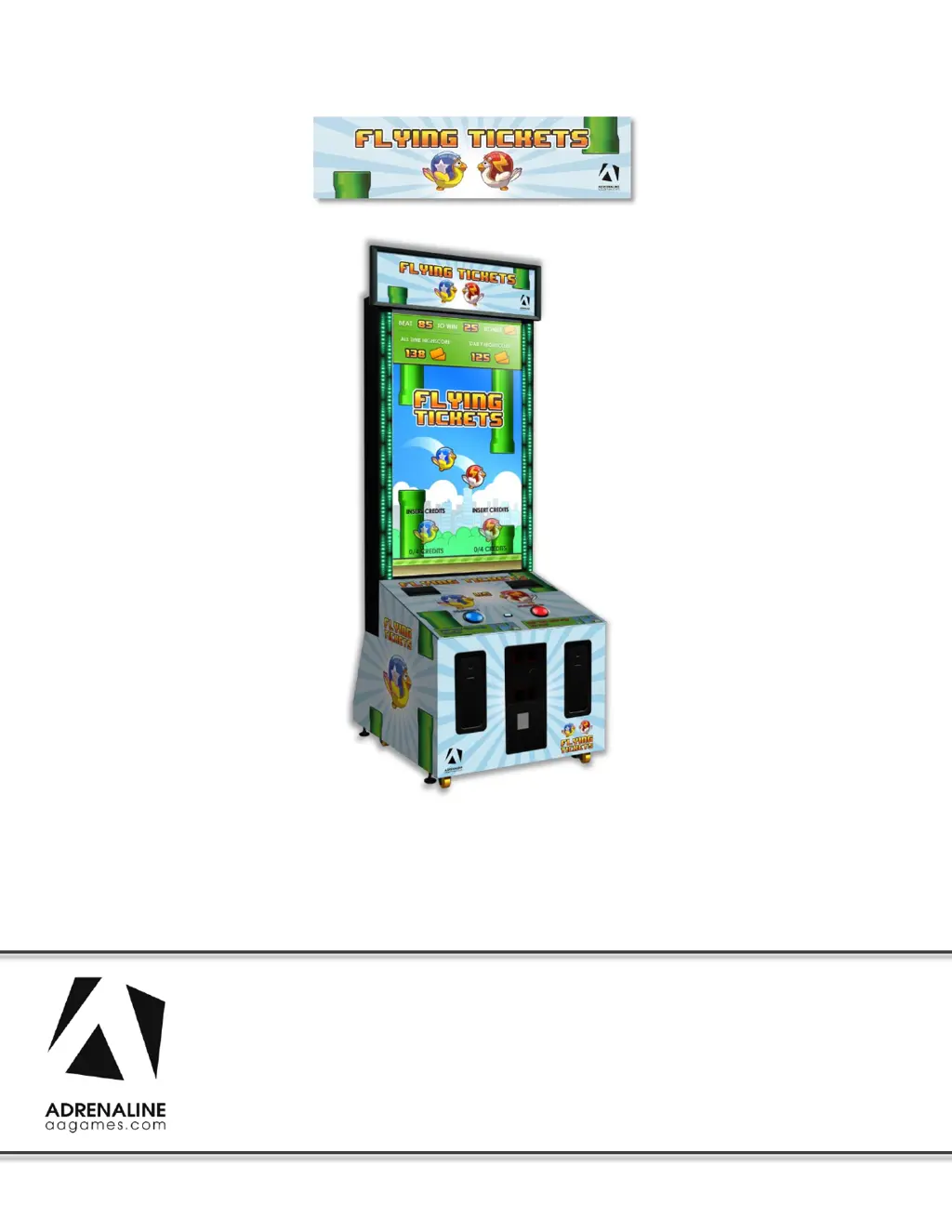
Adrenaline Flying Tickets - User Manual

Adrenaline Flying Tickets
39 pages
Print Icon
To Next Page IconTo Next Page
Loading...
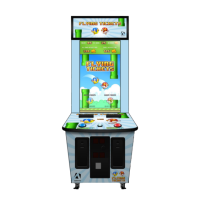
Flying Tickets
FT-65-1001
Operation & Service Manual
Version 4.0
* Read this manual before use

Questions and Answers

  • C
    cookderekAug 1, 2025
    How to fix Operator Settings resetting trouble on Adrenaline Flying Tickets?
    • C
      Christopher FigueroaAug 1, 2025
      If you're experiencing issues with the Operator Settings constantly resetting on your Adrenaline Arcade Game Machines, it may be due to the Windows write cache needing to be disabled. To resolve this, exit the game to the Windows desktop. Click on the Start button, then right-click on My Computer and select Properties. Open Device Manager, expand Disk Drives, and double-click the 32GB Device (not the USB drive, if present). Go to the Policies tab and uncheck "Enable Write caching on the device". Click OK, and then YES to reboot the computer.
  • A
    Ashley MillerAug 6, 2025
    Why is the sound low or not working on my Adrenaline Arcade Game Machines?
    • V
      Victoria FowlerAug 6, 2025
      If you're experiencing low volume or no sound on your Adrenaline Arcade Game Machines, you can try the following: 1. Increase the volume within the game by pressing the Operator Button and adjusting the volume options in the Operator Menu. You can also exit the game to the Windows desktop and increase the volume using the Speaker icon in the bottom right corner of the screen. 2. Check that the 1/8’’ plug is securely connected to the computer’s green sound input jack and the other end is connected to the sound amplifier. To confirm the connection, power on the unit and gently touch the plug at the computer’s end; if you hear a grounding sound, it indicates a proper connection.
  • R
    Ryan HammondAug 10, 2025
    What to do if my Adrenaline Flying Tickets says 'Dongle not found'?
    • R
      randyhernandezAug 10, 2025
      If your Adrenaline Arcade Game Machines displays a 'Dongle not found' message, ensure that the USB Dongle is connected to the computer in a black USB port.
  • E
    Emily VargasAug 14, 2025
    What to do if I need to change the hard drive SATA cable connector in Adrenaline Flying Tickets Arcade Game Machines?
    • P
      Paul ClarkAug 14, 2025
      To change the hard drive SATA cable connector in your Adrenaline Arcade Game Machines, power off the computer first. Then, change the hard drive SATA cable connector to one of the two SATA connectors on the motherboard, indicated by green checkmarks. After making the change, power on the unit and redo the instructions to disable the Write Cache.
  • W
    wongjamesAug 22, 2025
    What to do if my Adrenaline Flying Tickets dongle is not found?
    • R
      Robert WalterAug 22, 2025
      If your Adrenaline Arcade Game Machines unit displays a 'Dongle not found' error, ensure that the USB Dongle is connected to the computer in a black USB port. The USB License Dongle can’t be found if it is not properly connected.
  • D
    Dr. Veronica WatsonAug 27, 2025
    How to fix low volume or no sound on Adrenaline Flying Tickets?
    • T
      timothy49Aug 27, 2025
      To address low volume or no sound issues on your Adrenaline Arcade Game Machines, try the following: * Increase the volume in the game by pressing the Operator Button and adjusting the volume options in the Operator Menu. * You might also Quit the game to Windows desktop and increase the volume via the Speaker icon on the bottom right of your screen. * Verify that the 1/8’’ plug is plugged in the computer’s green sound input jack and that the other end is plugged in the sound amplifier. To verify if it’s plugged properly, power up the unit and try touching the plug at the computer’s end. If you hear a grounding sound it is connected.
  • E
    Eduardo SalazarNov 17, 2025
    What to do if my Adrenaline Flying Tickets has no picture and sound?
    • C
      craig02Nov 17, 2025
      If your Adrenaline Arcade Game Machines unit shows no picture and sound, here are a few things to check: * Ensure the DVI cable is properly connected to both the computer and the LCD monitor's DVI connector. Loose or faulty connections between the monitor and the computer can cause this issue. * Verify the computer is ON. Open the front service door and press the RED or WHITE power button. Also, make sure the power plug is well connected. Lack of power to the computer will result in no picture or sound. * If the computer does not power automatically when the unit is powered on, the Bios settings have changed. Open the cabinet and plug a USB keyboard in one of the remaining USB ports. Press and hold the “Delete” key on the keyboard and then turn the unit on. Keep holding the “Delete”...

Summary

General Remark

Chapter 01 - Preface

Precaution for Game Operation

Operator awareness of health and physical conditions that may cause injury during gameplay.

Safety

Instructions to avoid electrical shock and handle power cord damage.

Environmental Conditions

Requirements for indoor use, keeping the cabinet dry, and temperature maintenance.

Chapter 02 - Game Features

How to Play

Instructions on game mechanics, scoring, and gameplay modes.

Chapter 3 - Unit Features

Hardware Features

Lists key hardware components like monitor size and player count.

Cabinet Facts

Details cabinet dimensions and shipping specifications.

Voltage

Specifies the operating voltage and current requirements for the unit.

Chapter 04 - Unit & Headers Installation

Assembling your Flying Tickets Unit

Steps for removing the cabinet from shipping and positioning it for assembly.

Headers Installation

Steps for fixing the header to the monitor using bolts and connecting LED panel connectors.

Chapter 05 - Operator Menu

Operator Menu

Instructions on accessing the Operator Menu via a switch button.

Chapter 06 - Service & Repair

Computer Connections

Diagram showing connections for sound, monitor, USB I/O board, power, and AC inlet.

Troubleshooting

General note about serial numbers for warranty replacement.

Video Troubleshooting

Solutions for portrait/landscape mode, loose connections, and no power to the computer.

Audio Troubleshooting

Steps for resolving low volume or no sound issues and dongle not found errors.

Wireless Internet Configuration

Guide to connecting the unit to a Wi-Fi network for software updates and internet access.

Operator Settings Reset Issue

Instructions to disable Windows write cache to resolve operator settings reset issues.

Chapter 07 - Parts

Cabinet Parts

Lists cabinet components with part numbers and references to an assembly diagram.

Cash Box Parts

Lists parts related to the cash box and coin entry, with corresponding part numbers.

Computer & Electronics

Lists internal computer and electronic components with part numbers.

Decal Prints

Identifies various decals for the arcade unit, including header, sides, and front.

Header Parts

Details components specifically for the header assembly, like brackets and back plates.

Cabling

Lists various cables used in the unit with their part numbers.

Wiring Harness

Lists specific wiring harnesses for different components with part numbers.

Computer Parts

Lists specific computer hardware components.

Monitor Parts

Lists components for the monitor assembly.

Chapter 08 - Diagrams & Schematics

Power Distribution

A block diagram illustrating the flow of power from the AC strip to various components.

I;O Board INV-04-1201

Detailed layout of the I/O board with pin assignments for keypad, ticket dispensers, buttons, and lights.

I;O Board Wiring

Wiring diagrams for I/O board connectors J1 (Keypad) and J2/J6 (Ticket Dispenser).

RGB LED Controller Power Wiring Diagram

Diagram showing power connections for the RGB LED controller from the power supply and delay PCB.

RGB LED Wiring Diagram

Diagram illustrating the wiring between the RGB LED controller, LED strips, and harnesses.

Chapter 09 - Software Recovery

Software Recovery

Step-by-step instructions on how to restore the unit's software using a USB recovery disk.

Chapter 10 - Card Reader

Card Reader System

Instructions for installing and configuring card readers for player payment systems.

Embed System

Details on connecting harnesses for an Embed system and an example pin-out for the I/O board.

Limited Warranty Policies

Warranty Details

Outlines the 1-year warranty, return policy, and conditions for voiding warranties.

Adrenaline Flying Tickets Specifications

General IconGeneral
BrandAdrenaline
ModelFlying Tickets
CategoryArcade Game Machines
LanguageEnglish

Related product manuals