12 www.aeg.com
1.
Go to the relevant App Store on your
device
2.
Download and install the App
“My AEG Kitchen”
3.
Start the application. Select the
country and language and login with
Your email and password. If you
do not have an account, create a
new one following the instructions in
“My AEG Kitchen”.
1.2 Conguring the refrigerator’s
wireless connection
1.
Press the appliances button
in the
menu and then the Add Appliance
icon
on the screen.
2.
Then choose “Fridge” in the list of
appliances and tap “NEXT”.
3.
Follow the app’s guidance to onboard
your refrigerator. The app will ask you
to start the refrigerators WiFi which
your do on the appliance.
4.
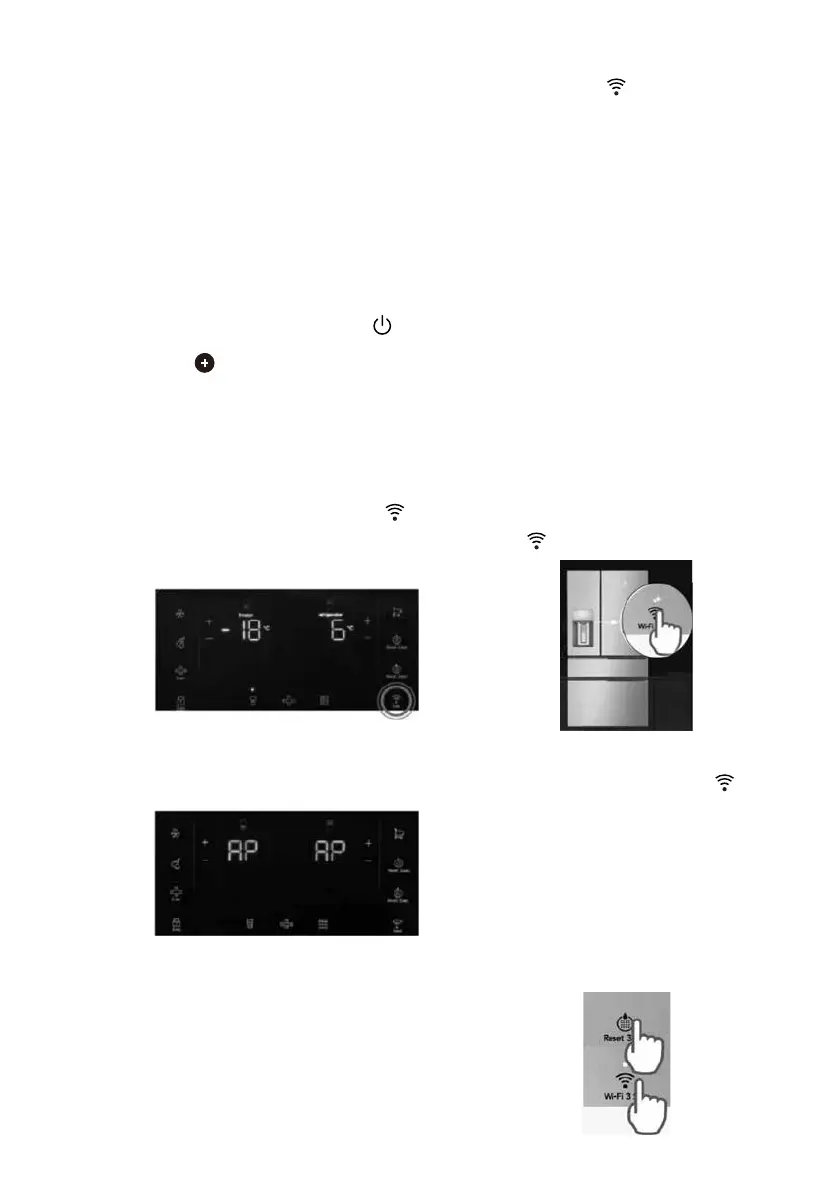
Press and hold the Wi-Fi icon
on
your refrigerator for 3 seconds until
you hear a beep – this will start the
Wi-Fi system.
5.
After around 45 seconds the
refrigerator will display AP on the
user interface and will be ready to
move on to the next stage in the app.
6.
Continue to follow the App guidance
to connect your refrigerator to your
Wi-Fi. For Android devices, select
your appliance’s Wi-Fi network from
the drop down list.
For iOS devices go to “SETTINGS”
and select your appliance’s Wi-Fi
network, (it is the one that begins
AJ-) then return to the App
7.
When the refrigerator has connected,
the Wi-Fi icon
will stop ashing
and will stay solid and the screen will
display your desired temperatures
again. Continue to follow the app
guidance to complete the registration
and name your refrigerator.
Congratulations! Your refrigerator is now
connected to the My AEG Kitchen App.
To control or monitor your fridge from
the app, just open it up and select your
changes. Alarms and notications will
come through automatically.
1.3 Disabling / Resetting the
refrigerator wireless connection
1.
You can temporarily disable the
Wi-Fi connection by pressing and
holding for 3 seconds the Wi-Fi
button. The Wi-Fi icon will switch
o and you will hear a beep. Once
the Wi-Fi connection is disabled,
to automatically re-establish
the connection you will have to
press and hold for the 3 seconds
the
button again.
2.
You can reset the Wi-Fi conguration
by pressing and holding for
10 seconds the Wi-Fi button
and the Reset Water Filter button
together. Once the conguration is
reset, the refrigerator will beep and
return to your desired temperatures.
To then re-establish the connection,
you will have to repeat all the steps
at section 1.2 “Conguring the
refrigerator wireless connection”.
Alternatively this can be done through
the App.


 To Next Page
 Loading...