RevC 07/15/13 Page 26
(users can always add, delete or edit them as desired). These are special controls that
allow real time data logging and playback. To begin a PC log, go to the Log menu and
select Start recording or hit the “CTRL + L” hot key. Select Stop recording or hit the
“CTRL + L” hot key again to stop logging. A dialog will ask if you want to save the data
or not. If you select “Yes”, you will be prompted to save the current session file. A
session file contains all the current configuration and calibration data along with a log
file. If you open that session file again, the file will be loaded and all plot controls will be
populated with the recorded data.
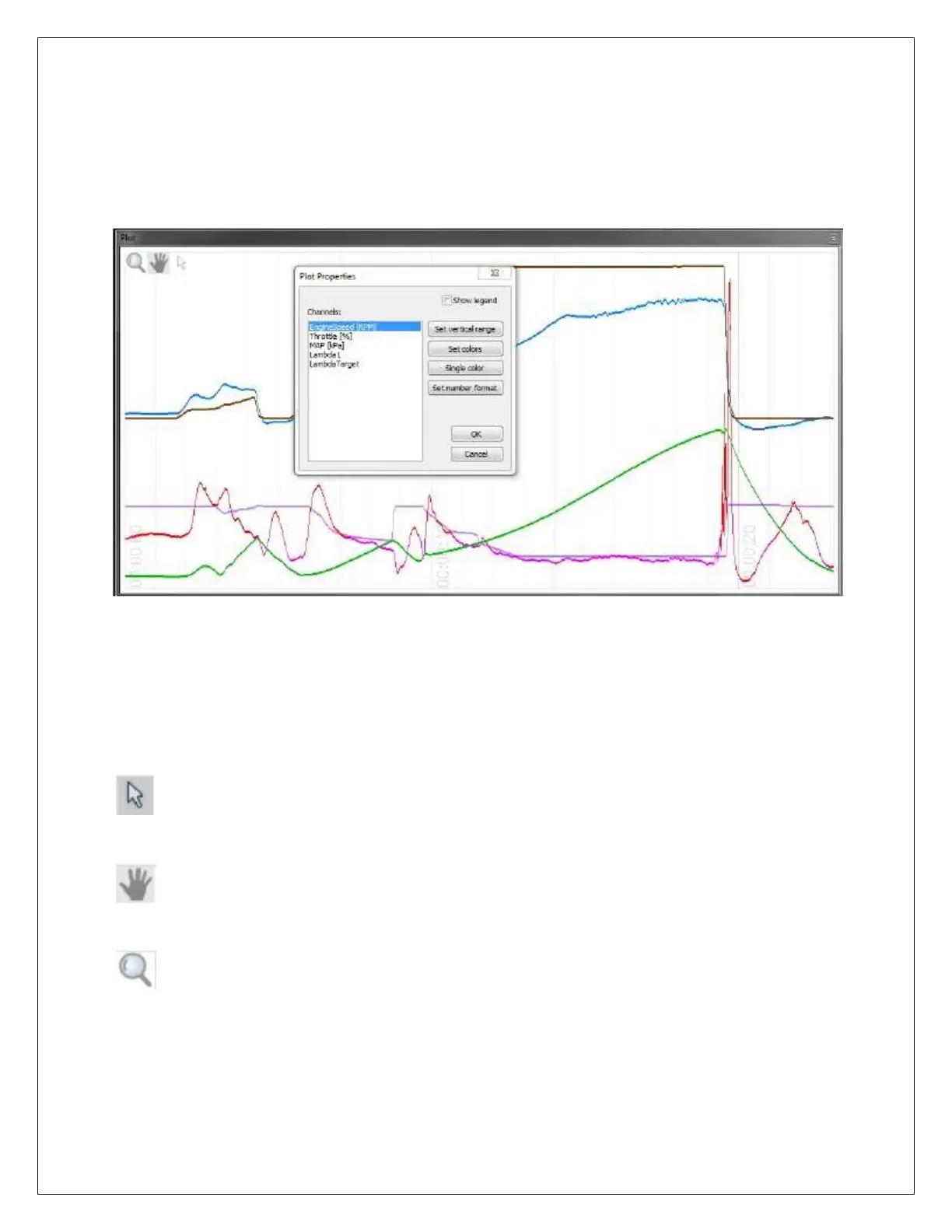
Right click on the title bar of a plot control window to access the Plot Properties. For
each channel, the number format, vertical range and color preferences can be edited.
The Show Legend selection box is used to display a legend in the plot for current data
values.
Plot
Window
Tools
Selection tool. Choose this icon by clicking on it then left click and drag through
the plot window to view current data values.
Pan tool. Choose this icon by clicking on it then left click and drag through the plot
window to pan the data left or right.
Zoom tool. Choose this icon by clicking on it then left click and drag up and down
to zoom in and out. Alternatively, a mouse scroll wheel can be used after selecting the
zoom tool.


 To Next Page
 Loading...