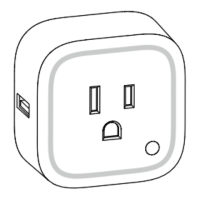
1. Decide on where you want your Smart Switch to be placed and plug it into a wall
outlet.
2. If your Z-Stick is plugged into a gateway or a computer, unplug it.
3. Take your Z-Stick to your Smart Switch.
4. Press the Action Button on your Z-Stick.
5. Press the Action Button on your Smart Switch
6. If Smart Switch has been successfully added to your Z-Wave network, its RGB LED
will be solid. If the adding was unsuccessful, the red LED will be on for 2 seconds and then
remain colorful gradient status, repeat the instructions from step 4.
7. Press the Action Button on the Z-Stick to take it out of inclusion mode and then
return it to your gateway or computer.
If you’re using a Minimote:
1. Decide on where you want your Smart Switch to be placed and plug it into a wall
socket.
2. Take your Minimote to your Smart Switch.
3. Press the Include button on your Minimote.
4. Press the Action Button on your Smart Switch.


 To Next Page