Electrostatic discharge (ESD) can damage equipment and impair electrical
circuitry. ESD damage occurs when electronic components are improperly
handled and can result in complete or intermittent failures. Be sure to follow
ESD-prevention procedures when handling electronic components.
Never assume that power is disconnected from a circuit; always check the
circuit.
To meet radiation exposure requirements in all countries, these devices should
be installed at a minimum distance of 9.05" (23 cm) from people and animals.
See individual country warning for country-specific distances, if required.
All Ethernet and RS232 (console) ports and the cables attached to them are
designed for intra-building connection to other equipment. Do not connect
these ports directly to wiring that exits the building where this appliance is
located
Install the AP150W
The following sections describe how to install your AP150W devices, connect them to the network, and
start managing them in HiveManager NG.
Shipping Carton Contents
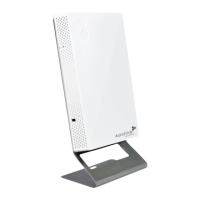
The AP150W access point shipping carton contains the following items:
• AP150W chassis
• Generic QuickStart Card
• Wall mounting bracket and mounting hardware packet containing four Phillips screws and
one Torx screw.
•Ethernet cable
Video:Unboxing the AP150W Wallplate Access Point
For mounting instructions, see "Mount the AP150W ".
For information about securing the device, see "Secure the AP150W".
For information about the status indicator light, see "Status Light".
Mount the AP150W to a Wall
Use the following instructions to mount the AP150W directly to an Ethernet cable receptacle box
in a wall.
The mounting bracket has holes for several types of wall receptacles. The holes are
labeled as shown below: UK/EU, US/DUAL, and US/SINGLE.
Page 3 of 1
AP150W Hardware User Guid
8
21
201


 To Next Page