Devices page in the
onitor section of the HiveManager NG GUI, the initial setup is complete
and you can begin managing the AP with HiveManager NG.
Hardware Components
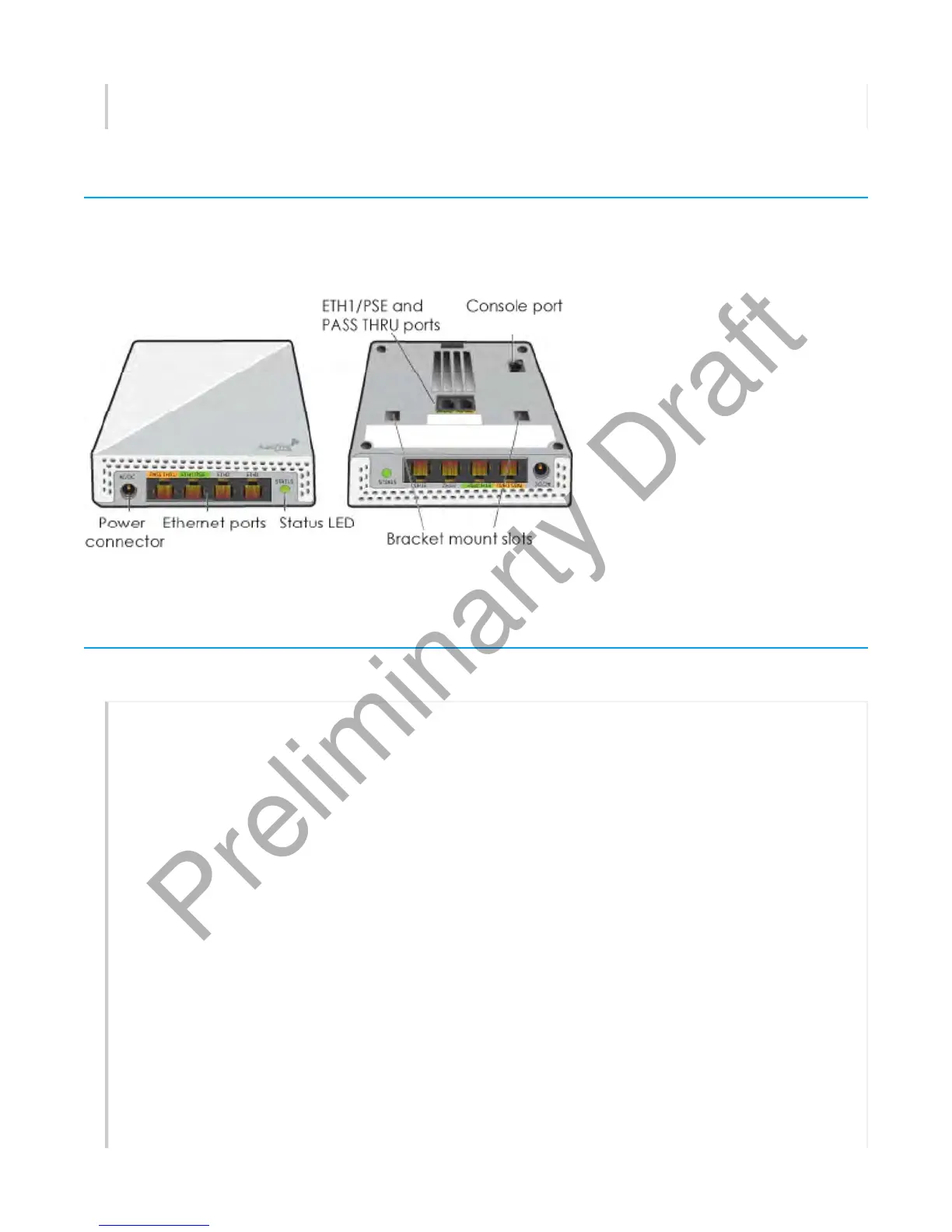
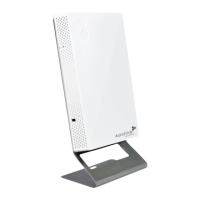
You can see the hardware components of the AP150W in the illustration below and read about them in
the sections that follow.
Component Descriptions
Status Light
The status light conveys operational states for system power, firmware updates, Ethernet and
wireless interface activity, and major alarms. The AP150W has a device status LED and an Ethernet
port status LED.
The device status LED is on the panel to the right of the Ethernet ports. The colors of this LED
indicate the following states of activity:
Dark: There is no power or the status indicator is disabled.
Amber (flashing): This is an alert that indicates that the device is performing a firmware
upgrade. Do not power off the device during this process.
Amber (steady): This is an alert that indicates that the CAPWAP connection has not been
successfully established, or the device is booting or shutting down.
Green: The device is powered on, a successful CAPWAP connection has been made, and the
firmware is operating normally. During normal operation, the LED produces a slow blink
consisting of 4 seconds of illumination followed by one minute of darkness.
To turn the LEDoff or on, or change the brightness using the CLI, enter:
system led brightness [ bright | soft | dim | off]
Page 9 of 1
AP150W Hardware User Guid
8
21
201


 To Next Page