EasyManua.ls Logo

AES global Praetorian Guard - User Manual

AES global Praetorian Guard
76 pages
Print Icon
To Next Page IconTo Next Page
Loading...
1 | P a g e
Installation & User Instructions
Praetorian Guard IP Intercom
(with 4G access Point)
PROFESSIONAL INSTALL ONLY
Manual Version 1.1
Tip: Site Survey BEFORE you begin.
See page 4

Questions and Answers

Summary

Phase 1: Site Survey

Site Survey for 4 G Router

Assesses 4G signal strength and upload speed requirements for optimal intercom performance.

Phase 2: Product Overview

Call Point Model Types

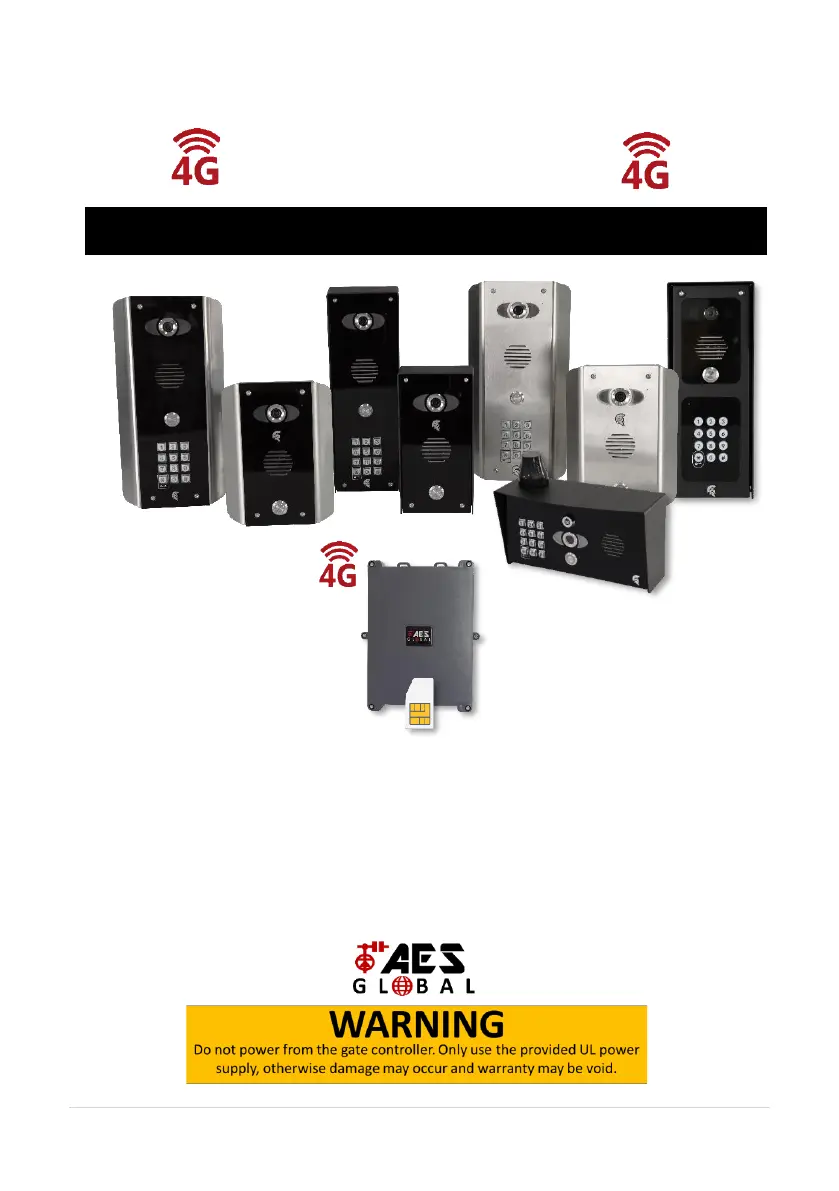
Describes various intercom designs including modular, architectural, portrait, and pedestal with integrated or separate 4G routers.

Optional Accessories

Details optional devices like monitors, power conditioning modules, and cameras for the intercom system.

Unit Component Details

Illustrates external views and key features of different intercom models like architectural, modular, portrait, and pedestal.

Internal Component Layouts

Shows internal views of intercom units, detailing PCBs and module connections for various models.

Module Overviews

Provides details on the main Wi-Fi module, and Keypad & PROX modules.

4 G Router PCB & Technical Specifications

Explains the 4G Router PCB and provides comprehensive technical specifications for the intercom system.

Phase 3: 4 G Setup

Configure 4 G Router

Step-by-step guide for setting up the 4G router, including SIM insertion and APN configuration if not using Vodafone.

Router APN and Signal Check

Instructions for connecting to the router via PC/mobile to change APN settings and verify signal strength.

Browser Security Screen Navigation

Guidance on bypassing browser security warnings to access the router's control panel.

App Setup: Manual Intercom ID

Procedure for adding the intercom to the mobile app by manually entering its unique Intercom ID.

App Setup: Local Hotspot Connection

Alternative method to connect the intercom to a mobile device using its built-in Wi-Fi hotspot.

Time Synchronization and Testing

Steps for ensuring intercom time accuracy and verifying its online status and video feed.

Answering Calls on Mobile Devices

Guides on how to receive and answer intercom calls on both Android and iOS devices.

Phase 4: Installation

Achieving IP55 Rating

Instructions for mounting and sealing the intercom unit to ensure proper IP55 weatherproofing.

Power & Antenna Connections

Details on connecting the 24v DC power supply and GSM antenna for intercom operation.

Solar Power Requirements

Information on solar panel capacity and battery specifications needed for powering the intercom.

Wiring Example

Illustrates typical wiring configurations for connecting the intercom to gate controllers, locks, and buttons.

Connecting Slave Devices

Instructions on how to connect optional slave devices like keypads and prox readers to the intercom.

Adding Additional App Users

Steps for creating new user accounts and granting them access to the intercom system via the app.

Sound, Volume & Speech Settings

Configuration options for intercom volume levels, speech modes (full/half duplex), and sound adjustments.

Using Keypad Codes

Guidance on programming and using keypad codes for access control through the intercom.

Phase 5: Advanced Setup

Feature Shortcuts & Settings Overview

Overview of quick access features and navigation through the mobile application's settings menu.

Standard Feature Configuration

Details on managing intercom settings like users, relay times, Wi-Fi, and intercom time.

Edit Intercom Details & Add Device

Procedures for modifying intercom names, usernames, passwords, and adding new device IDs.

In-App Ringtones & App Version

Instructions for customizing in-app call ringtones and checking the mobile application's version number.

Intercom Firmware & User Management

Steps for checking intercom firmware, and managing user accounts (add, edit, delete).

Relay Trigger & Intercom Time Settings

Configuration of relay trigger durations and synchronization of intercom time with device or NTP server.

Wi-Fi Settings & Monitoring Time

Steps for connecting to Wi-Fi networks and adjusting the maximum duration for viewing camera feeds.

Max Talking & Calling Time

Adjusting the maximum duration for intercom conversations and the time the intercom rings.

Reboot & Audio Mode Selection

Instructions on how to reboot the intercom and select between simplex and duplex audio modes.

Advanced Features: Notifications, Schedules, Resolution, Activity Log

Configuration of notifications, gate schedules, camera resolution, and viewing the activity log.

Keypad & PROX Card Management

Setup options for 24/7, time-restricted, and auto-expiring keypad codes and PROX cards.

Voicemail & Motion Detection

Configuration of voicemail for missed calls and setting motion detection sensitivity and recording.

Troubleshooting

Common Installation & Network Issues

Identifies common installation problems like offline status, lag, and poor signal with provided solutions.

Software, Firmware & Updates

Addresses issues related to software, firmware bugs, and procedures for updates and resources.

Maintenance & Environmental Info

Guidelines for intercom and router maintenance, plus environmental and disposal information.

Warranty & Compliance

Details product warranty terms, regulatory compliance, and contact information for support.

AES global Praetorian Guard Specifications

General IconGeneral
BrandAES global
ModelPraetorian Guard
CategoryIntercom System
LanguageEnglish

Related product manuals