support@agasio.com Page | 28 713-893-4514
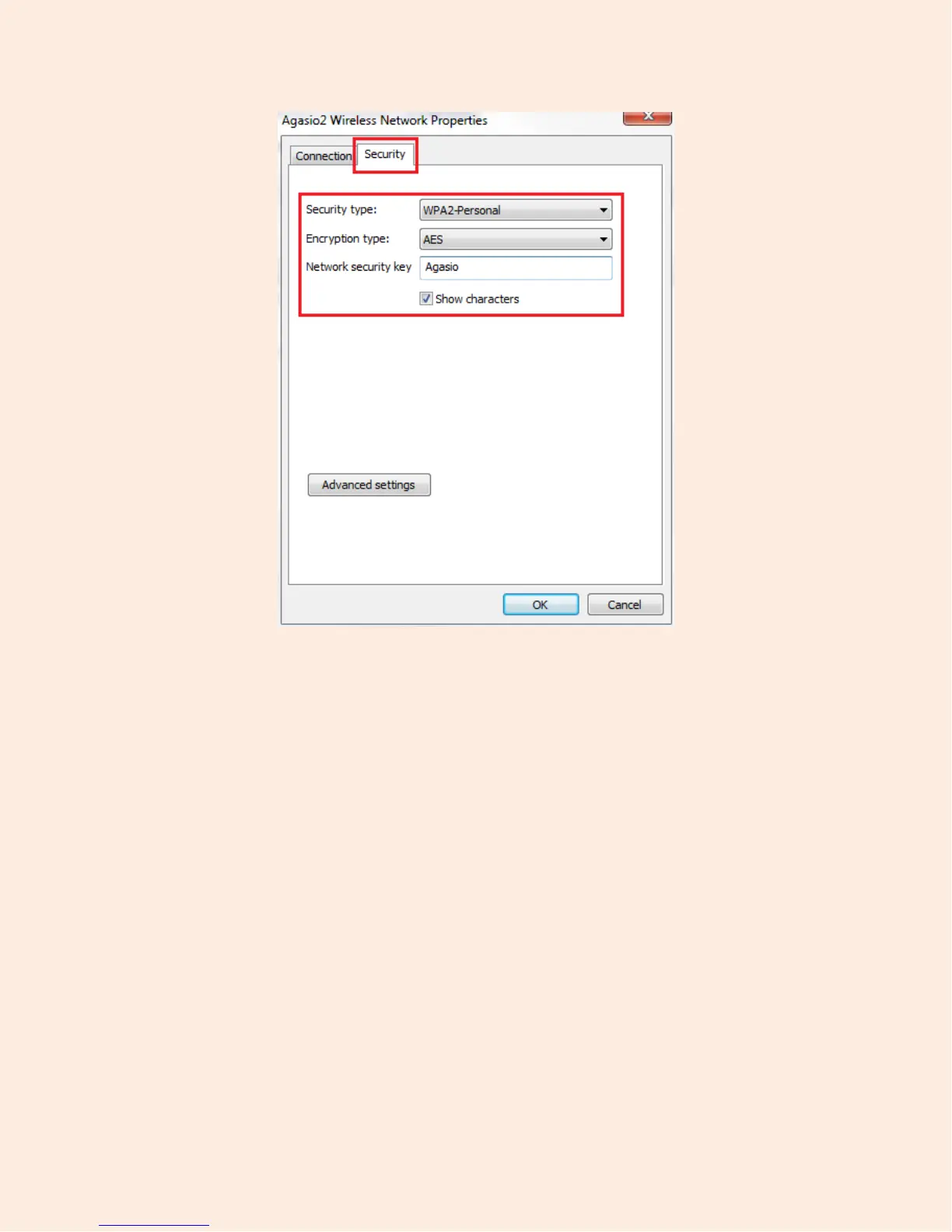
Figure 13.3 – In Properties, click the Security tab at the top, you will then see your Wireless
Network’s Encryption information and security key.
After navigating to the window in Figure 13.3, you can use the listed information to manually input into
the Wireless LAN Settings page. In this window, “Security Type” and “Encryption Type” will be the two
factors you will need to use to determine the value of the Encryption field in the Wireless Settings Page.
In the example in Figure 13.3, the value we would use in the Wireless Settings page would be WPA2
Personal (AES).
Once an encryption is selected, one last field that will drop down is “Share Key.”
Share Key – This is the password you use to connect to your router. It is either a default password that
was not changed and set by your router, or it is a custom password you have set yourself. In the case of
Figure 13.3, we can see that the share key is “Agasio.” The share key is the same value as your Network
Security Key.


 To Next Page