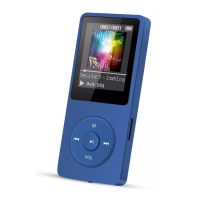
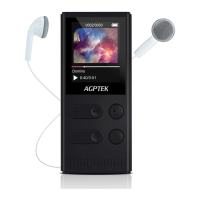
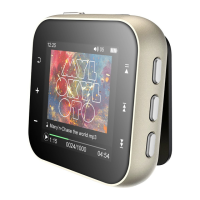
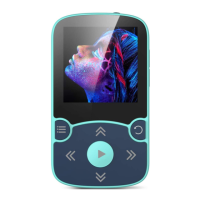
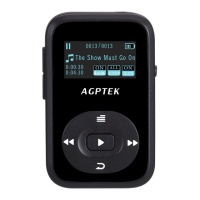
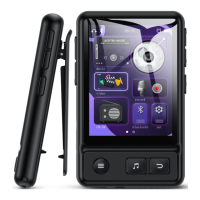
Find “Folder” on Home menu with the button to access to its function.
All of the files in the player will be listed. If the Micro SD card is inserted,
you can choose to go to Local folder or Card folder.
Bluetooth
Find “Bluetooth” on Home menu with the button to access to its
function. A related list will show, including Bluetooth On/Off, Search
Devices, Device List. Select the device you want to connect/disconnect,
and then press to connect/disconnect. After successfully connected,
this player is ready to play music or FM radio via Bluetooth headphones,
Bluetooth speaker, etc.
Note:
1. When listen to radio by Bluetooth, wired headphones are needed as
radio antenna.
2. Recorder,Variable Speed Playback, Video, Pictures, Pedometer functions
are not available when Bluetooth is opened.
Recorder
Find “Recorder” on home menu with button to access to its function.
A related list will show:
• Start Voice Recording. Press button to start voice recording, press
again to pause. Press the button and choose “Yes” to save the
recording file.
• Recordings Library. Find the saved recordings in Recorder>Recordings
Library. You will need to choose from local folder or card folder if the
memory card is inserted. While it’s on recording playing interface,
press button and choose “Delete” to delete.
• Storage. Choose to store your recordings in internal or external
memory. Confirm your selection with button . (Only available when
TF card inserted)
• Rec Format. Choose the record format between MP3/WAV .
• Rec Settings. Set the recording bit rate as you need.
Videos


 To Next Page