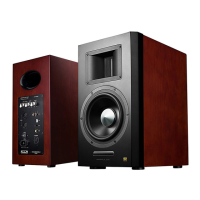
A100
ACTIVE S P EAK ER S YST EM
A100
ACTIVE S P EAK ER S YST EM
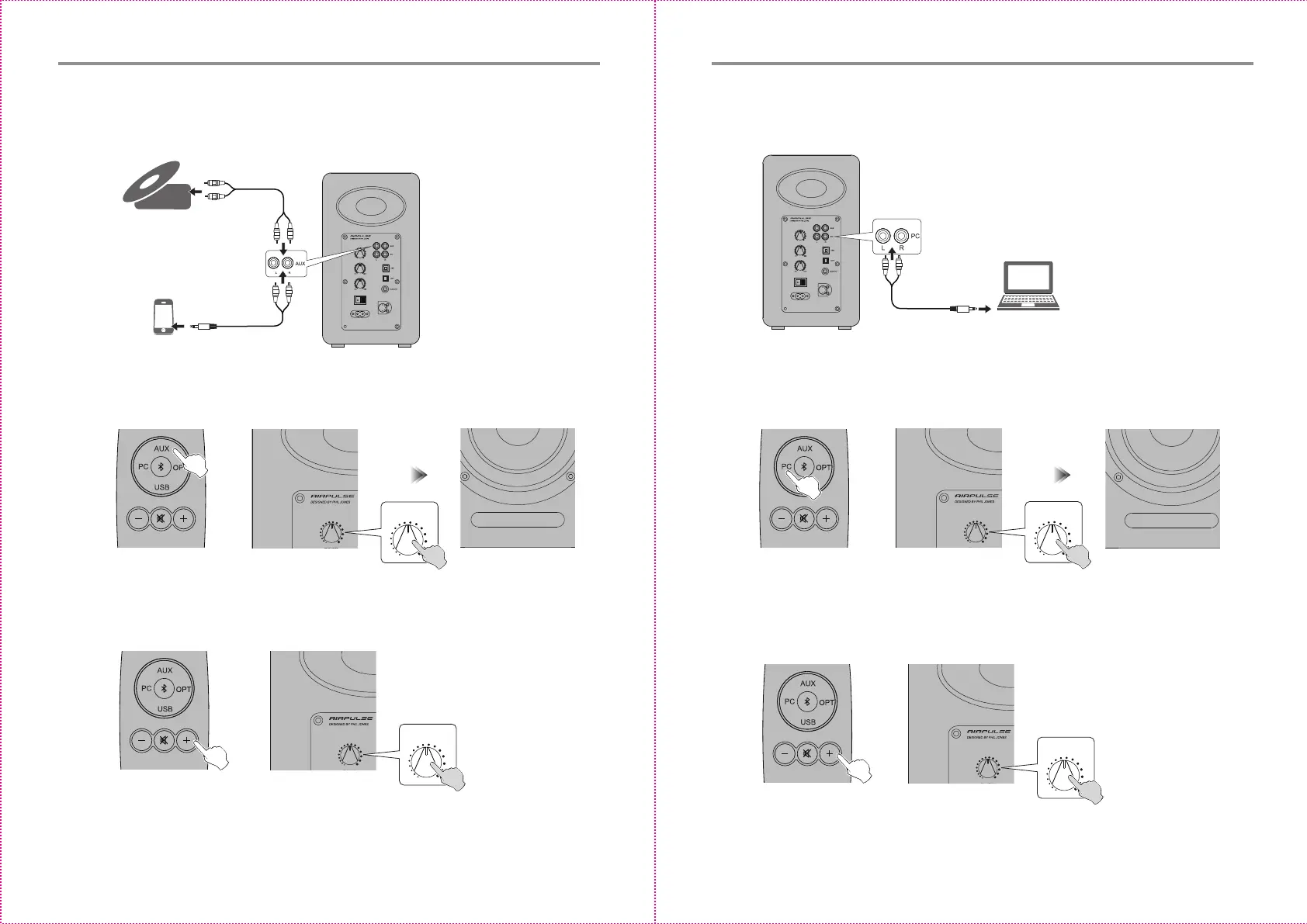
1. Insert RCA audio cable into AUX input port on the rear panel of the acve speaker
(pay aenon to L/R connector matching); then connect RCA audio cable to audio
source devices with RCA output port (CD player/audio decoder/PC/music player/
mobile phone).
Or
CD player
VOLUME / INPUT
AUX
PC Input Mode
1. Insert RCA audio cable into PC input port on the rear panel of the acve speaker (pay
aenon to L/R port matching); then connect RCA audio cable to audio source devices
with 3.5mm audio output jack or RCA output port (PC/music player/mobile phone).
2. Press the “PC” buon on the remote control or press the “VOLUME / INPUT” buon
on the rear panel of the acve speaker to select PC input mode, LED indicator on the
acve speaker will display “PC”.
Or
PC or Mac
11
12
VOLU ME / INPUT
VOLUME / INPUT
VOLU ME / INPUT
VOLUME / INPUT
VOLU ME / INPUT
Or
VOLUME / INPUT
VOLU ME / INPUT
Or
AUX Input Mode
CD player/audio decoder, etc
PC/music player/mobile phone, etc
2. Press the “AUX” buon on the remote control or press the “VOLUME / INPUT” buon
on the rear panel of the acve speaker to select AUX input mode, LED indicator on the
acve speaker will display “AUX”.
3. Play music on the connected device, press the “+/-” buon on the remote control or
press the “VOLUME / INPUT” buon on the rear panel of the acve speaker to adjust
volume to a desired level.
PC
3. Play music on the connected device, press the “+/-” buon on the remote control or
press the “VOLUME / INPUT” buon on the rear panel of the acve speaker to adjust
volume to a desired level.
English English


 To Next Page