10
E
Zone Navigation
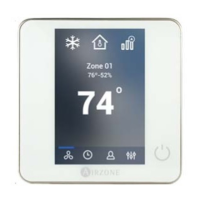
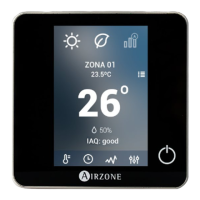
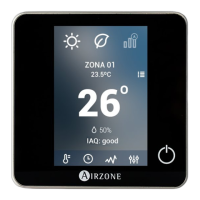
From the main screen press on the name of the zone, a list with all the zones and their status will be displayed. This screen
enables the control of all the zones at the same time or individually, it is also possible to switch on/off the zones from this
screen, press < and > to see the rest of the zones.
them.
to all the parameters of the zone and control them from your thermostat. When the system
detects a temperature error on a specific zone, the zone displays the error code instead of the room temperature (see section
Warnings and errors
).
User Settings
These settings control and edit all the basic functionalities. Touch once to display the shortcuts. Press on each icon to access
the parameters.
Language. Select the language.
Brightness. Adjust the brightness, and enable or disable the screen brightness when the screen saver is active.
Date and time. Press on the clock to set the time and the format type (12 or 24 hours). Press on the calendar to set the
date. Installations with webserver enable automatic time change.
Information. This parameter provides information on:
x Zone: firmware, zone, association, actuator or status of the communications.
x System: firmware, settings and information about the system controllers.
x Devices: It displays the elements connected to the system.
x Webserver (Only for system 1 Main thermostat): firmware, IP address, gateway, MAC and PIN.
x Warnings and errors on system.
Clean screen: Select this option to clean the screen. The touch screen will lock for a few seconds.
Turn on/off
all the zones
of the zone
of the zone



 To Next Page