UDC Mini-Converter v2.3r1 www.aja.com
20
Analog Audio: Selects the channel pair that will be output to the Analog RCA connectors
(L/R) and the HDMI audio output (when HDMI Audio is in 2-channel mode). These are the
choices:
Channel 1+2, Channel 3+4, Channel 5+6, Channel 7+8, Channel 9+10, Channel
11+12, Channel 13+14, Channel 15+16
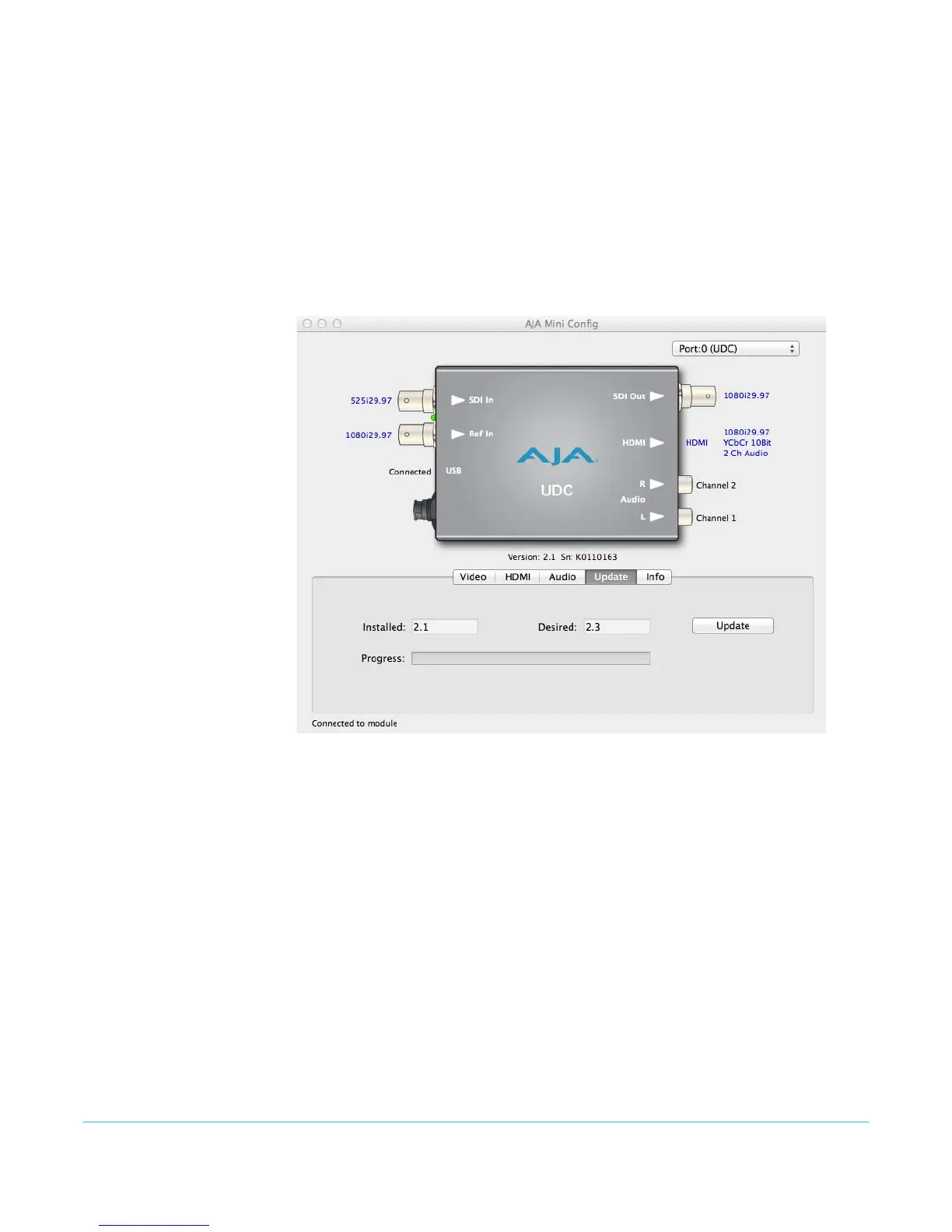
Update Tab Screen Use this Update screen to view the software version currently installed on the UDC or to
install new software.
Figure 14. Mini Config, Update Screen
NOTE: When discussing Mini-Converters, “Firmware” is software that will be stored in the Mini-
Converter’s non-volatile memory and used when it is powered up. This is different from the
Mini Config application software. The version numbers shown in the Update screen refer only
to the firmware.
The following fields and controls are present in this screen:
Installed: This field shows the version of the UDC firmware currently installed.
Desired: This field shows the version of firmware embedded in the Mini-Config
application, which you can install into the Mini-Converter by clicking the Update button.
Update: This button initiates a software update operation, loading the “Desired” version
of firmware into the Mini-Converter’s non-volatile memory.
Progress: This indicator bar shows the progress of software being installed.


 To Next Page