Connecting
Before connecting the device:
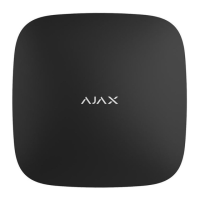
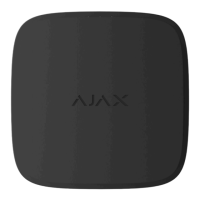
1. Switch on the hub and check its Internet connection (the logo glows white
or green).
2. Install the Ajax app. create the account, add the hub to the app, and create
at least one room.
3. Make sure that the hub is not armed, and it does not update by checking its
status in the Ajax app.
Only users with administrator rights can add a device to the app
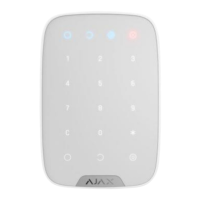
How to connect Key Pad to the hub:
1. Select the Add Device option in the Ajax app.
2. Name the device, scan/write manually the QR Code (located on the body
and packaging), and select the location room.
3. Select Add — the countdown will begin.
4. Switch on Key Pad by holding power button for 3 seconds — it will blink
once with the keyboard backlight.
For detection and pairing to occur, Key Pad should be located within the
coverage of the wireless network of the hub (at the same protected object).
A request for connection to the hub is transmitted for a short time at the
moment of switching on the device.
If Key Pad failed to connect to the hub, switch it off for 5 seconds and retry.
The connected device will appear in the app device list. Update of the
device statuses in the list depends on the detector ping interval in the hub
settings (the default value is 36 seconds).
After pairing, the Key Pad default passcode is 123456 and Duress Code is
123457.


 To Next Page