EasyManua.ls Logo

Akai KS878-BT - User Manual

Akai KS878-BT
22 pages
Print Icon
To Next Page IconTo Next Page
Loading...
INSTRUCTION MANUAL
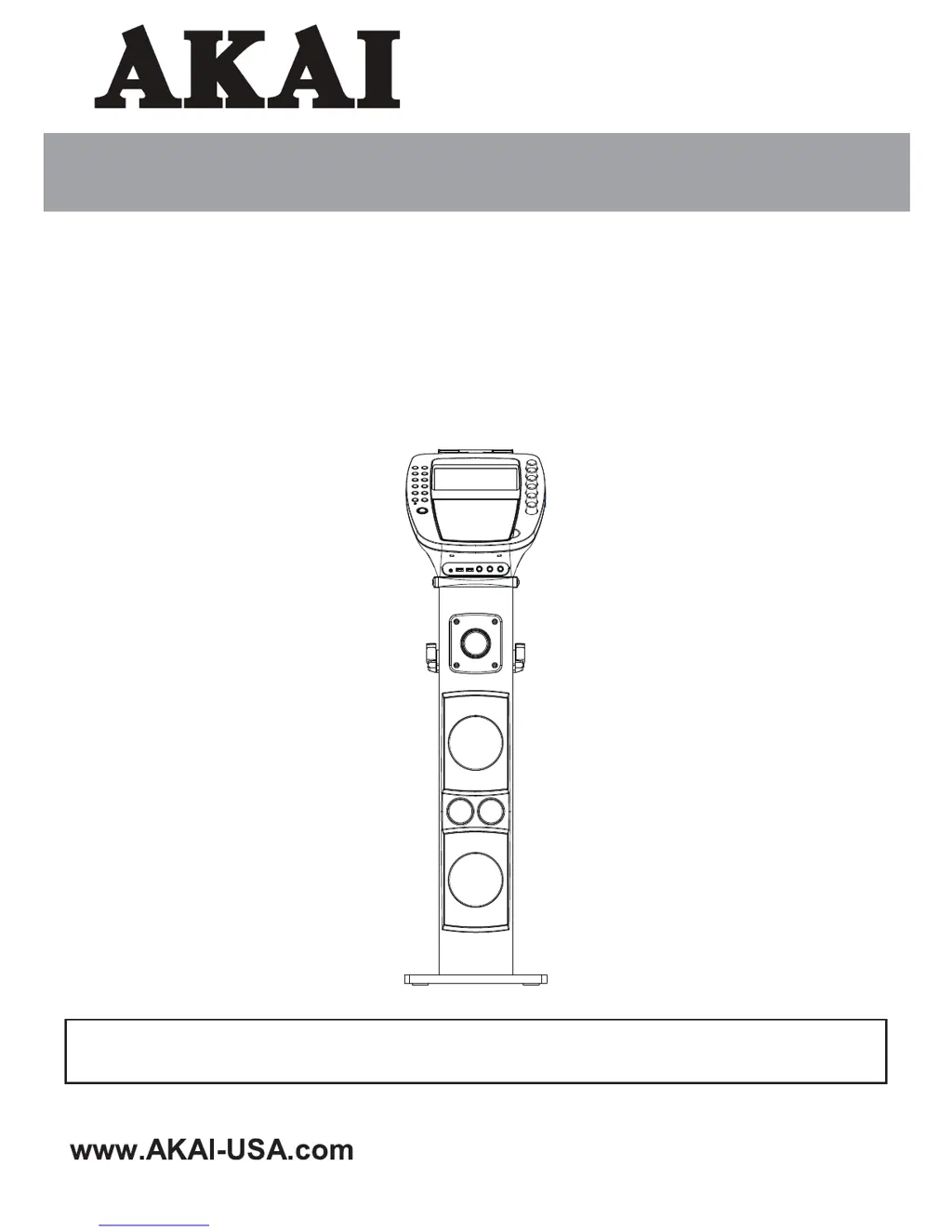
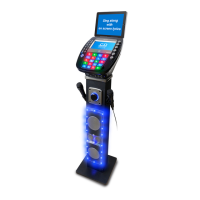
Bluetooth Pedestal Karaoke System
with 6 Speakers and Light Effects
Thank you for purchasing this Karaoke System. Please read this instruction manual carefully before
using this product to ensure proper use. Keep this manual in a safe place for future reference.
KS878-BT

Questions and Answers

  • C
    Courtney VaughnAug 12, 2025
    Why are no song lyrics appearing on my Akai KS878-BT Karaoke System TV screen?
    • D
      David BowmanAug 12, 2025
      If you're not seeing lyrics, make sure the video cable is properly connected from the karaoke system's VIDEO OUT to the TV's VIDEO IN. Also, check that the source selector on your TV is set to VIDEO. If your TV lacks a video line input, connect the system's VIDEO OUT to the VIDEO IN on your VCR/Home theater. Finally, verify that you are using a CD+G disc.
  • G
    George MatthewsAug 16, 2025
    What to do if there is no sound from my Akai KS878-BT Karaoke System when playing audio via Bluetooth?
    • R
      Roger ColeAug 16, 2025
      If you're not getting any sound via Bluetooth, ensure your device is properly paired, consulting the 'Bluetooth setup' section. Also, check that the volume on your Bluetooth device and the Akai Karaoke System are both turned up.
  • R
    Ryan GrantAug 19, 2025
    How to fix no sound from TV with Akai KS878-BT?
    • L
      Lee GriffinAug 20, 2025
      If you're not hearing sound from the TV, first ensure that the TV volume isn't set to the minimum. Also, check that the TV is powered on. Finally, make sure the white and red RCA cords are securely connected to both the karaoke system and the TV.
  • E
    Emily JenningsAug 23, 2025
    What to do if my Akai Karaoke System CD player does not work normally?
    • V
      vpotterAug 25, 2025
      If your CD player isn't working correctly, make sure the disc is inserted correctly (label side up). If the disc is dirty, wipe it gently with a soft cloth. If the disc is scratched or warped, try a new one. Ensure you're using a standard disc with the correct identification logo. If moisture has formed inside the CD deck, wait 20-30 minutes for it to dry. As a last resort, try disconnecting the machine from the power source for 30 seconds and then reconnecting it to reset the system.
  • W
    Wayne FloresAug 27, 2025
    Why is there no power when my Akai KS878-BT is plugged in?
    • W
      William ReidAug 27, 2025
      If your Akai Karaoke System isn't powering on when plugged in, the AC outlet might not be working. Test the outlet with a working lamp or another electrical appliance.
  • J
    John RodriguezAug 31, 2025
    What to do if there is no sound from mic on Akai Karaoke System?
    • C
      Christopher KingAug 31, 2025
      If you're not getting any sound from the microphone, first check that the mic volume control isn't set to the minimum. Adjust the mic volume to max, and then readjust to a comfortable level. Also, make sure the microphone is turned on using the ON/OFF switch on the microphone.
  • S
    Sarah SmithSep 3, 2025
    What to do if no video is displayed on the Akai KS878-BT Karaoke System TFT Screen?
    • J
      Jeremy ShepardSep 3, 2025
      If you're not seeing any video on the TFT screen, first check that the TFT screen is turned ON using the screen button. Also, ensure that you are playing a CD+Graphics or CD+G Karaoke disc, as regular music CDs will not display an image.
  • C
    Christine DavisSep 7, 2025
    Why Akai KS878-BT Karaoke System has no power when POWER is on?
    • C
      chavezdavidSep 8, 2025
      If your Akai Karaoke System isn't powering on even when the POWER switch is on, it could be that the AC adapter isn't properly connected. Ensure the AC adapter is plugged into a working wall outlet and that the connector is securely plugged into the power supply jack on the back of the unit.

Summary

WARNINGS AND SAFETY STATEMENTS

FCC Radiation Exposure Compliance

Statement on FCC/IC RF radiation exposure limits and installation requirements.

IMPORTANT SAFETY INSTRUCTIONS

APPARATUS SAFETY AND ENVIRONMENTAL NOTES

CONTROL LOCATION - TOP VIEW

CONTROL LOCATION - REAR VIEW

MAKING THE CONNECTIONS: POWER AND VIDEO

Connecting the Power Adaptor

Details plugging the power adaptor into the unit and a wall socket.

Video Output to TV;VCR

Explains how to connect the yellow video cable from the karaoke machine to the TV/VCR.

MAKING THE CONNECTIONS: AUDIO AND SOURCE SELECT

Audio Output to TV;VCR;System

Details connecting audio cables from the karaoke machine's audio out to TV/VCR audio input.

SETTING UP EXTERNAL CONNECTIONS

Microphone Setup and Handling Warnings

How to plug in mics, use ON/OFF switches, and avoid feedback/damage.

Instrument Connection (Guitar;Keyboard)

Details connecting instruments like guitars or keyboards to the external input jack.

CD;CD+G;MP3+G OPERATION: BASIC FUNCTIONS

CD;CD+G;MP3+G OPERATION: ADVANCED FUNCTIONS

Programming CD Playback Sequence

Steps to program up to 20 tracks for sequential playback.

CD;CD+G;MP3+G OPERATION: AUDIO EFFECTS AND SETTINGS

Echo, Balance, and AVC Controls

Adjusting Echo, Balance, and Auto Voice Control for vocal enhancement.

USB OPERATION: PLAYBACK AND PROGRAMMING

USB OPERATION: RECORDING AND PROGRAMMING

Recording Performance to USB 1

Procedures for recording performance from various sources to a USB drive.

BLUETOOTH OPERATION: SETUP AND PLAYBACK

Bluetooth Pairing and Connection

Steps to pair a Bluetooth device with the karaoke system.

CARE AND MAINTENANCE GUIDELINES

TROUBLESHOOTING: POWER AND AUDIO ISSUES

No Power or Sound from TV

Solutions for no power, no sound from TV, or CD player malfunctions.

RCA Cord and Connection Issues

Troubleshooting steps for secure RCA cord insertion and correct connections.

TROUBLESHOOTING: DISPLAY AND BLUETOOTH AUDIO

Akai KS878-BT Specifications

General IconGeneral
TypeKaraoke System
BluetoothYes
Microphone Inputs2
Output Power10W
USBYes
ConnectivityBluetooth, USB, AUX
Power SourceAC Adapter
Microphone Input2
USB PortYes
SD Card SlotNo
Built-in SpeakersYes
LED DisplayYes
Echo ControlYes
Voice ControlNo
Remote ControlYes

Related product manuals