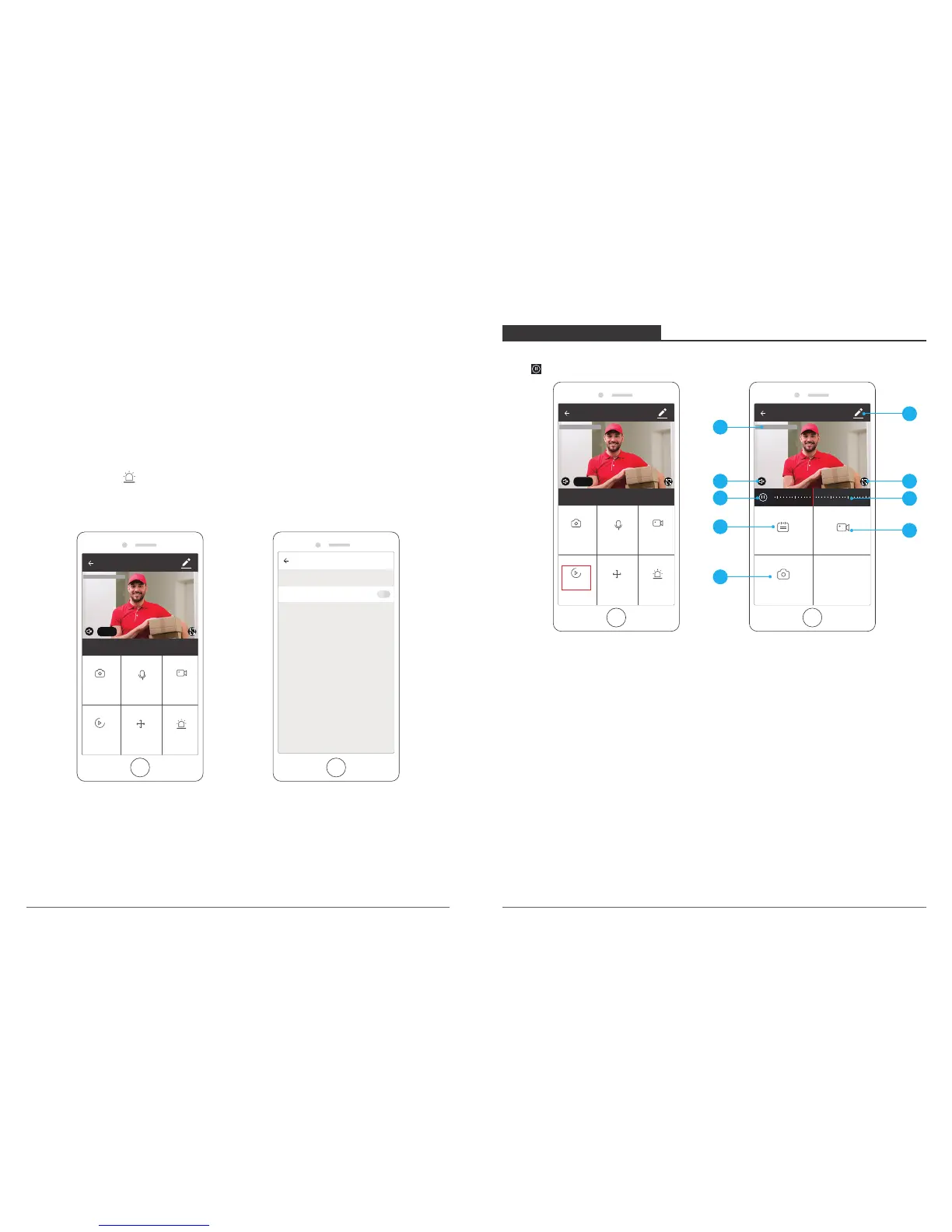
1. Alarm: Turn On / Off the motion detection alarm and select the sensitivity,
Low / Medium / High for optional.
① Click “Alarm” icon to enter into the Motion Detection Settings.
② Turn on “Motion Detection Alarm” and select the level of sensitivity “Low/Medium/High”
for optional.
① Setting: Enter into the more setting.
② Camera Date and Time: The date and time of live image.
③ Sound On / Off Option: Turn On / Off the sound.
④ SD / HD Option: Switch HD / SD image.
⑤ Full Screen Button: Press it to enter into the full screen viewing.
Motion Detection Settings
Motion Detection Alarm
WiFi Camera
Alarm
Local Video
Screenshot Speak
Direction
SD
2018-09-03 13:51:48
Record
2. Speaker: Press it to talk with your family via camera on phone.
3. Direction: Press direction buttons, you can do pan/tilt to adjust the viewing angle of
camera.
4. Record: Click it to Start / Stop recording manually. The video flips will save on your
phone.
5. Screenshot: Click it to make snapshot and pictures will be saved in mobile phone
PLAYBACK INTERFACE
Click”Playback → Calendar for select the date”, slide the time bar to playback the videos,
press to Play / Pause.
WiFi Camera
2018-09-03 13:51:48
22:00
23:00 0:00 1:00
2:00
2:00
Calendar Record
Screenshot
WiFi Camera
Alarm
Local Video
Screenshot Speak
Direction
SD
2018-09-03 13:51:48
Record
1
4
8
6
2
3
5
7
9
1. Setting: Enter into the more setting.
2. Playback Date and Time: The date and time of video recording for playback.
3. Sound On / Off Option: Turn On / Off the sound.
4. Full Screen Button: Press it to enter into the full screen viewing.
5. Play / Pause Button: Pause or start playback video recording.
6. The time table: The time in grey color is with video recordings. You can drag the time
table to the exact time that you want to see.
7. Calendar: Select date for playback, you will see the date in black color with video
recordings, grey color without video recordings.
8. Record: Click it to start recording manually and save on Mobile.
9. Screenshot: Click it to make snapshot and pictures will be saved in mobile phone, as
same as 9.5.
15
16



 To Next Page