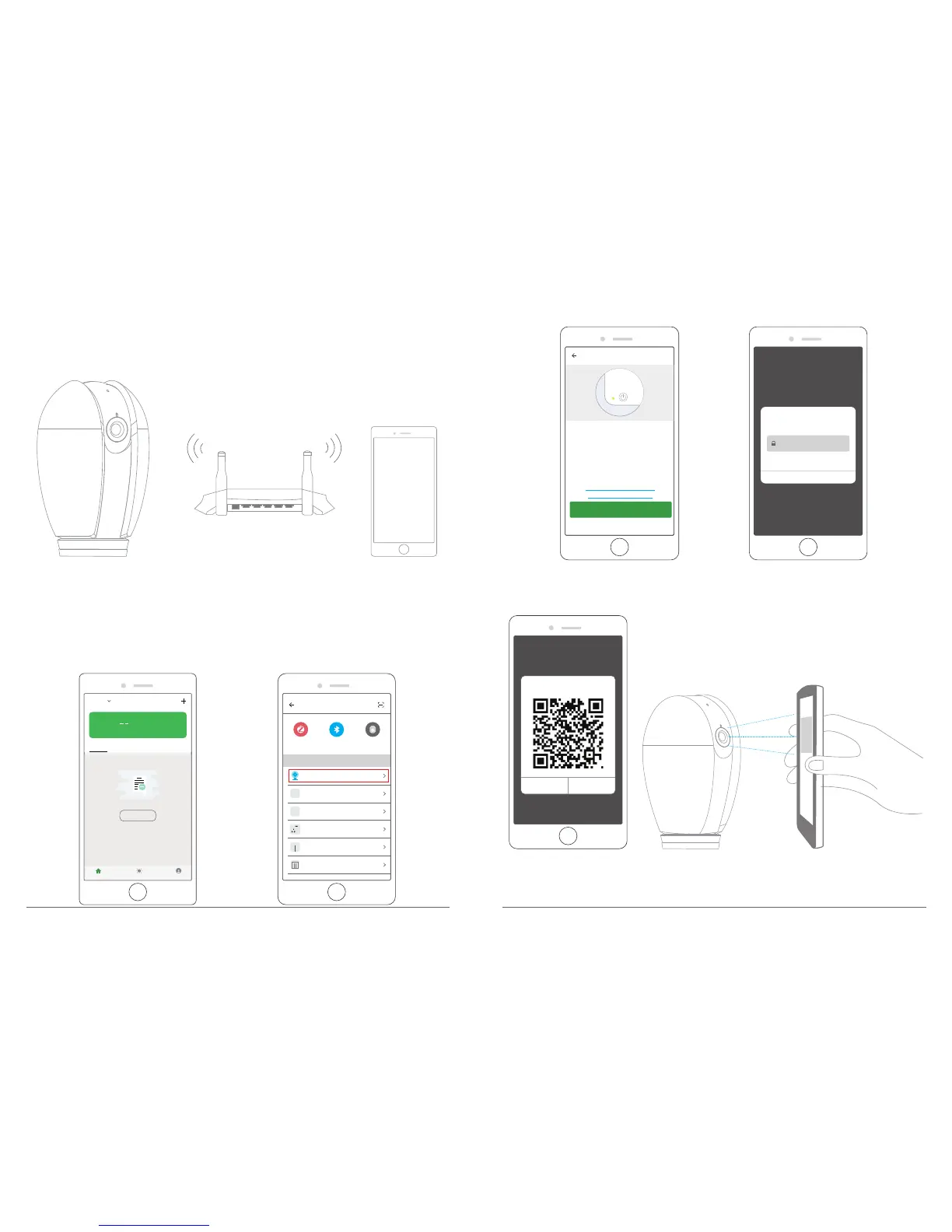
4. Add Your Camera
Follow the on-screen instructions to finish the setup to connect your router, this camera
only supports 2.4GHz WIFI Network.
30cm ~ 100cm
Way 1. Add device by QR Code - Use camera to scan the QR code on the mobile phone
which contains net-pairing information.
Note: When the device is powered on, the indicator light will be on. After the beep is
heard, the device indicator light flashes red quickly.
① Click “Add Device → Security Camera → next step → enter WiFi Password → confirm”.
Gunnar
84.3°F High H...
Outdoor Temp Outdoor AQL Outdoor Humid...
All Devices
Living Room
Bedroom
Setting
Add Device
Nodevices yet
My Home
Smart Scenes
Profile
② A QR code will be shown, just face the phone to the camera, a beep sounds, then click
“I HEARD THE BEEP”, see below picture
③ Wait the connecting for a while, the device will be added successfully in seconds. Click
Camera icon to preview camera live image.
Cancel
Only supported on 2.4GHz Wi-Fi networks
Enter your home’s Wi-Fi pa...
Wi-Fi: AKASO_WiFi Change Network
Confirm
Select Device Type
Zigbee
Security Camera
ZigBee Gateway
T&H Sensor
Wall Socket(ZigBee)
Wall Switch(ZigBee)
Curtain Switch
Bluetooth
All
Frequently Added
Add Device Otherwise
Power the device on and make
sure the indicator is flashing
quickly or a prompt tone is heard
How to set the indicator to flash
quickly or with a prompt tone
next step
Cancel
Scan QR code with the IP Cam
Point the code to the camera lens for 20cm.
NOTHING HAPPEND I HEARD THE BEEP


 To Next Page