1. Unlock
1.1. Unlock with APP: Turn on the app and click the lock icon in the
interface to unlock it. (The phone is within 10 meters from the door
lock).
1.2. Unlock with administrator passcode: enter the numeric passcode
of the Admin Passcode option in the APP setting and then press
the # key to confirm the unlocking.
1.3. Unlock by touching the keypad: Open the APP, then turn on the
“Touch to Unlock option” in the System Settings. Touch the keypad
to unlock the door (The phone is required to be connected to WiFi
or mobile data network and within 10 meters from the door lock).
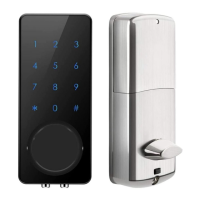
1.4. Unlock by key: use a pointed object to open the circular keyhole
which is under the touch screen button then insert the key to
unlock it.
1.5. Unlock manually: manually twist the knob on the Back panel to
unlock it.
2. Lock
2.1. Lock with APP: Turn on the App, press and hold the lock icon for
5 seconds to lock it. (The phone is within 10 meters from the door
lock).
2.2. Auto Lock: When you turn on the “Auto Lock” option in the APP,
the smart lock will be locked automatically after you unlock the
door.
2.3. Lock with the # key: press and hold the # key on the panel keypad
for 3 to 5 seconds to lock.
2.4. Lock by key: use a pointed object to open the circular keyhole
which is under the touch screen button then insert the key to
unlock it.
2.5. Lock manually: manually twist the knob on the Back panel to lock it.
3. Modify the Administrator’s Unlocking Passcode
Open the APP-click Setting-click Admin Passcode- enter the new
passcode with 4-9 numerical digits-Click OK (The phone is required
to be connected to WiFi or mobile data network and within 10
meters from the lock)
V. Operation Instructions for Different Functions
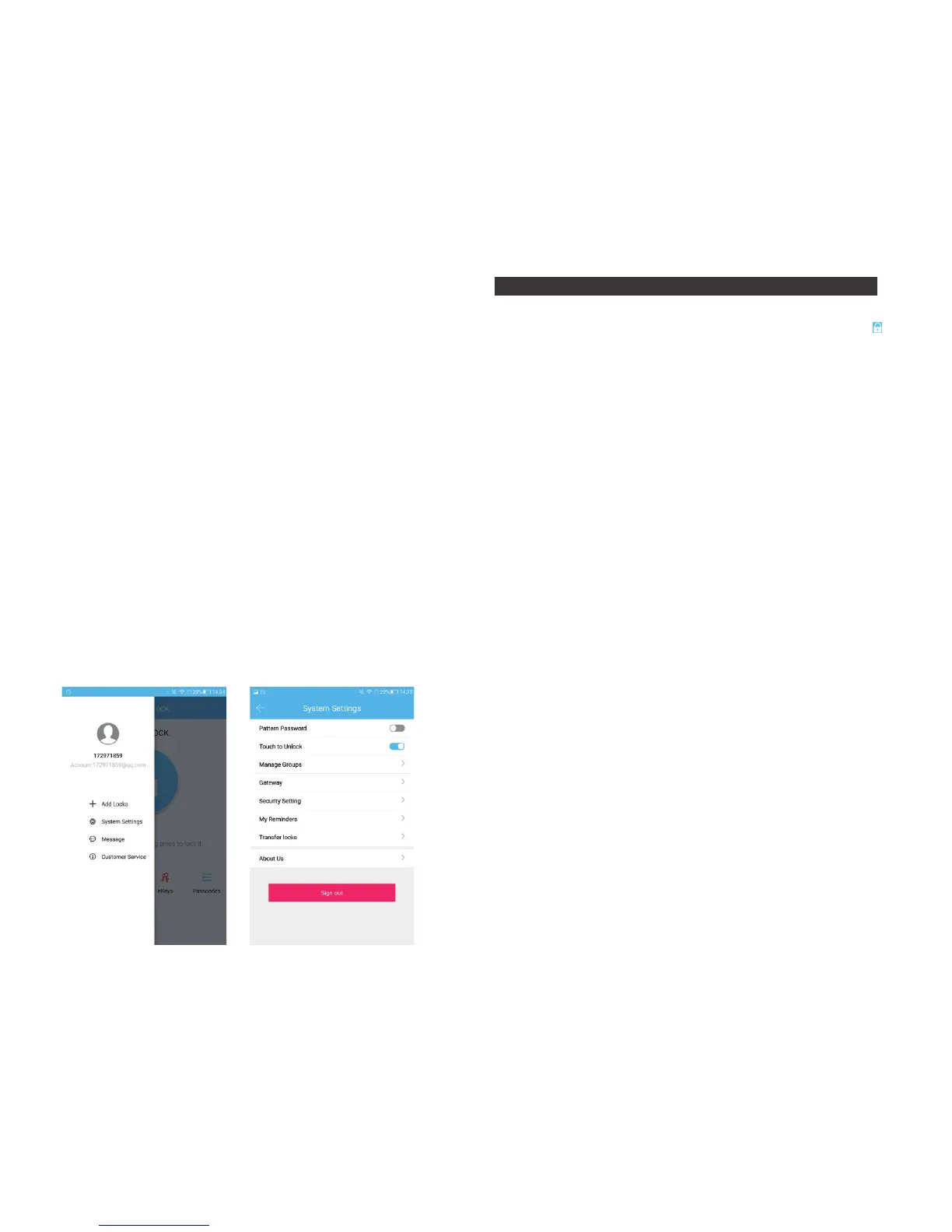
3.7. System Settings
3.7.1. Pattern Passcode: off-by-default, you can manually open it to set
your favorite pattern passcode to unlock the APP.
3.7.2. Touch to Unlock: on-by-default, this function is invalid when the
“ttlock” APP is turned off or running on the background of your
phone. When the APP is open and connect within 10 meters
from the lock, any family members can unlock the door by
pressing the touch screen button. It is recommended to close
the option if you do not need it.
3.7.3. Manage Groups: the administrator can add multiple locks for
grouping, which is suitable for rental housing. It is more
convenient for achieving group management of personnel.
It can be modified or deleted if not needed.
3.7.4. Security Setting: set and check the verification options. (Reset
lock / Send ekey / Send passcode / Delete Admin ekey / Change
management passcode / Authorize Verification).
All operations must be verified by account passcode to ensure
the security.
3.7.5. My Reminders: to receive system information tips.
3.7.6. Transfer locks: This function is use to transfer the administrator
rights. Once transferred, you will not the administrator again.
9 10


 To Next Page