sent-delete the passcode (The phone is required to be connected
to WiFi or mobile data network and within 10 meters from the lock).
9. Passcode Touch Protection
If you enter the wrong 4-9 digits passcode for 5 times, the touch
passcode key will be automatically locked for 5 minutes and cannot
be operated to prevent others from pressing the passcode key
repeatedly and maliciously.
10. Real-time Monitoring
The administrator can find the unlocking information who unlocking
the door with APP or passcode (The phone is required to be
connected to WiFi or mobile data network).
11. Anti-theft Alarm
If someone picks the lock, the smart lock will sound a beep alarm
when the lock body got loose.
12. Low Voltage Alarm
When the battery is low, the smart lock will sound a low battery
alarm. It is recommended to replace the battery as soon as possible.
Just turn on the APP, and you can view the battery percentage in
real-time.
Note: the latest battery percentage data can only be viewed when
the phone is connecte to WiFi or mobile data network and
within 10 meters from the door lock.
13. Emergency Power Supply
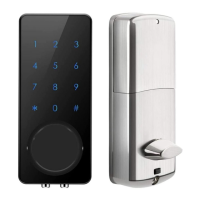
Emergency power supply interface equipped on the smart lock: to
unlock the door temporarily by connecting to the emergency power
supply interface with a 9V backup battery. After unlocking, please
replace the battery inside the lock immediately.
14. System Reset
The restart button is behind the number 4 on the touchpad.
Resetting your smart lock system will restore your lock to factory
settings and delete all smartphones and fobs from the memory.
4. Switch Administrator
4.1. Delete the Administrator right
Open the APP-click Setting-click Delete-enter your account
password-click OK - Using a new phone to pair the lock again.
A lock can only be paired with one administrator phone. Please
stand within 10 meters away from the lock to open and connect
the APP.
4.2. Switch through the Transfer locks function.
Turn on the APP-click System Settings-click Transfer Locks-Select
Locks-click Next-enter the recipient's APP account and the
verification code-click Next-Finish (The phone is required to be
connected to WiFi or mobile data network and within 10 meters
from the lock ).
5. Remote Authorization of ekey
Turn on the APP-click Send eKey-select the ekey type as "Timed" or
"Permanent"-Enter the APP account of the recipient-click Send
button. (The phone is required to be connected to WiFi or mobile
data network).
6. Freeze / Delete / Authorize / Name / Operate Already Sent ekeys
by Administrator Turn on the APP-lick eKeys-click the ekey that has
been sent-click Name / valitidity / delete the eKey info you need-
clicking the menu on the upper right corner to conduct the freeze
/ authorization operation. (The phone is required to be connected
to WiFi or mobile data network.)
7. Remote Authorization of Passcode
Turn on the APP-click Send passcode-select the type of the
passcode (Permanent / Timed / One-time / Erase / Customized /
Cyclic)-click Generate. Then it will be create a passcode. You can
send the code to others by SMS, email and other chatting tools.
(The phone is required to be connected to WiFi or mobile data
network.)
8. Delete Already Sent Passcode by Administrator
Turn on the APP-click Passcodes-select the passcode that has been
11 12


 To Next Page