2. Screen cast
Press to access the home menu, select [Same screen] and enter into screen cast
interface, and there are three ways(Airplay/WifiDisplay/EShare) to cast.
① Airplay
In the same network(iOS device and projector should be connected to the same network)
or hot spot(provided by the projector) status, enable Airplay on your iOS device to
wirelessly cast the content of your smart device onto the projection surface.
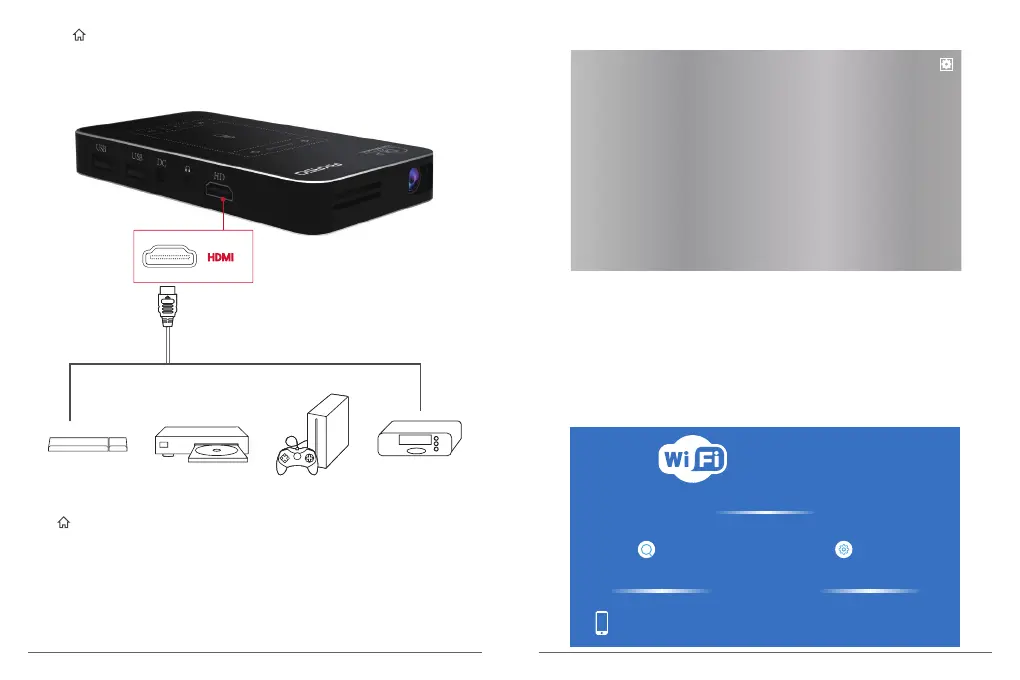
② Press to access the home menu, select [HDMI] and press OK on the remote(or click
on the touch area of the projector).
Note: It will automatically start the HDMI playback when connected to an HDMI
playback device for the first time).
For iOS devices:
② WifiDisplay
Download Miracast app on your android device when first time use. In the same network
(android device and projector should be connected to the same network) or hot spot
(provided by the projector) status, enable Miracast on your android device and then click
“Search” on the projection surface, it will search for your smart android devices, then find
your device and click “agree” in the pop-up to connect.
For Android devices:
DISPLAY
Projector_****
Search
Source devices
AKASO
Connecting...
Paired groups
Setting
AirPlay Server
EShare-****
You can use airplay mirroring or stream music, photos and video wirelessly
from iphone (or ipad or ipod touch) to TV now.
15 16


 To Next Page