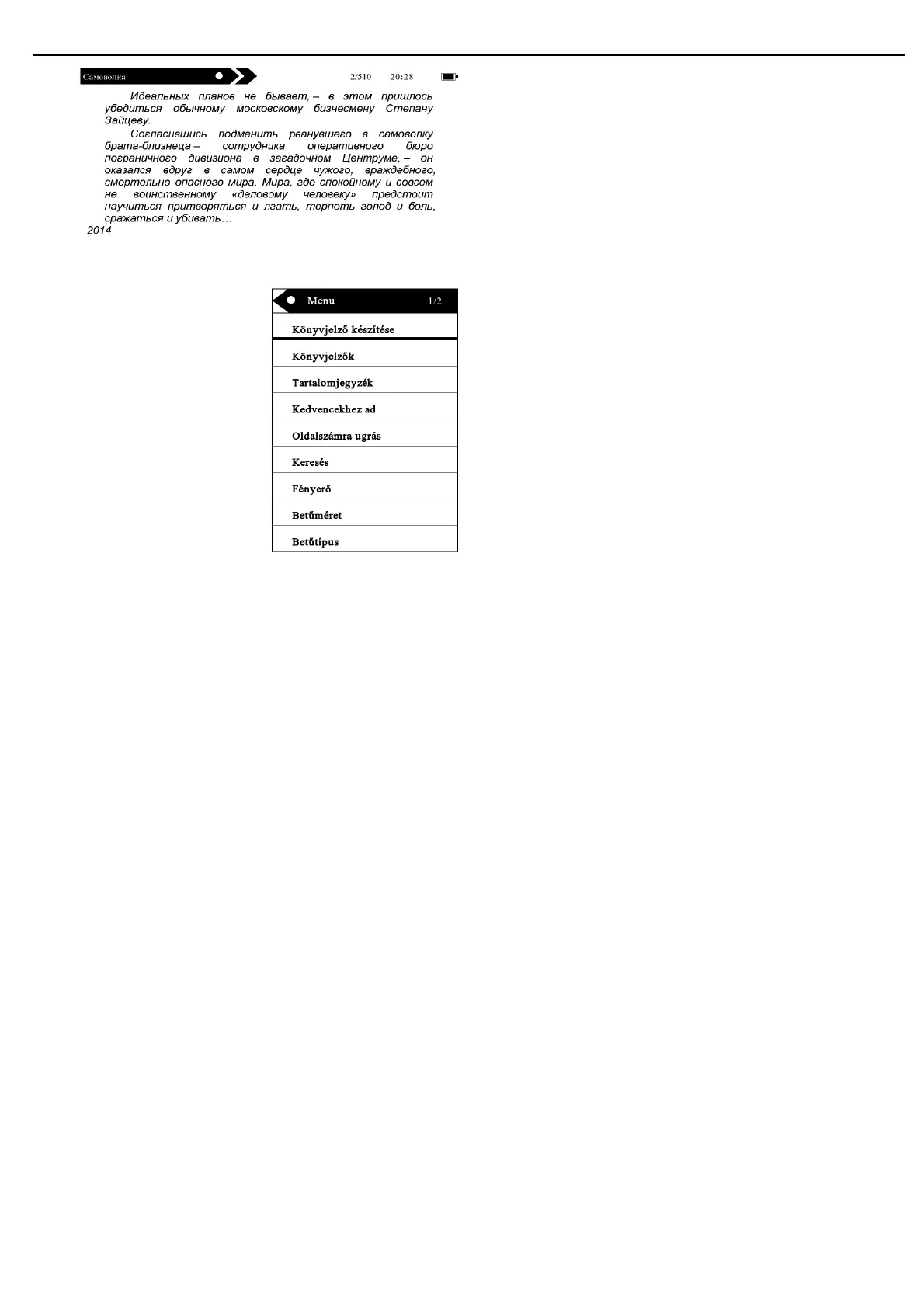
1.!choosing !add!bookmark;!to!enter!to!add!and!remove!the!bookmark!mode!
2. Choosing bookmarks; to scan the bookmark list what you added.
3. Choosing table of contents; to scan the contents of e-book.
4. Choosing add to favorites, you can add and cancel the favorites
5. Choosing go to page to Input the page what you want to open, but page can not exceed the max page of the e-book.
6.Choosing search, you can input the content quickly to find books you want to browse,
7. Choosing font size, you can adjust the font size.
8.Choosing margin, to you can zoom the margin.
9.Choosing Rotate screen.to rotate the text direction.
10. The background black and white color:
Select the black background to enter the mode black background with the white letters to read; Select the white
background to enter the mode white background with black letters to read.
11.Choosing automatic reading ,you can choose the different time ,the e-book will be enter automatic page model.
12.Choosing refresh model, you can refresh while reading different page.
13.Choosing text information. You can check related title and author information.
Image viewer
Access to image mode
Select “Image” mode in main interface by pressing the menu!icon, and then press “ok” key to access to image file list; in the image
mode by short press “ok” key to access to image file list; After accessing to image list, fast press ok key to select a file, popup the
submenu to set image rotating, zoom in and out and scan the image in PowerPoint mode.


 To Next Page