8 9
What the Icons Mean
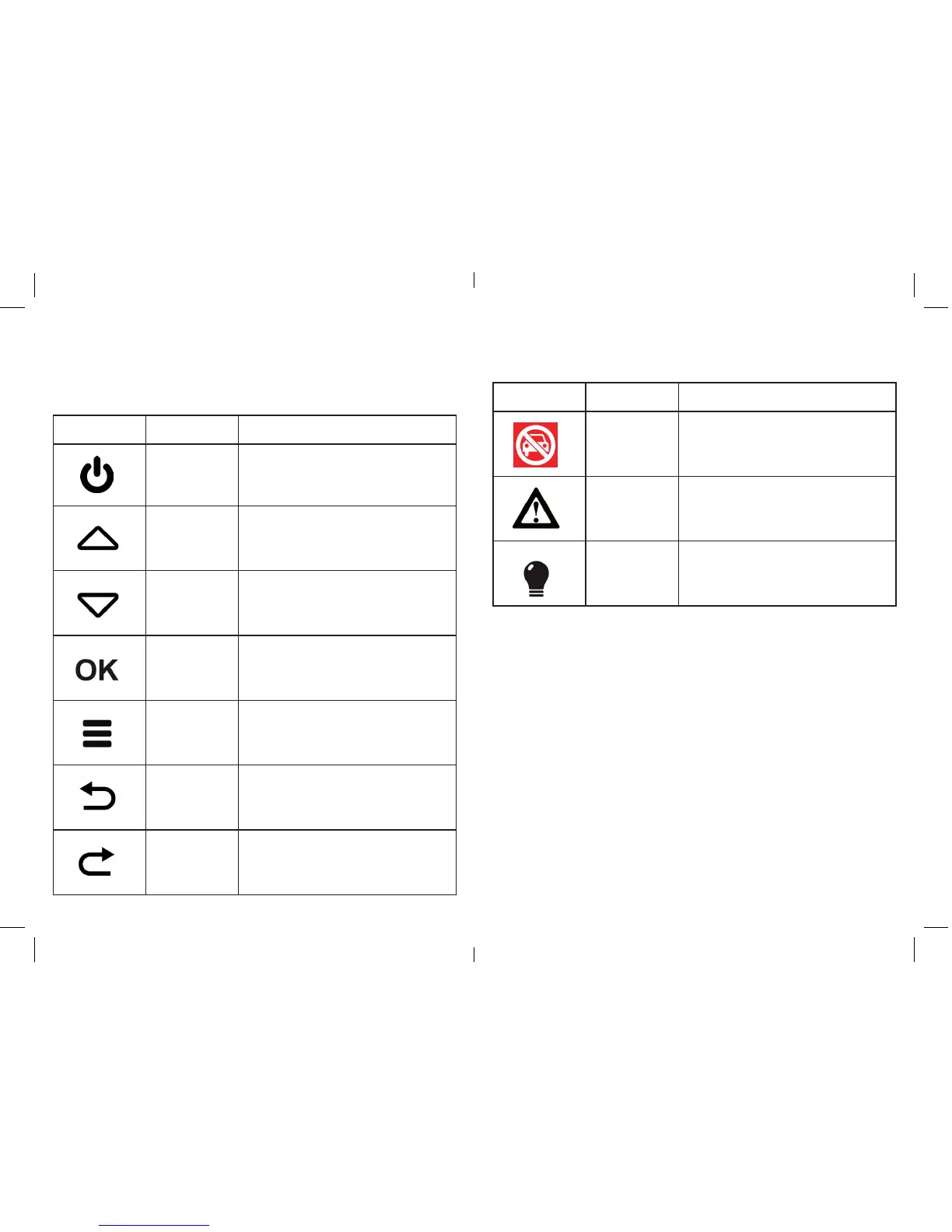
Navigation icons are shown at the bottom of the screen, indicating the
function of each button.
Navigation Icons
Icon Name Description
Power When you see this icon, press and
hold the central button down for 3
seconds to turn the unit off
Up Scrolls up a list of options
Down Scrolls down a list of options
OK Selects an option or progresses you
to the next screen
Main Menu When you see this icon on the left of
the screen, press the left hand button
to access the main menu
Back This icon will take you back one step
Repeat / Next This icon will either allow you to
repeat a step or progress to the
next step
Message icons are shown on the screen to communicate a message.
Message Icons
Icon Name Description
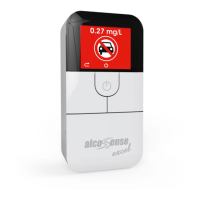
Don’t Drive
Icon
Displayed when you are close to or
over your set limit - do not drive
Warning Icon Either signifying you have alcohol in
your sample, but are below the limit
or alerting you to an error
Usage Tip AlcoSense Excel will give you tips to
help you perform a good test the next
time round.


 To Next Page