4
www.observint.com
© 2015 Observint Technologies. All rights reserved.
NOTE
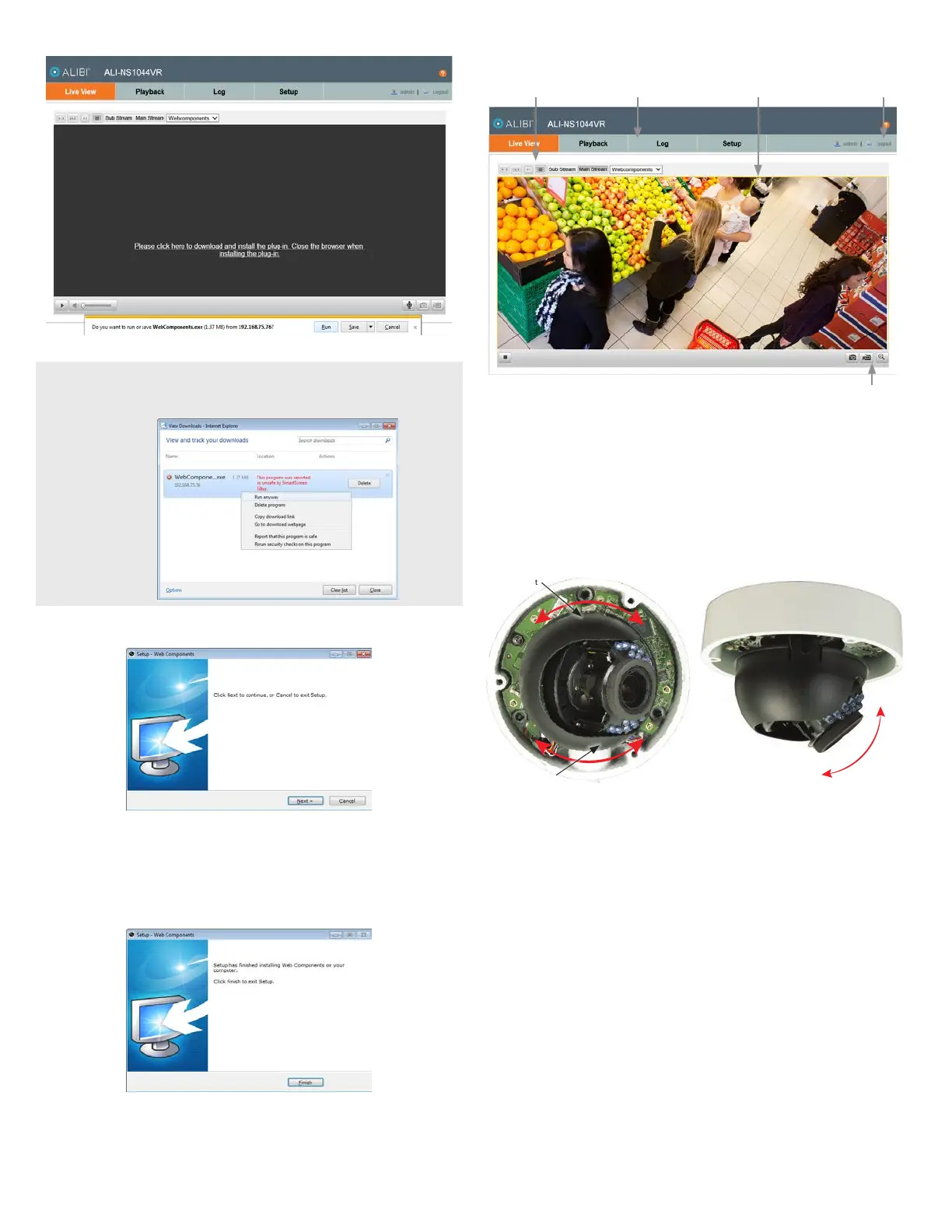
Some computer security software may attempt to block you from running WebComponents.exe. If
necessary, open the Internet Explorer downloads list, right click on the WebComponents.exe le name,
then click Run Anyway.
b. In the Setup - WebComponents window opens, click Next to continue.
Installing the WebComponents plugin may require that you close the browser. Follow the
on-screen instructions, then restart your browser and log in after the installation is nished.
c. Allow the plug-in installation to complete. When the following window appears, click
Finish.
6. Log into the camera again to see the Live View - Main stream window.
Screen select tabsLive View options
Capture, Record, Zoom
Logout buttonLive View image
NOTE: You can also observe video from the camera by plugging the Video Test Monitor cable into the
connector in the camera, then attaching it to a spot monitor.
Step 4. Adjust the camera for your surveillance target
1. Observe the Live View screen to adjust the direction of the camera. To adjust the camera pan, grasp
the camera gimbal on both sides at the pivot point, then rotate the as shown in the left illustration
below. To adjust the tilt, rock the gimbal as shown above in the right illustration.
Camera gimbal
pivot point
Camera gimbal
pivot point
Pan adjustment Tilt adjustment
2. Click the Zoom icon in the lower right corner of the window to adjust the camera zoom.
Step 5. Adjust the video display
The video Display Settings menu includes the image-related congurable parameters for the camera. It
contains several sub-menus such as Image Adjustment, Exposure Settings, Day/Night Switch, etc. that can
be opened or closed for compactness. Additionally, several adjustments can be seen in the Live View image
on the menu. To open the Display Settings menu, go to Setup tab | Image | Display Settings



 To Next Page