3 www.observint.com © 2017 Observint Technologies. All rights reserved.
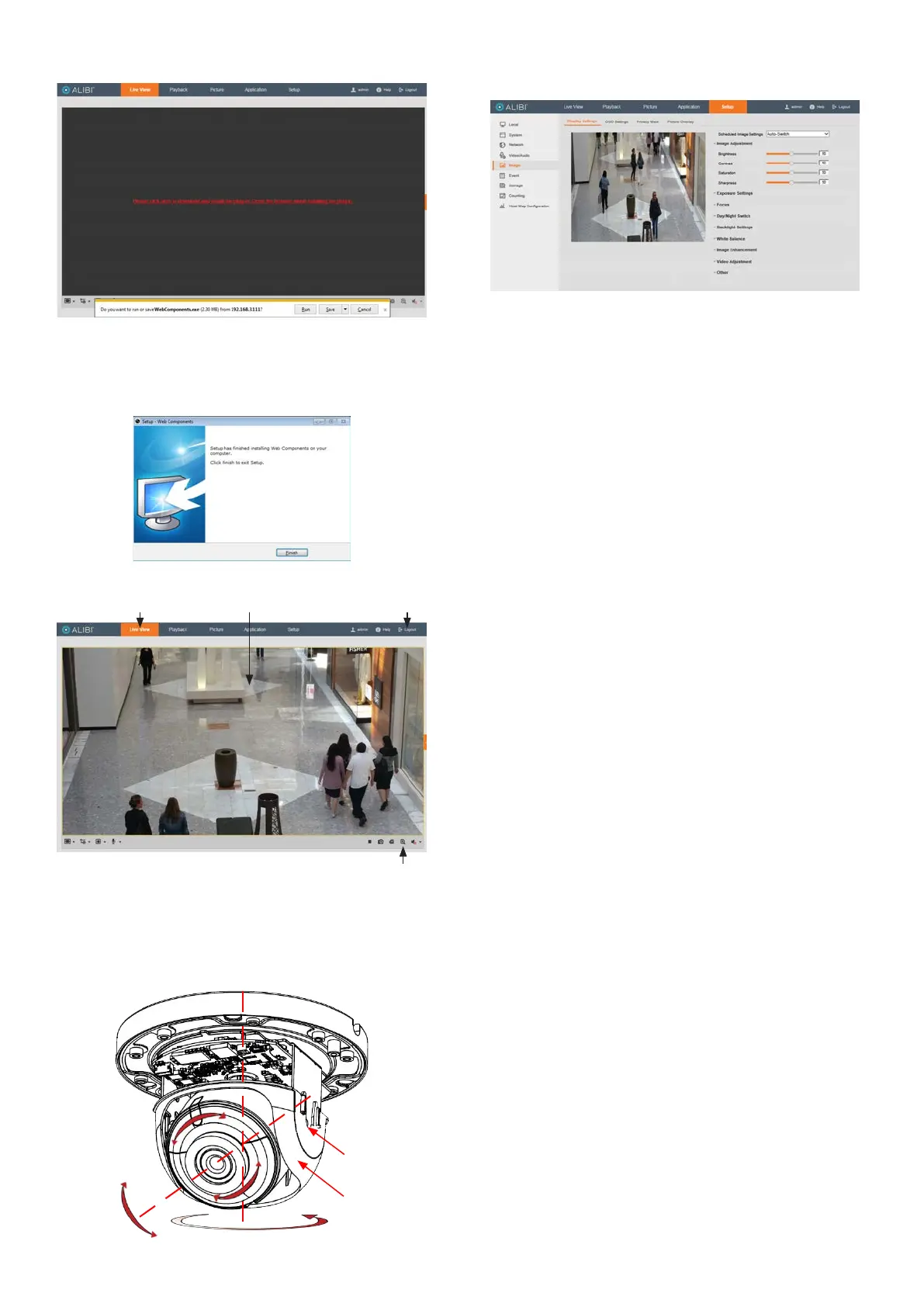
a. Click on the message to install the plugin.
NOTE: If QuickTime is installed on the computer, Alibi will use it for the plugin. If it
does, skip the rest of this step and continue at the next
b. In the message bar at the bottom of the screen, click Run. WebComponents will install
automatically. When the following screen opens, click Finish to exit the installer.
The Live View screen with the camera video image should appear.
Capture, Record, Zoom icons
Screen select tabs Logout buttonLive View image
Step 4. Adjust the camera for your surveillance target
1. While observing live video from your camera in the Live View tab (see above), loosen the tilt hold
screw (see below), and then adjust the pan, tilt and rotation to point at your surveillance target.
It may be necessary to remove the black liner while adjusting the tilt or rotation. Tighten the tilt
hold screw to hold the tilt position in place.
Pan: 0˚ ~ 355˚
Tilt hold
screw
Rotation:
0˚ ~ 355˚
Black
liner
Tilt: 0˚ ~ 75˚
2. After adjusting the camera for the preferred eld of view, click the Setup tab, and then click the
Image link in the left frame.
Adjust the Brightnessm Contrast, Saturation and Sharpness of the image as follows.
— Image Adjustment submenu (see above): Adjust the Saturation, Hue, Brightness,
Contrast and Sharpness of the video image. Each parameter can be set to a level of
0 ~ 100 either by moving the slider or entering the value in the box on the right. The
eect of the adjustment will appear in the Live View image in the menu.
3. Open the other submenus on this screen. Adjust the following as needed. Refer to the Camera
Firmware User Manual for your camera for additional information about parameter settings.
— Exposure Settings submenu: In this submenu, set the following for the best
performance:
Iris Mode: Select Auto or Manual. Some cameras may not oer both options.
Exposure Time: Value ranges from 1/3 to 1/100,000 s. The nominal value is 1/150.
Adjust it according to the lightening condition.
Gain: Set the gain to show the optimal brightness level.
— Switch Day and Night: Select either Auto-Switch, Scheduled-Switch, or
Triggered by Alarm Input.
If using Auto-Switch, open the Day/Night Switch submenu to select the
Sensitivity, Filtering Time, and Smart IR feature ON or OFF.
If using Scheduled Switch, set the Start Time and End Time of the switch, then
open the Day/Night Switch submenu to select the Smart IR feature ON or OFF.
Also, click the Common, Day and Night tabs to set the Saturation, Hue, Brightness,
Contrast and Sharpness for Day and for Night modes.
— Day/Night Switch submenu: You can set the Day/Night switch to Day, Night, Auto, or
Schedule. The option you select determines the submenu options.
Day or Night: These options both have one parameter: Smart IR.
Auto: If you select Auto switch, you can set the sensitivity (0 .. 7), ltering time and
Smart IR.
Schedule: Use Schedule to set that Start Time and End Time for the switch. Smart
IR is also selectable.
— Backlight Settings: Backlight settings include BLC Area (O, Up, Down Left Right
Center), the area to control, and WDR (Wide Dynamic Range) ON or OFF.
— White Balance: White Balance selection is used to correct colors in the image
depending on the lighting source. You can also set the white balance manually (MWB),
using Automatic White Balance (AWB1), and lock the white balance setting (Locked WB).
— Image Enhancement: Options in this submenu include Digital Noise Reduction (DNR)
ON or OFF. If ON, you can also adjust the level of noise reduction.
— Video Adjustment: Video Adjustment includes:
Mirror: Mirror adjustment enables you to ip the image (Up/Down), ip Left/Right
(reect or Center).
Rotate: Rotate rotates the image +90 degrees. Rotate and Mirror can be used to
adjust the image in any orientation.
Video Standard: Select 60 Hz for NTSC format.
Capture Mode: To make a complete use of the 16:9 aspect ratio, you can enable the
capture mode when you use the camera in a narrow view scene.
— Other: Options in this menu depend on the features of the camera.


 To Next Page
 Loading...