2 www.Observint.com
© 2018 Observint Technologies, Inc. All rights reserved.
Soft keyboard
One of two on-screen keyboards appears when you click in a eld that accepts a entry, such as a password or name or a numerical value.
A third keyboard which includes symbols can also be opened while in the numeric keyboard. The alphanumeric keyboard is shown in
the following picture. Some control keys toggle their function when they are clicked. A numerical keyboard, shown beneath, appears for
numerical entries such as an IP address.
Uppercase /
Lowercase
Backspace
Switch to
numeric
Enter
Soft keyboard - alphanumeric
Switch to
symbols
Backspace
Switch to
alphanumeric
Enter
Soft keyboard - numeric
Switch to
alphanumeric
Backspace
Switch to
numeric
Enter
Soft keyboard - symbols
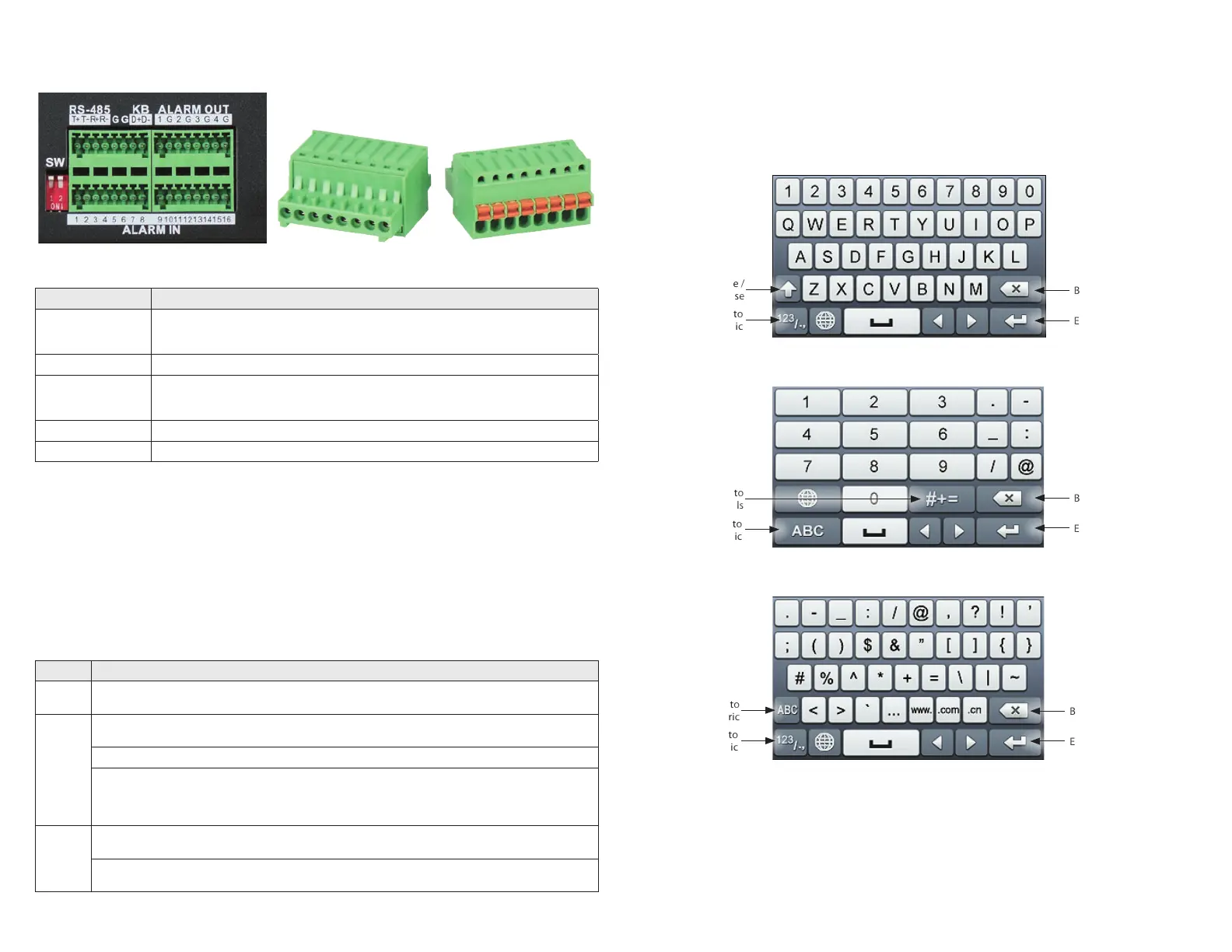
RS-485, ALARMS IN / OUT
RS-485 and system alarm connectors with plug-in termination blocks
Item Description
SW
RS-485 termination switch:
Up position is not terminated.
Down position is terminated with 120 Ω resister.
RS-485 (T+, T-, R+. R-) T+ and T- pins connect to R+ and R- pins of PTZ receiver respectively.
KB
Controller port:
D+, D- pin connects to Ta, Tb pin of controller.
For cascading devices, the rst NVR’s D+, D- pin should be connected with the D+, D- pin of the next NVR
ALARM IN (1 through 16) Alarm inputs 1 - 16. Alarm input is tied to ground through the alarm sensor.
ALARM OUT (1-G through 8-G) Alarm outputs 1 - 8 with ground terminations.
Mouse control
A standard 3-button (left / right / scroll-wheel) USB mouse can also be used with this NVR. To use a USB mouse:
1. Plug USB mouse into the either a front panel or back panel USB connector of the NVR.
2. The mouse will be automatically detected. If the mouse is not detected, the mouse may not be compatible with the NVR. Please refer
to the recommended device list from your provider.
The operation of the mouse:
Action Eect
Right click
Live view: Show menu.
Menu: Exit current menu to upper level menu.
Left click
Single click: Live view: Select channel and show the quick set menu.
Menu: Select and enter.
Double click: Live view: Switch between single-screen and multi-screen.
Click and drag: PTZ control: pan, tilt and zoom.
Tamper-proof, privacy mask and motion detection: Select target area.
Digital zoom-in: Drag and select target area.
Live view: Drag channel / time bar
Scroll wheel
Scroll up: Live view: Previous screen.
Menu: Previous item.
Scroll down: Live view: Next screen.
Menu: Next item.


 To Next Page