5 www.Observint.com
Step 2. Connecting it together – initial system setup
1. Install the network cameras that will be monitored by the system.
2. Power on the NVR using the power on / o (I / O) switch on the back panel or the front panel ON / OFF switch.
3. Power on the monitor.
NOTE
Some monitors have multiple inputs such including VGA ,HDMI, BNC, etc. If you are using this kind of monitor, congure your monitor to
display the input connected to your NVR (HDMI or VGA).
Step 3. Using the Wizard for basic configuration setup
1. Power on the NVR. Normally, an Alibi logo splash screen appears within 2 minutes. A secondary ash screen will appear showing the
status of the HDDs installed in the NVR.
After the Alibi splash screen appears (see above), the NVR will check the status of HDDs installed within the chassis, and show the
show icons on the screen indicating their status. A green check mark on the icon indicates that the associated HDD is operating
normally. If you installed new (or uninitialized) HDDs in the chassis before running the Wizard, those HDDs must be initialized before
use. HDD initialization can be performed within the wizard and within the rmware menu system.
Following the splash screen, a monitor resolution screen may appear. Open the drop down list and select the monitor resolution you
prefer, then click OK.
2. The Setup Wizard can assist you in making important conguration settings in NVR. Click Next button on the Wizard window to open
the Login window.
3. The initial Activation screen requires you to create the NVR administrative (admin) password:
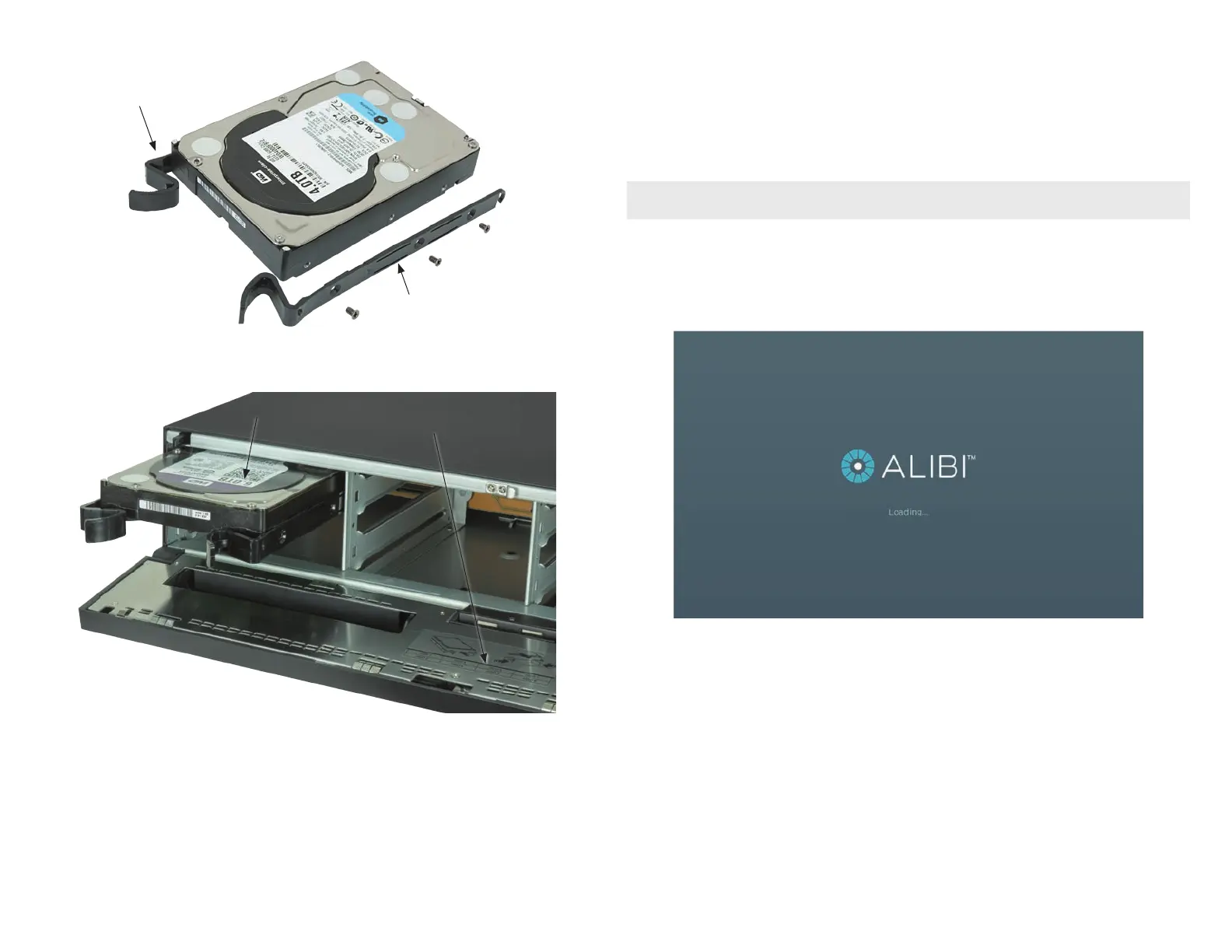
Disk mounting
handle
Disk mounting
handle installed
4. Slide the HDD into the drive bay as shown in the photo below, and then push the HDD in until it is fully seated. NOTE: If you purchased
your NVR with pre-congured HDDs, install each HDDs in the bay location marked on the HDD.
HDD bay locations diagram
HDD bay 1 with HDD
HDD inserted into drive bay
To remove an HDD, squeeze the two disk mounting handles together, and then pull the HDD out of the bay.
5. Repeat steps 3 and 4 above until all HDDs are installed. A diagram showing the drive bay assignments is included on the inside of the
front panel.
6. Close the front panel and then lock it, if necessary.
© 2018 Observint Technologies. All rights reserved.


 To Next Page