6 www.Observint.com
© 2018 Observint Technologies. All rights reserved.
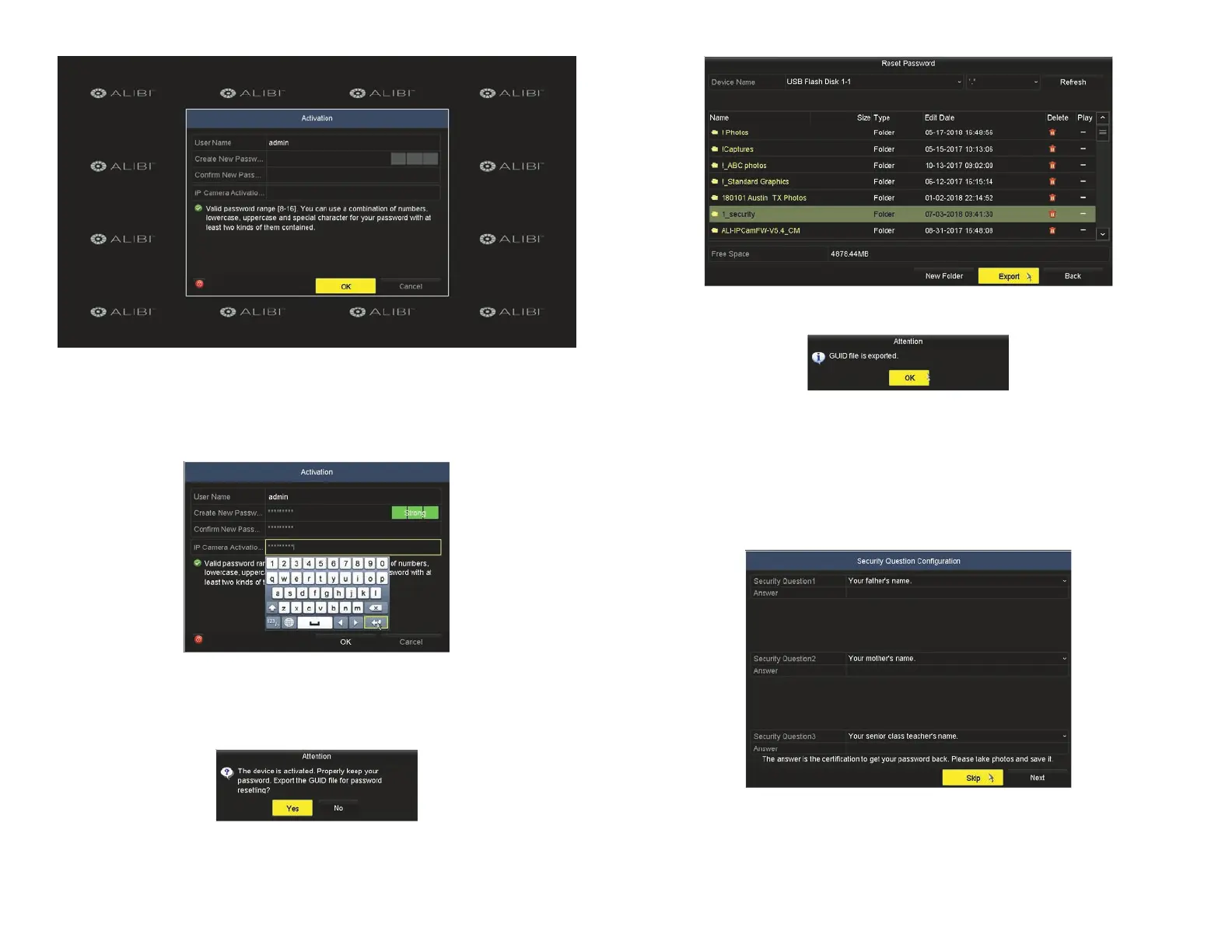
g. After the export completes, click OK to close the Attention window.
h. Verify that the GUID le is listed on the ash media device.
i. Click Back to open the setup Wizard.
j. Remove the ash media with the GUID le and save it in a secure location.
4. After activating the NVR, a Security Question Conguration screen will open. This feature provides an additional way to recover
your password if it is forgotten.
a. Use the screen above to recover your password using personal information. You can also click Skip to bypass this feature.
5. In the next window, click OK to use the Wizard to perform the initial conguration of your recorder.
a. Follow the on-screen instructions provided to create a “Strong” password, and then enter that in the Create New Passw...
and Conrm New Pass .. elds. Use the soft keyboards to enter the password. After entering a character string in a eld, click
the Enter key to move to the next eld.
b. Enter a “Strong” password in the IP Camera Activation eld.
c. Click OK to continue.
d. After creating a password, click the Yes button in the Attention screen to export the GUID le. The GUID le is setup when you
created this password; it enables you to recreate a new password if you forget this current password.
e. Insert the ash media device where you want to save the GUID le into a USB port on the recorder.
f. Navigate to the directory where you want to save the le, and then click Export.


 To Next Page