
 Need help?
Do you have a question about the Alienware 13 R3 and is the answer not in the manual?
Details the base of the laptop and the function of the power button.
Describes RJ-45, Mini DisplayPort, HDMI, and Thunderbolt 3 ports on the back.
Connects to an Alienware Graphics Amplifier for enhanced graphics performance.
Details the security-cable slot and USB 3.0 ports with PowerShare on the left side.
Describes the configurable microphone/headphone and headset ports.
Details USB 3.0 (Type-C) with Power Delivery and standard USB 3.0 ports.
Provides physical dimensions and weight specifications for the computer.
Details the computer model, processor, and chipset.
Lists memory slots, type, speed, and supported configurations.
Lists all available ports and connectors on the computer.
Details Ethernet and wireless communication standards.
Describes the audio controller, speakers, and output.
Details storage interface and solid-state drive types.
Describes the backlit keyboard and shortcut key functionality.
Provides resolution and viewing angle for the camera.
Details touch pad resolution and dimensions.
Lists battery type, weight, voltage, life span, and temperature range.
Details integrated and discrete video controllers and memory.
Lists power adapter type, current, voltage, frequency, and temperature ranges.
Details display types, resolution, viewing angle, and pixel pitch.
Lists online resources for information and support for Alienware products.
Provides information on how to contact Alienware for support and sales.
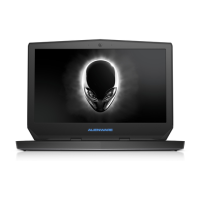
This document describes the Alienware 13 R3 laptop, focusing on its setup, physical features, and how to use its various components. It also provides information on keyboard shortcuts, self-help resources, and how to contact Alienware for support.
To begin using the Alienware 13 R3, you need to connect the power adapter and then press the power button. The power button, identified as the "Alienhead" on the base of the laptop, serves multiple functions. A single press will turn on the computer if it is off, in sleep mode, or in hibernate state. If the computer is already on, pressing the power button will put it into sleep mode. For situations requiring a complete shutdown, you can press and hold the power button for 4 seconds to force the computer to shut down. The behavior of the power button can be customized through the Power Options settings within the operating system.
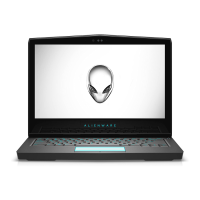
The Alienware 13 R3 features several components distributed across its base, display, back, left, and right sides.
The base of the laptop primarily houses the keyboard and the power button. The keyboard is backlit, enhancing visibility in low-light conditions. Many keys on the keyboard have two symbols, indicating primary and secondary functions. To type the alternate character, you press the Shift key along with the desired key. To perform a secondary function, you press the Fn key in combination with the desired key. The primary behavior of the function keys (F1-F12) can be configured in the BIOS setup program, allowing users to choose between their default function or their secondary media control/shortcut function.
The display area includes several components crucial for communication and security. There are two microphones: a left microphone and a right microphone, both providing digital sound input for audio recording and voice calls. An infrared emitter works in conjunction with the infrared camera to sense depth and track motion, enabling advanced features. The infrared camera itself enhances security when paired with Windows Hello face authentication, allowing for secure login. A standard camera is also present for video chats, capturing photos, and recording videos. A camera-status light illuminates when the camera is actively in use, providing a visual indicator of its operation.
The back of the Alienware 13 R3 houses several ports for external connections. A network port (RJ45) with two indicator lights allows for wired internet access; these lights show the connectivity status and network activity. A Mini DisplayPort enables connection to external displays or TVs that support DisplayPort input, providing both video and audio output. Similarly, an HDMI port allows connection to HDMI-enabled TVs or displays for video and audio output. A versatile Thunderbolt 3 (USB Type-C) port supports USB 3.1 Gen 2, DisplayPort 1.2, and Thunderbolt 3, offering high-speed data transfer and the ability to connect to external displays via an adapter. Lastly, an external graphics port is available for connecting an Alienware Graphics Amplifier, which can significantly boost the laptop's graphics performance for demanding applications like gaming.
The left side of the laptop includes a security-cable slot, which can be used to attach a security cable to deter unauthorized movement of the computer. A USB 3.0 port with PowerShare functionality allows for connecting peripherals such as storage devices and printers. This port also provides power to charge USB devices even when the computer is turned off. However, if the computer's battery charge is below 10 percent, the power adapter must be connected for both the computer and any PowerShare-connected USB devices to charge. Additionally, if a USB device is connected to the PowerShare port before the computer enters an off or hibernate state, it must be disconnected and reconnected to resume charging. A configurable microphone/headphone port allows for connecting an external microphone for audio input or a headphone for audio output. Finally, a dedicated headset port is available for connecting a headset (a combination of headphones and a microphone).
The right side of the Alienware 13 R3 features a USB 3.0 (Type-C) port, which supports external storage devices, printers, and external displays. This port offers fast data transfer speeds and supports Power Delivery, providing up to 15W of power output for quicker charging of connected devices. Adapters, sold separately, are necessary to connect standard USB and DisplayPort devices to this Type-C port. Another standard USB 3.0 port is also present for connecting various peripherals like storage devices and printers, offering reliable data transfer speeds.
The Alienware 13 R3 incorporates several keyboard shortcuts using the Fn key in combination with the function keys (F1-F12) to provide quick access to various system functions:
For self-help resources, users can visit www.alienware.com for information on products and services. Windows 8.1 and Windows 10 users can access the "Dell Help & Support" app or the "Help + Tips" app. Windows 10 also offers a "Get started" app. For accessing help within Windows, users can type "Help and Support" in the Windows search bar and press Enter. Windows 7 users can click Start and then select Help and Support. Online help for the operating system is available at www.dell.com/support/windows and www.dell.com/support/linux.
Further troubleshooting information, user manuals, setup instructions, product specifications, technical help blogs, drivers, and software updates can be found at www.alienware.com/gamingservices. For visual guidance on servicing the computer, step-by-step videos are available at www.youtube.com/alienwareservices.
To contact Alienware for sales, technical support, or customer service, users should visit www.alienware.com. It's important to note that availability of services may vary by country and product. If an active internet connection is not available, contact information can typically be found on the purchase invoice, packing slip, bill, or in the Dell product catalog.
 General
| Bus type | DMI3 |
|---|---|
| Stepping | R0 |
| Tjunction | 100 °C |
| Processor cache | 6 MB |
| Processor cores | 4 |
| Processor model | i7-6700HQ |
| System bus rate | 8 GT/s |
| Processor family | Intel® Core™ i7 |
| Processor series | Intel Core i7-6700 Mobile series |
| Processor socket | BGA 1440 |
| Processor threads | 8 |
| Processor codename | Skylake |
| Processor frequency | 2.6 GHz |
| Processor cache type | Smart Cache |
| Configurable TDP-down | 35 W |
| Processor lithography | 14 nm |
| Processor manufacturer | Intel |
| Processor front side bus | - MHz |
| PCI Express slots version | 3.0 |
| Processor boost frequency | 3.5 GHz |
| Processor operating modes | 64-bit |
| ECC supported by processor | No |
| PCI Express configurations | 1x16, 2x8, 1x8+2x4 |
| Thermal Design Power (TDP) | 45 W |
| Maximum number of PCI Express lanes | 16 |
| CUDA cores | 1280 |
| On-board graphics card | Yes |
| On-board graphics card ID | 0x191B |
| Discrete graphics card model | NVIDIA® GeForce® GTX 1060 |
| On-board graphics card model | Intel® HD Graphics 530 |
| Discrete graphics card memory | 6 GB |
| Discrete graphics memory type | GDDR5 |
| On-board graphics card family | Intel® HD Graphics |
| Maximum on-board graphics card memory | 1.7 GB |
| On-board graphics card OpenGL version | 4.4 |
| On-board graphics card base frequency | 350 MHz |
| On-board graphics card DirectX version | 12.0 |
| Number of discrete graphics cards installed | 1 |
| On-board graphics card dynamic frequency (max) | 1050 MHz |
| Form factor | Clamshell |
| Product type | Laptop |
| Product color | Black, Silver |
| Market positioning | Gaming |
| Motherboard chipset | Intel® HM170 |
| Memory slots | 2x SO-DIMM |
| Internal memory | 16 GB |
| Memory clock speed | 2400 MHz |
| Memory form factor | SO-DIMM |
| Internal memory type | DDR4-SDRAM |
| Maximum internal memory | 32 GB |
| Memory layout (slots x size) | 2 x 8 GB |
| SSD capacity | The Solid State Drive's storage capacity in Gigabytes. |
| SSD interface | PCI Express |
| Storage media | SSD |
| Total storage capacity | 512 GB |
| Display diagonal | 13.3 \ |
| Display brightness | 300 cd/m² |
| Native aspect ratio | 16:9 |
| Audio chip | Realtek ALC3266 |
| Speaker power | 4 W |
| Front camera resolution | 1280 x 720 pixels |
| Wi-Fi standards | Wi-Fi 5 (802.11ac) |
| Bluetooth version | 4.1 |
| Ethernet LAN data rates | 10, 100, 1000 Mbit/s |
| Charging port type | DC-in jack |
| USB 2.0 ports quantity | 0 |
| USB 3.2 Gen 1 (3.1 Gen 1) Type-A ports quantity | 2 |
| Pointing device | Touchpad |
| Processor code | SR2FQ |
| Processor ARK ID | 88967 |
| Processor package size | 42 x 28 mm |
| Supported instruction sets | SSE4.1, SSE4.2, AVX 2.0 |
| Intel Secure Key Technology version | 1.00 |
| Intel Stable Image Platform Program (SIPP) version | 0.00 |
| Battery voltage | 15.2 V |
| Battery capacity | 74 Wh |
| AC adapter power | 180 W |
| AC adapter frequency | 50 - 60 Hz |
| AC adapter input voltage | 100 - 240 V |
| AC adapter output current | 9.23 A |
| AC adapter output voltage | 19.5 V |
| Cable lock slot type | Noble |
| Operating shock | 40 G |
| Operating altitude | -15.2 - 3048 m |
| Non-operating shock | 105 G |
| Operating vibration | 0.26 G |
| Non-operating altitude | -15.2 - 10668 m |
| Non-operating vibration | 1.37 G |
| Storage temperature (T-T) | -40 - 65 °C |
| Operating temperature (T-T) | 5 - 35 °C |
| Storage relative humidity (H-H) | 0 - 95 % |
| Operating relative humidity (H-H) | 10 - 90 % |
 Weight and Dimensions
| Depth | 269 mm |
|---|---|
| Width | 330 mm |
| Height | 24 mm |
| Weight | 2630 g |








 To Next Page