
 Need help?
Do you have a question about the Alienware Aurora R8 and is the answer not in the manual?
Details the front view of the Alienware Aurora R8, identifying ports and buttons.
Details the back panel ports and connectors of the Alienware Aurora R8.
Provides physical dimensions and weight specifications for the Alienware Aurora R8.
Details the processor specifications, including generation, wattage, core count, and speed.
Lists chipset specifications, including model, processor support, and bus types.
Details Ethernet controller model number and transfer rates.
Provides specifications for wireless modules, including transfer rate, bands, and standards.
Details discrete graphics card controller, display support, memory size, and type.
Details integrated graphics controller, display support, memory size, and processor.
Lists online resources for information, tips, and support for Alienware products.
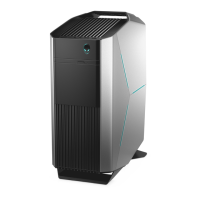
The Alienware Aurora R8 is a high-performance desktop computer designed for gaming and other demanding applications. This manual provides comprehensive instructions for setting up, using, and maintaining the device, along with detailed information about its features and connectivity options.
The Alienware Aurora R8 serves as a powerful computing platform, capable of handling intensive tasks such as gaming, virtual reality (VR) experiences, content creation, and general productivity. It is designed to offer a robust and customizable user experience, with various ports for connecting peripherals, displays, and network devices. The system supports multiple storage configurations, allowing users to optimize for speed, capacity, or a balance of both. Its design incorporates features for easy access and potential upgrades, making it a versatile choice for users who require high performance and flexibility. The computer runs on Windows 10, providing a familiar and feature-rich operating environment.
Setting up the Alienware Aurora R8 is a straightforward process. Users begin by connecting essential peripherals such as the keyboard and mouse to the designated USB ports. Network connectivity can be established either through a wired Ethernet connection or wirelessly, depending on the user's preference and available infrastructure. Connecting a display is crucial, and the manual highlights the importance of connecting to the discrete graphics card's HDMI or DisplayPort if one is installed, especially when multiple graphics cards are present. The primary graphics card is typically installed in the PCI-Express X16 (graphics slot 1). Once all connections are made, the power cable is attached, and the system is powered on using the distinctive AlienHead power button located on the front panel.
A key recommendation for all users is to create a USB recovery drive for Windows. This drive is essential for troubleshooting and fixing potential operating system problems, providing a safety net for system recovery. The process involves connecting a USB flash drive (minimum 16 GB capacity) to the computer, searching for "Recovery" in Windows, and following the on-screen prompts to create the recovery media. This proactive step can save significant time and effort in the event of a system malfunction.
For users interested in virtual reality, the Alienware Aurora R8 offers optional support for VR headsets. The setup involves downloading and running specific VR headset setup tools from the Dell support website. The VR headset is then connected to the USB 3.1 Gen 1 and HDMI ports on the computer. It's important to note that the headset should be connected to the HDMI port of the primary graphics card, while the display can utilize any available port on the card. The on-screen instructions guide users through the final steps of the VR setup.
The front panel of the Alienware Aurora R8 provides convenient access to several ports, including two USB 3.1 Gen 1 ports, a headphone port, a microphone port, a USB 3.1 Gen 1 Type-C port, and an additional USB 3.1 Gen 1 port. An optical drive (optional) is also accessible on the front, complete with an eject button for disc loading and removal. The AlienHead power button, which also serves as an indicator, allows users to power on, put the computer to sleep, or force a shutdown.
The back panel of the computer offers a more extensive array of connectivity options. These include a hard-drive activity light, an Optical S/PDIF port for digital audio, five USB 2.0 ports, a DisplayPort (which is typically covered if a discrete graphics card is present, directing display output to the graphics card), a USB 3.1 Gen 2 Type-C port, a USB 3.1 Gen 2 port, and a Side L/R surround port. Additional audio ports on the back panel include a microphone port, front L/R surround line-out port, line-in port, center/subwoofer LFE surround port, and rear L/R surround port, supporting various speaker configurations up to 7.1 channel setups. Network connectivity is provided by an RJ-45 port with indicator lights for status and activity. A Coaxial S/PDIF port is also available for digital audio output.
The back panel also features multiple PCI-Express slots for expansion, including two PCI-Express X16 slots (one designated as the primary graphics slot) and two PCI-Express X4 slots. These slots allow users to install additional graphics cards, audio cards, network cards, or other expansion cards to enhance the computer's capabilities. Power-supply cage release-latches are present for easy removal of the power supply unit, and a power-supply diagnostics button and light help users check the power supply's status. The power port, Service Tag label, side panel release latch, and a security-cable slot (for Kensington locks) complete the back panel features, emphasizing both functionality and physical security.
The Alienware Aurora R8 is designed with some considerations for maintenance and potential upgrades. The power-supply cage release-latches allow for the removal of the power supply unit, which can be useful for troubleshooting, replacement, or accessing other internal components. The side panel release latch facilitates easy removal of the side panel, granting access to the internal hardware for maintenance, cleaning, or component upgrades.
The manual also implicitly supports maintenance through its detailed descriptions of ports and components, which can aid in diagnosing connectivity issues. For software-related maintenance, the recommendation to create a USB recovery drive is a critical feature, enabling users to restore their operating system in case of corruption or other software problems.
While not explicitly detailed as maintenance features, the presence of multiple expansion slots (PCI-Express) and support for various storage configurations (U.2, M.2, 2.5-inch, and 3.5-inch drives) indicates that the system is built to be serviceable and upgradeable. This allows users to replace or upgrade components such as graphics cards, storage drives, and memory modules, extending the lifespan and performance of the computer. The detailed specifications provided in the manual, though not included in this description, would further assist users or technicians in identifying compatible replacement parts.
For further assistance, Alienware provides extensive self-help resources, including online documentation, troubleshooting guides, driver updates, and support for VR. Users can access these resources through the Alienware website, Dell support website, and dedicated YouTube channels for service videos. If an active internet connection is unavailable, contact information can be found on purchase invoices or product catalogs, ensuring that support is accessible even in offline scenarios.
 General
| Chipset | Intel Z370 |
|---|---|
| Processor Options | Intel Core i5, i7, i9 |
| Graphics Options | NVIDIA GeForce RTX 2070, RTX 2080, RTX 2080 Ti; AMD Radeon RX 570, RX 580, RX Vega 64 |
| Memory | Up to 64GB Dual Channel DDR4 at 2666MHz |
| Operating System | Windows 10 Home |
| Power Supply | 460W, 850W |
| Connectivity | Wi-Fi 5 (802.11ac), Bluetooth 5.0, Gigabit Ethernet |
| Front Ports | 1x Headphone, 1x Microphone |
| Rear Ports | 6x USB 2.0, 1x USB 3.1 Gen 2 Type-C, 4x USB 3.1 Gen 1 Type-A, 1x RJ-45 Ethernet, 1x SPDIF Digital Output (TOSLINK) |
| Dimensions | 472.52 mm x 212 mm x 360.5 mm |









 To Next Page
