NOTE: You can customize the power-button behavior in Power Options.
Back
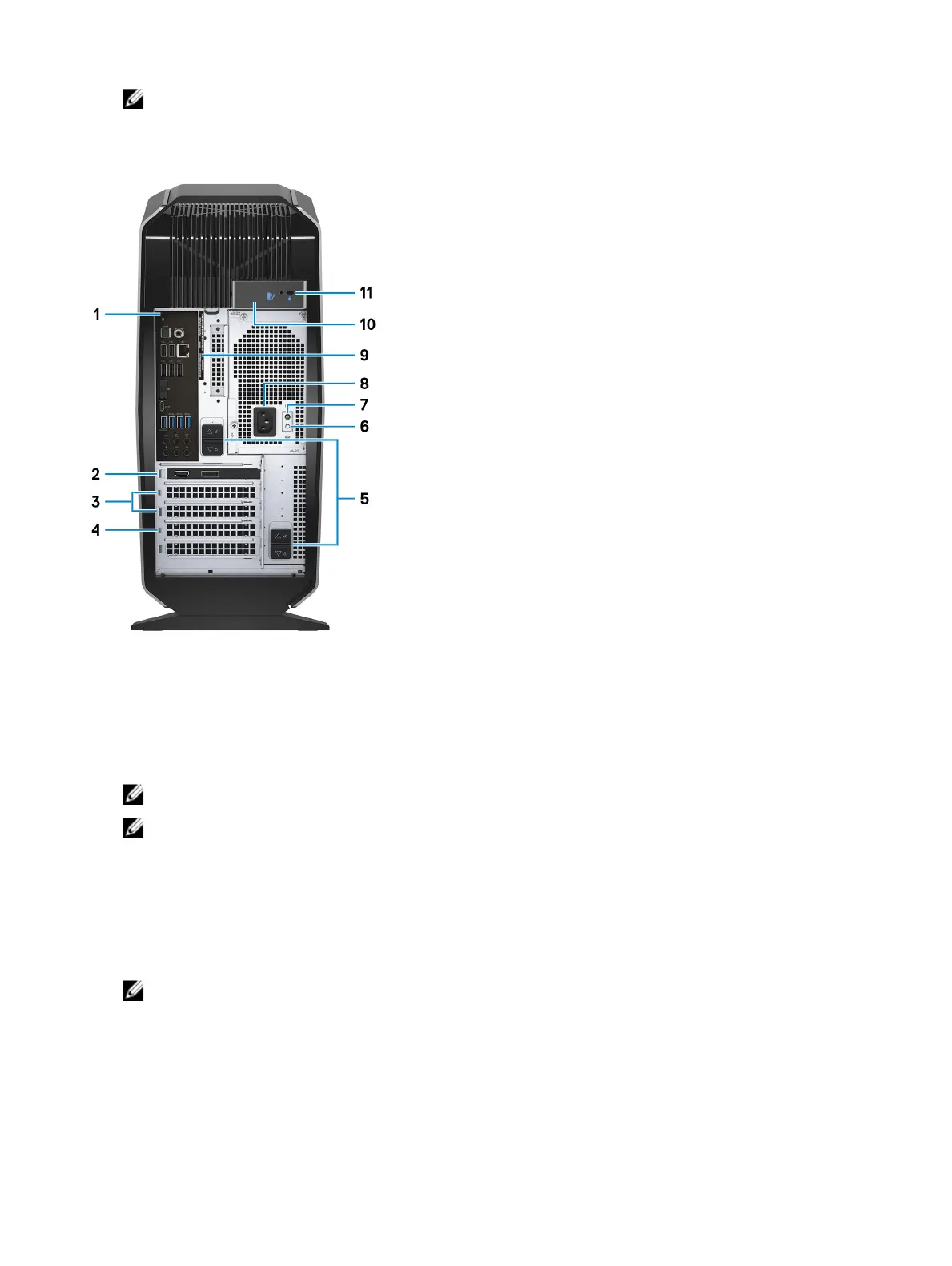
1 Back panel
Connect USB, audio, video, and other devices.
2 PCI-Express X16 (graphics slot 1)
Connect a PCI-Express card such as graphics, audio, or network card to enhance the capabilities of your computer.
For optimal graphics performance, use a PCI-Express X16 slot for connecting the graphics card.
NOTE: The PCI-Express X16 slot works at X8 speed only.
NOTE: If you have two graphics cards, the card installed in PCI-Express X16 (graphics slot 1) is the primary
graphics card.
3 PCI-Express X4 slots (2)
Connect a PCI-Express card such as graphics, audio, or network card to enhance the capabilities of your computer.
4 PCI-Express X16 (graphics slot 2)
Connect a PCI-Express card such as graphics, audio, or network card to enhance the capabilities of your computer.
For optimal graphics performance, use a PCI-Express X16 slot for connecting the graphics card.
NOTE: The PCI-Express X16 slot works at X8 speed only.
5 Power-supply cage release-latches (2)
Allows you to remove the power supply unit from your computer.
6 Power-supply diagnostics button
Press to check the power‑supply state.
7 Power-supply diagnostics light
Indicates the power-supply state.
9










 To Next Page