NOTE: Please visit NVIDIA official website to know whether your NVIDIA graphics card
supports the G-SYNC feature.
How to enable G-SYNC on your PC
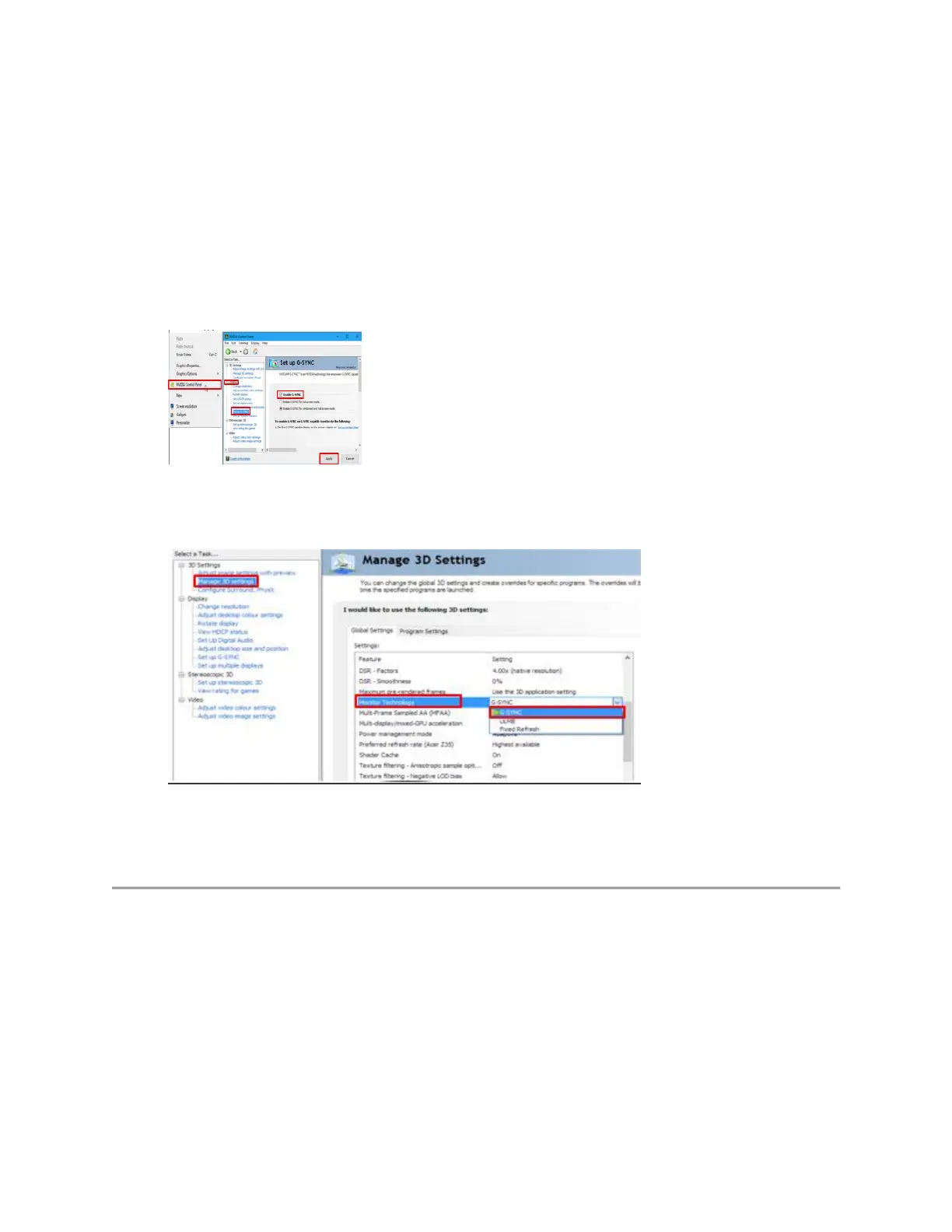
1. Right-click on the Windows desktop and select "NVIDIA Control Panel" or launching
the "NVIDIA Control Panel" application from your Start menu.
2. Select "Display" from the links on the left and choose "Set up G-SYNC"
3. Check the box titled "Enable G-SYNC"
4. Click on "Apply" (Figure 14)
Figure 14. - Enabling G-SYNC on your system.
5. Select "Set up Multiple Displays" from the links on the left.
6. Set the "AW2518H" as the primary display.
7. Click on "Apply" (Figure 15.)
Figure 15. - Enabling the Multiple Displays option.
NOTE: NVidia G-SYNC technology currently supports only DisplayPort video input. Using
DVI to DisplayPort or HDMI to DisplayPort converters/adapters is currently not supported
Monitor will not wake when the monitor is set to sleep mode
You may encounter a situation where the AW2518H display will not wake using keyboard or
mouse input after the display enters the sleep mode. Powering off then powering on the display
resolves the issue until the monitor sleeps again.
In order to meet the sleep mode power consumption of 0.5W, the NVidia G-sync module within
the AW2518H display will be turned off after the monitor enters sleep mode. This state will
ignore mouse movement.












 To Next Page