3. Display Alignment:
Activate the Display Alignment function to help ensure the perfect alignment of the video
contents from multiple displays.
Configuration
1. Using the On-Screen Display (OSD) Menu
Go to the OSD menu -> Game -> Game Enhance Mode-> Select Timer, Frame Rate
or Display Alignment
2. Using Shortcut key
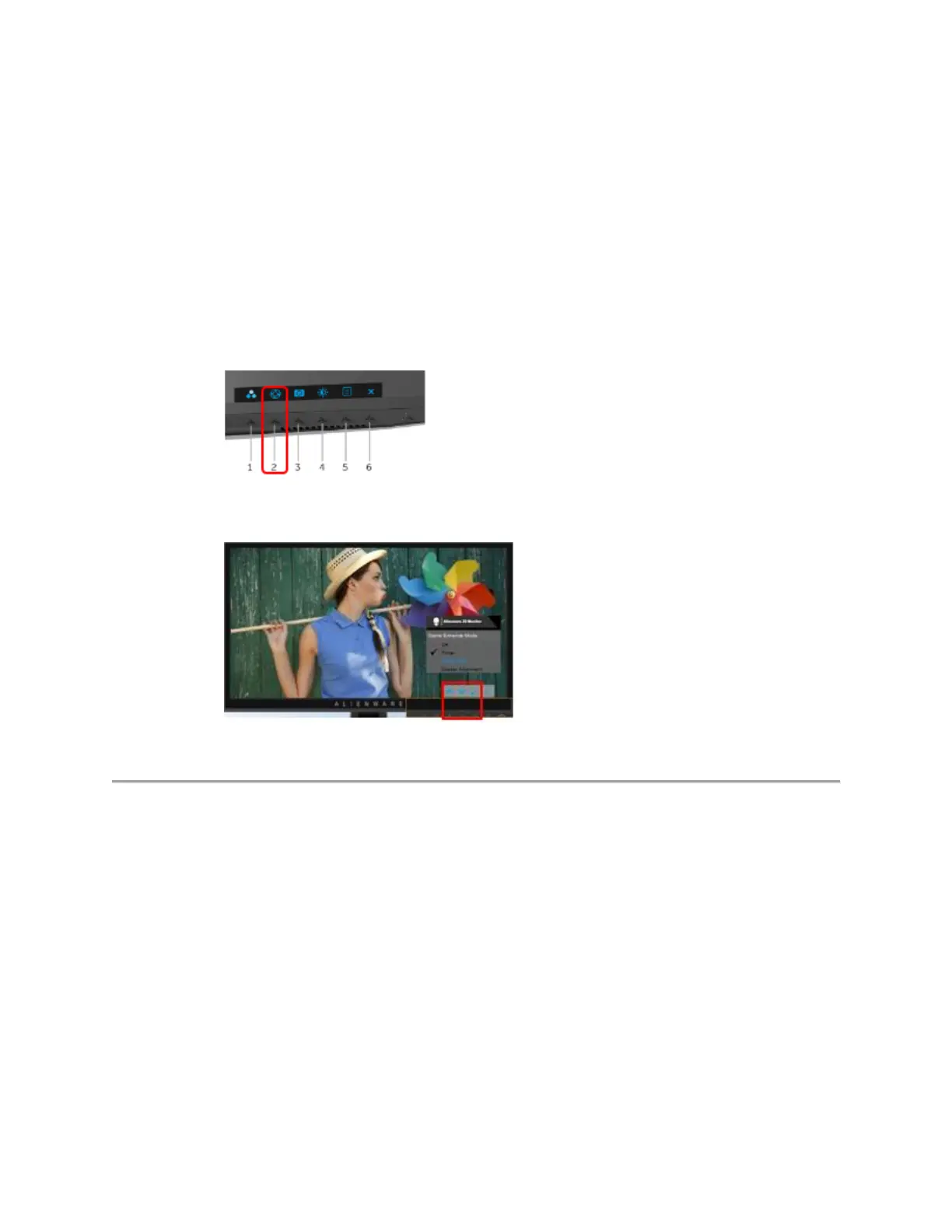
1. Power on monitor and press one of control buttons to launch front-panel buttons
2. Press the "Shortcut Key/Game Enhance Mode" (Figure 3.)
Figure 3. - Accessing the On-Screen Display Menu.
3. Use ∧ or ∨ to select Timer, Frame Rate or Display Alignment, then, press ü to
confirm the setting. (Figure 4.)
Figure 4. Selecting the option in the On-Screen Display (OSD) menu.
AlienFX Lighting Configuration (Auto & Manual)
AW2518HB provides "AlienFX Lighting" function for user to adjust the Alienware logo lighting
and Triad lights on the back of the monitor. AlienFX Lighting offers following two different
adjusting mode:
1. Color:
Allow you to manually specify an LED lighting color from the list of 20 available colors.
2. Spectrum:
When you select On, the LED lighting automatically glows and changes colors in
sequence of spectrum: red, orange, yellow, green, blue, indigo, and violet.
To manually set up AlienFX Lighting:












 To Next Page