43
Operating the monitor
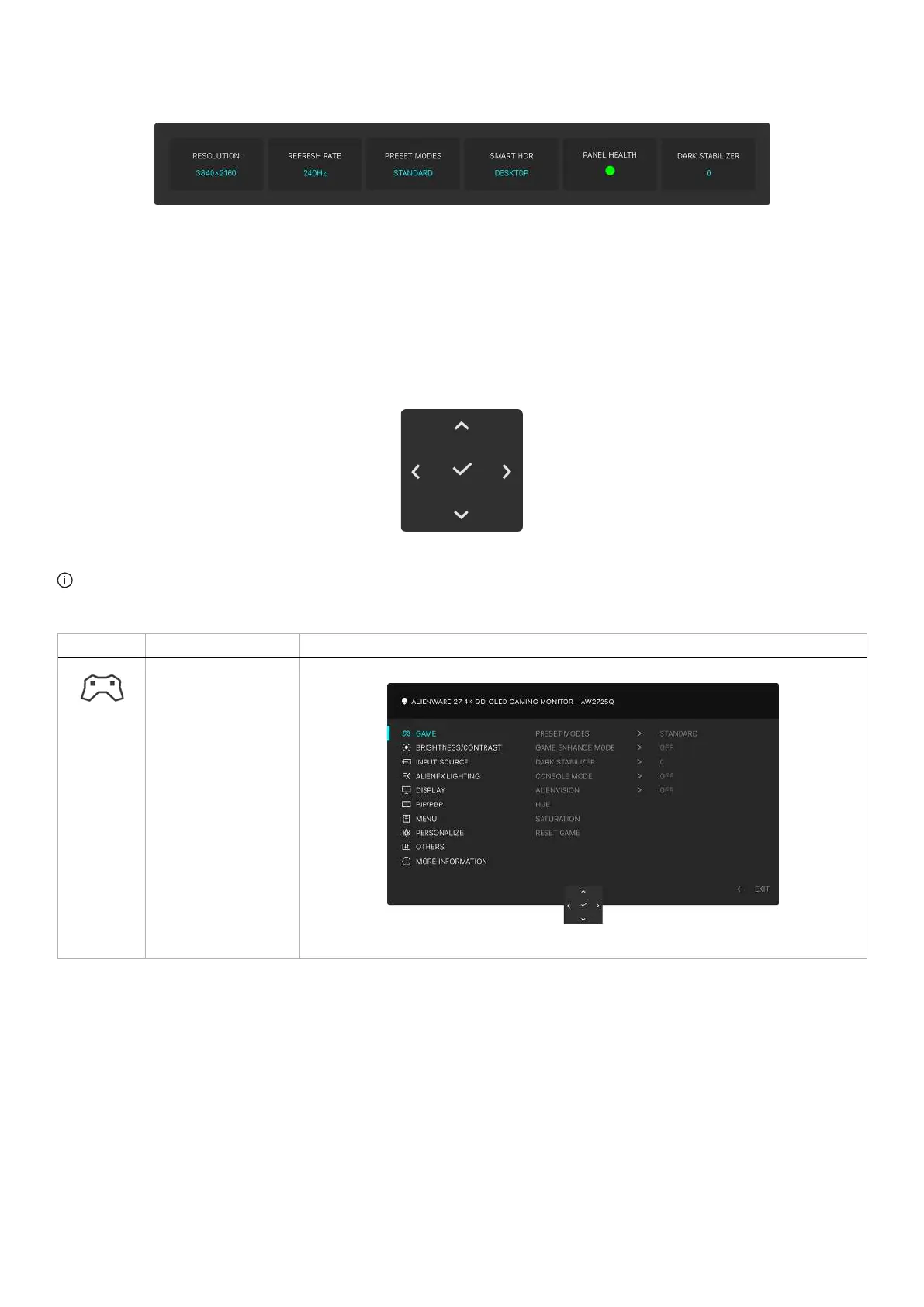
When the Menu Launcher is on, the OSD Status Bar appears at the top in the center of the screen, displaying the current settings of
some OSD functions.
Figure 37. OSD Status Bar
Normally, PANEL HEALTH displays a green dot. When a yellow dot is displayed, PIXEL REFRESH is suggested to be performed.
For more information, see OLED PANEL MAINTENANCE.
Using the On-Screen Display (OSD) menu
Accessing the menu system
When the OSD menu is active, adjust the settings by moving the joystick button and follow the navigation keys at the bottom center
of the OSD menu.
Figure 38. Navigation keys
NOTE: After you change the settings, follow the navigation keys to confirm the changes before proceeding to another menu or
exiting the OSD menu.
Table 26. OSD menu description.
Icon Menu and submenu Description
GAME
Use this menu to personalize your visual gameplay experience.
Figure 39. GAME menu












 To Next Page