16
7.Turn on GPS
1. Press (MENU) to enter the main Menu, press / key to select GPS.
2. Press the / key to select ON
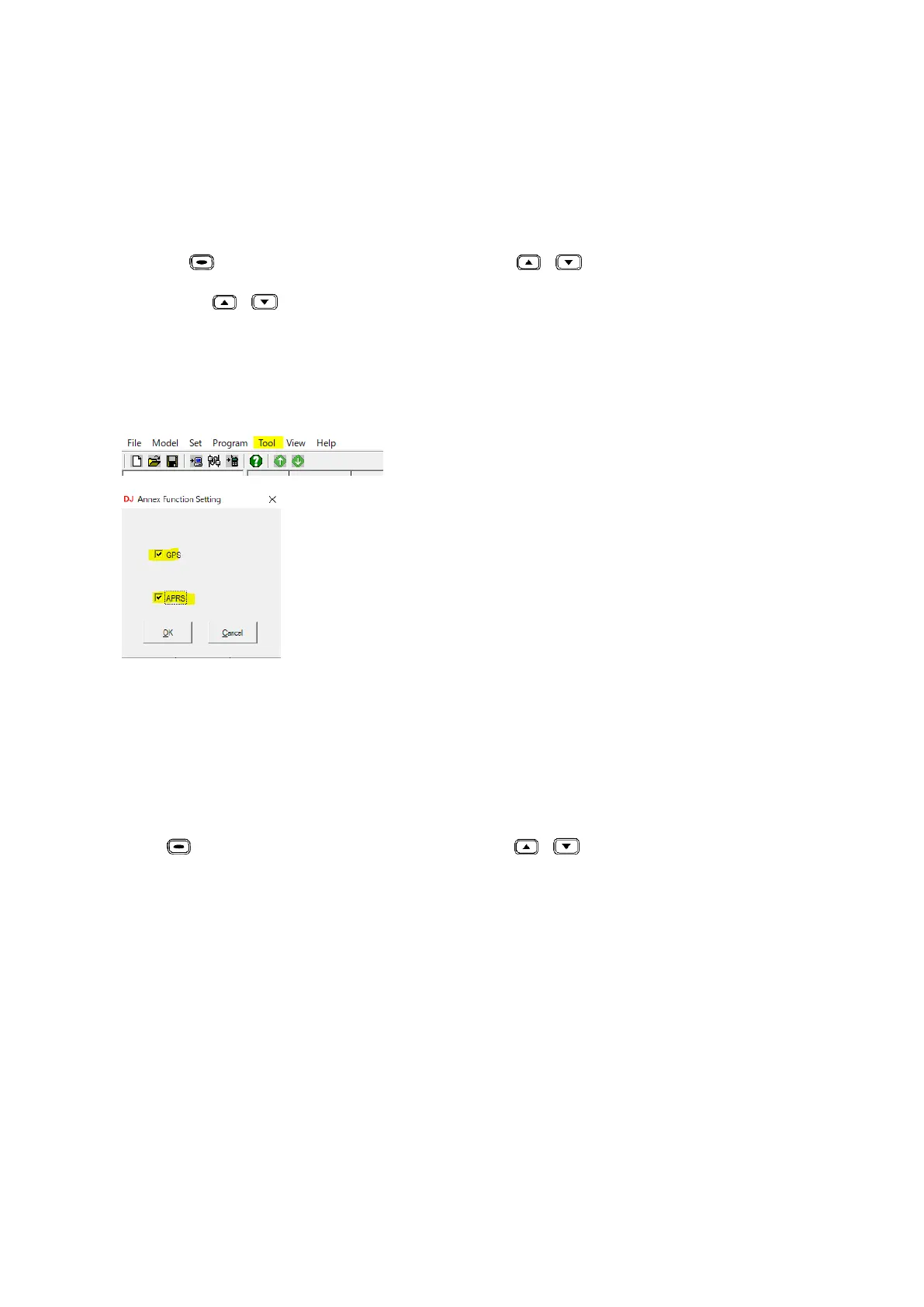
Note: In the case your radio does not appear GPS function, check in PC software
setting. Go to “Tool” “Option” then select GPS as ON.
APRS Function is accessible only while the GPS function is selected as ON.
7.1 Check the GPS Information
There are 2 ways to check GPS information:
Operation 1: Check GPS info from Menu
Press ( MENU) key to enter main Menu, press / key to GPS, set GPS on
then select “GPS infor” to check the GPS position.
Operation 2: Check GPS info from programmed key
In the PC software, Public Optional Setting Key function, program a key as GPS,
press the programmed key to check the GPS position. If the GPS is not positioning, it
will display “No Fixed Position”, and the GPS icon shows a grey color. Move the
radio to an open window or outdoors, and it will take a few minutes to connects to the
GPS Satellites.
7.2 Send GPS Information
1. When the GPS is positioning successfully, the GPS icon shows a red color. Follow
the above step to check the GPS info, press edit key to Text edit.


 To Next Page