AliveCor, Inc. For support, please email support@alivecor.com or visit www.alivecor.com 7
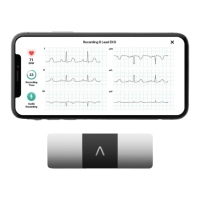
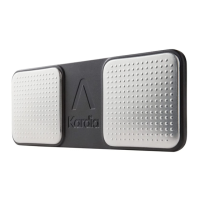
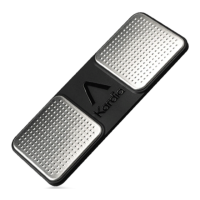
a. AC-001 - AC-007: With the AliveCor logo right side up, the top of the smartphone
or tablet should be on the right.
b. AC-009: With the K of the Kardia logo closest to the top of the smartphone or
tablet.
c) For use with an iPad, AliveCor does not recommend attaching Kardia Mobile to your
iPad. Instead, rest Kardia Mobile in both hands or place it on a flat surface less than one
foot away from the iPad to record EKGs.
Note: The Kardia Mobile must be less than 1 foot from the smartphone or tablet to ensure
communication between devices.
3.3. Unpack Kardia Band (Kardia Band Users)
1. Remove Kardia Band from the box, which consists of 2 pieces – one band that attaches to the
12 oclock side of the watch body and the other band that attaches to the 6 oclock side of
the watch body. The band that attaches 6 oclock side the watch body contains the
electrodes.
2. Remove existing watchband from the Apple Watch – consult the watch user manual, if
necessary.
3. Attach the Kardia Band EKG to the Apple Watch – consult the watch user manual, if
necessary. Ensure that the band with electrode attaches to the 6 oclock side of the watch
body.
NOTE: A second (shorter) band that attaches to the 6 oclock side of the watch body is included
in the box to make sure you have the right band for your wrist size. Use the band that ensures a
tight fit of the watch so that the sensor contacts the skin. For more information on how to
attach the bands to the watch, refer to a video at
https://www.youtube.com/watch?v=p7ZnT_ubEFY.
NOTE: Wrist hair may affect the performance of the device. We recommend removing excess
hair from your wrist.
3.4. Download the Kardia phone app
1. Using your smartphone or tablet, search for Kardia in the App Store or Google Play store.
2. Download and install the Kardia phone app.
NOTE: The Apple Watch only works with the Apple iPhone – consult the watch user manual, if
necessary.
3.5. Add Kardia watch app to Apple Watch (Kardia Band System Users)
1. Open the Apple Watch app on your iPhone and tap the My Watch tab.
2. Scroll to find the Kardia watch app and tap it.
3. Tap the Show App on Apple Watch and Show in Glances toggles to turn on each feature.


 To Next Page