AliveCor, Inc. For support, please email support@alivecor.com or visit www.alivecor.com 6
AliveCor does not guarantee that you are not experiencing an arrhythmia or other
health conditions when labeling an EKG as normal. You should notify your physician for
possible changes in your health.
3. SET UP KARDIA MOBILE OR KARDIA BAND SYSTEM AND TAKE THE FIRST EKG RECORDING
3.1. Decide which smartphone, smartwatch, or tablet to use
Your Kardia Mobile or Kardia Band is compatible with all of the smartphones, smartwatches,
and tablets (smart devices) listed on AliveCors website:
https://store.alivecor.com/#compatibility, including:
iPhone 4s, 5/5s, 5c, 6/6 Plus, 6s/6s Plus, 7/7 Plus, and SE
iPad Air and Air 2
iPad Mini, Mini 2, and Mini 3
iPad Pro 9.7-inch
iPod Touch 5G
Apple Watch, Series 1 and Series 2, 38mm and 42mm (Kardia Band System use only)
The Kardia phone app is compatible with iOS versions 5.1 – 10.0.2 and WatchOS 3.0.
Samsung Note 3 and Note 5
Samsung Galaxy S3, S4, S5, S6, and S7
Samsung Galaxy J1
LG Nexus 5
HTC One and HTC 10
Jitterbug Touch 2 and Touch 3
The Kardia phone app is compatible with the Android operating system versions 4.0 – 6.0.1.
Kardia Mobile for iPhone 5/5s and iPhone 6/6s can also be used on all compatible smartphones
or tablets by removing Kardia Mobile from its case:
1. If Kardia Mobile is currently attached to an iPhone 5/5s/6/6s, remove it and its case
from your iPhone 5/5s/6/6s (press gently on the phone camera through the case cutout
and peel back from that corner of Kardia Mobile).
2. Face the electrodes of Kardia Mobile away from you.
3. AC-007: Gently push the left side of Kardia Mobile toward you while at the same time
gently pulling the left edge of the case away from the device itself.
4. Kardia Mobile should then pop out of its case.
3.2. Unpack Kardia Mobile (Kardia Mobile Users)
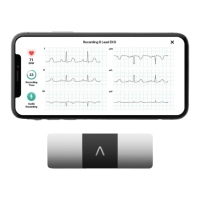
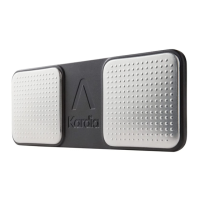
1. Remove Kardia Mobile from the box.
2. Choose Kardia Mobile placement.
a) For Kardia Mobile cases, place Kardia Mobile on your phone as you would any standard
phone case.
b) The Kardia Mobile can be attached directly to the smartphone or tablet or to the case of
your choosing (the surface should be smooth and flat).


 To Next Page