507176-01
Page 8
DISPLAY SETTINGS
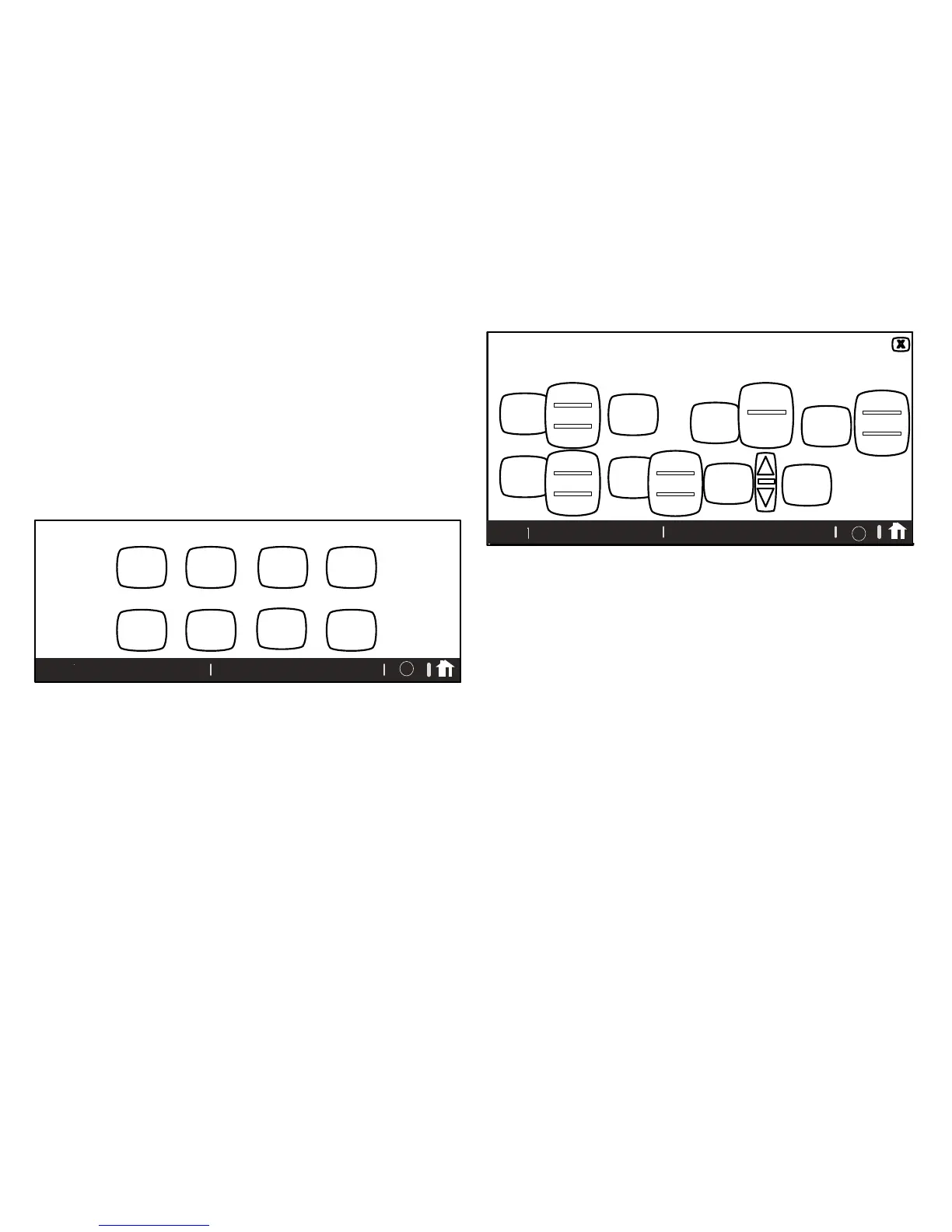
Touch display settings from the FEATURES screen (see figure 3). Figure 8
shows the DISPLAY SETTINGS screen and defaults.
Touch Temp scale button to toggle between ºF and ºC options.
Touch Background theme, screen saver, screen lockout,
language, outdoor temp display buttons to select options from
pop-up menus (figure 9).
Touch backlight intensity button and use up/down arrows to change
the intensity of back lighting in 20% increments.
Touch the press to CLEAN SCREEN button to enable a 30-second
touchscreen lock to allow screen cleaning. Use a damp cloth to clean the
screen.
DISPLAY SETTINGS
press any button for access to more features and controls
back-
ground
theme
COTTON
temp
scale
is ºF
screen
saver is
OFF
press
to
CLEAN
SCREEN
language
is
ENGLISH
screen
lockout
UN-
LOCKED
outdoor
temp
display
SENSOR
80
%
backlight
intensity
9:39 am May 23, 2013Wi-Fi
?
Figure 8. Display Settings (defaults)
DISPLAY SETTINGS
back-
ground
theme
COTTON
temp
scale
is ºF
Screen
saver is
OFF
press to
CLEAN
SCREEN
language
is
ENGLISH
screen
lockout
UN-
LOCKED
outdoor
temp
display
is ON
20
%
backlight
intensity
cobalt
cotton
carbon
ENGLISH
FRANCAIS
ESPAÑOL
unlocked
partially
locked
9:39 am May 23, 2013
Wi-Fi
off
on
off
sensor
Internet
?
Figure 9. Display Settings (Adjusting)


 To Next Page