Comfort Sync™ 7-Day Programmable Communicating Thermostat
Page 13
SERVICE INFORMATION
Service information is normally completed by the installer at time of initial
installation.
Should you wish to change this information, proceed to the consumer portal.
Select My Account, then My Dealer tab and touch change dealer button.
SERVICE INFORMATION
Dealer Name Your Comfort Sync Dealer
Dealer Address
Dealer Phone 1-877-924-2677
Dealer Email
Dealer Website www.mycomfortsync.com
System Desc Comfort Sync System
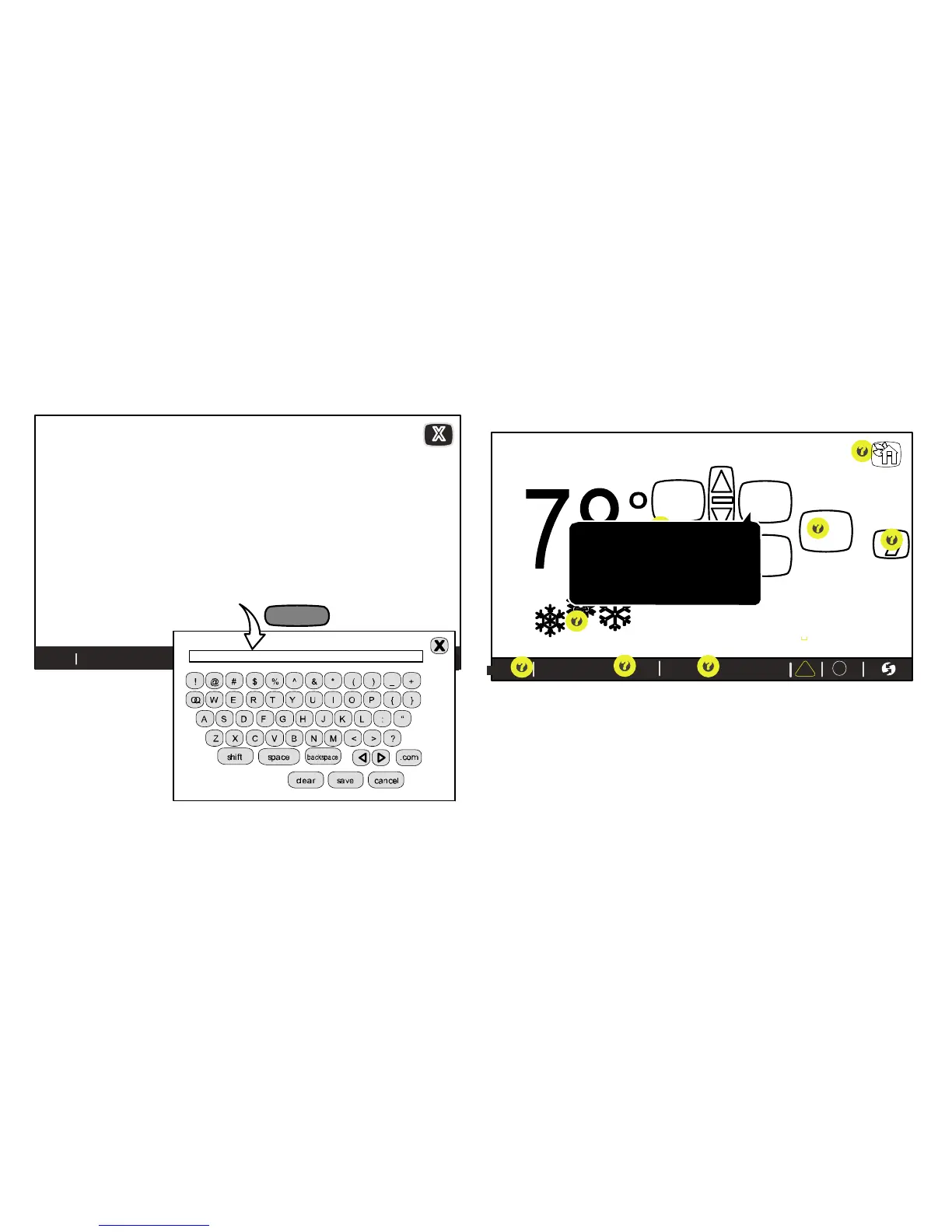
press any line to edit it
thermostat info
click any line;
keyboard will
pop up to input
information
9:39 am May 23, 2013 ?
Wi-Fi
keyboard tool
System Desc
my comfortsync system
Figure 17. Service Information
HELP (?)
When you touch the help icon (?) at the bottom, right-hand corner of the
screen, an array of (?) icons are displayed on the screen. When you touch
one of these help (?) icons, a pop-up describes the function of the nearest
active button(s). Figure 18 shows an example of the HELP screen and a
pop-up.
indoor temperature
indoor humidity is 41%
fan is
OFF
fan is
AUTO
cool-to
set temp
75
heat-to
70
heat
or
cool
fan is AUTO
outdoor
temperature
80
system is cooling
9:39 am May 23, 2013Wi-Fi
Change the system function to either heat
or cool (auto), heat only or cool only mode
or turn on one of the Programs. You can
also select 'edit' to enter the edit program
screen.
enter
away
?
i
Figure 18. Typical Help (?) Screen


 To Next Page