14
-EN
Sound Settings
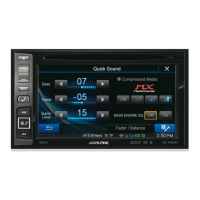
Press the (Sound Setting) button to adjust sounds.
The [Tone/Fader/Balance] settings screen will be displayed.
〇①〇
Buttons for Tone Level
〇②〇
Balance/Fader Area
〇③〇
Button for Centre Position
Use the
▲
,
▼
,
◀
,
▶
, 0, and buttons to adjust settings.
Touch to restore sound to the centre position.
Voice Recognition
You can use Siri function/Google voice function of your iPhone/
Android phone.
1
Connect your phone and activate Apple CarPlay
or Android Auto.
2
Press the (Voice) button to start voice
recognition.
3
Say the command.
Switching Sources
Press the (AUDIO) button to change the source.
Switching sources using the (AUDIO) button
During audio/visual playback, press the (AUDIO) button
repeatedly to switch to the desired source.
Radio
→
DAB
→
USB Music
→
USB Video
→
AUX
→
HDMI
→〇
Disc
→
Bluetooth Audio
→
Radio
*1 When no USB ash drive/iPod/Disc/Smartphone/Bluetooth
compatible device is connected, this option is not available.
*2 The name set for “HDMI Name/AUX Name” is displayed.
*3 When AUX is set to “Off,” this option is not available.
*4 Available when Apple CarPlay is used/Android smartphone which
installed Android Auto App is connected.
To play Apple CarPlay music shall impact iPod source when an
iPhone 5 or later is connected and vice versa. Refer to “Setting
Apple CarPlay”.
Switching Sources from the All Menu screen
1
Press the ALL MENUS button.
The menu screen is displayed.
• You can also display the menu screen by touching [All
Menus] in home screen.
2
Touch your desired source in the Media source
from all menus.
①
②
③







 To Next Page


