EasyManua.ls Logo

Altec Lansing INMOTION - User Manual

Altec Lansing INMOTION
12 pages
Print Icon
To Next Page IconTo Next Page
Loading...
User’s guide
Guía del usuario

Questions and Answers

  • R
    Robert WilliamsAug 14, 2025
    What to do if there is no sound coming from Altec Lansing INMOTION Docking Speakers?
    • D
      Donna WoodsAug 14, 2025
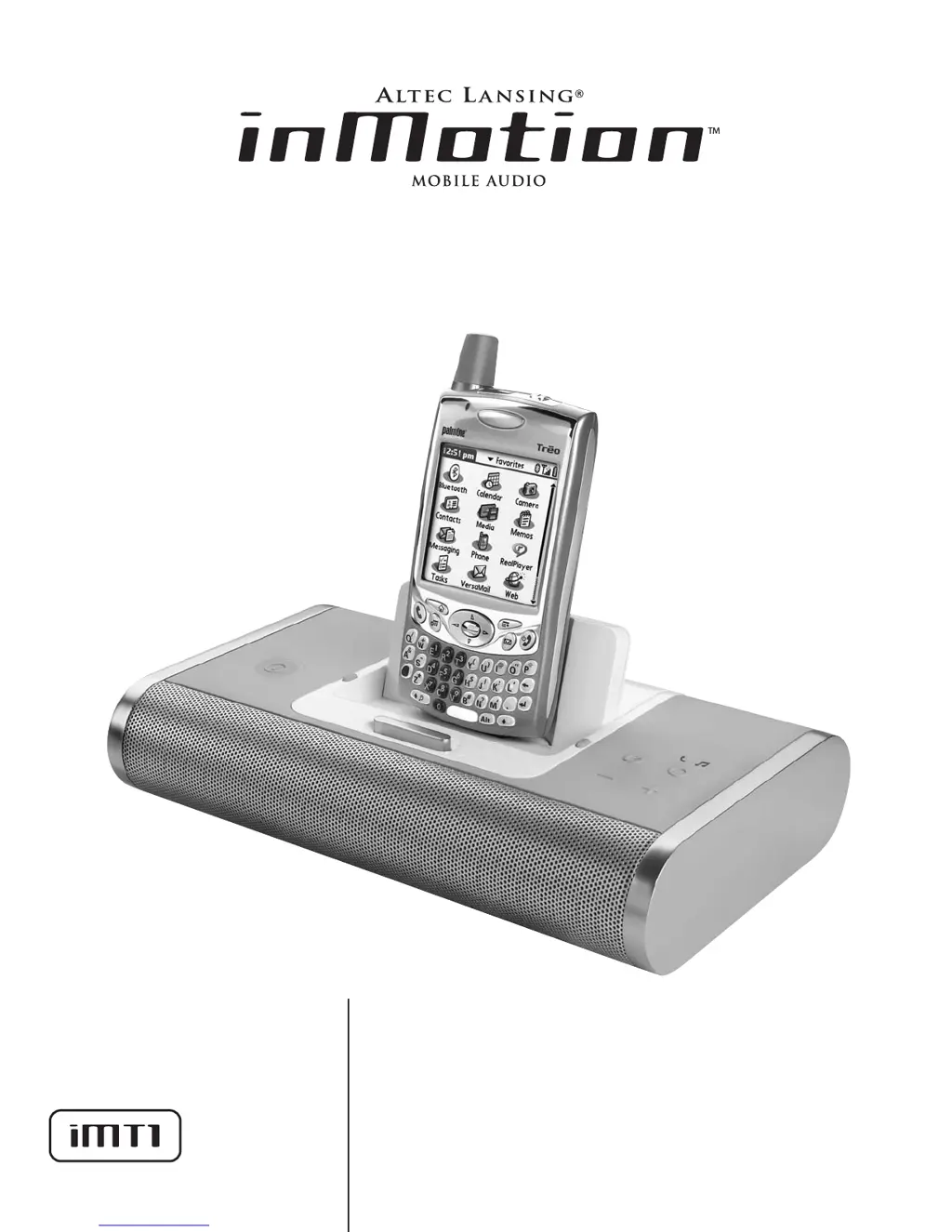
      If no sound is coming from your Altec Lansing Docking Speakers, there might be several reasons: * The volume may be set too low. Use the “+” button on the top to increase the volume. * If you are using a Palm device, it may not be correctly seated. Remove and re-seat the Palm device in the docking station. * The Palm device may be in “mute” mode. Turn off the “mute” function on the Palm device. * If using an alternate audio source, ensure it is properly connected to the “AUX” input on the back of the inMotion iMT1 using a 3.5mm stereo cable.
  • M
    Mario HerreraAug 17, 2025
    How to fix Altec Lansing INMOTION Docking Speakers if the blue LED is not lit?
    • B
      brookecoxAug 17, 2025
      If the blue LED on your Altec Lansing Docking Speakers isn't lit during AC operation, check the following: * Ensure the power supply is correctly connected to both a functioning wall outlet and the DC connector on the back of the inMotion iMT1. * If using a surge protector, verify that it is switched on. * Confirm the wall outlet is working by plugging in another device. * Make sure the power is turned on by pushing the power button on top of the unit.
  • S
    Samuel JonesAug 21, 2025
    Why is the blue LED not lit on my Altec Lansing Docking Speakers when using batteries?
    • C
      ccruzAug 21, 2025
      If the blue LED on your Altec Lansing Docking Speakers does not light up when using battery power, check these: * Make sure that four AA batteries are correctly installed in the battery compartments on the bottom of the inMotion iMT1. * Ensure the power is turned on by pushing the power button on the top of the unit.
  • M
    Mary ThorntonAug 25, 2025
    What to do if my Altec Lansing INMOTION Docking Speakers sound is distorted?
    • C
      carol45Aug 25, 2025
      If the sound from your Altec Lansing Docking Speakers is distorted, the volume level may be too high. Use the “-” button on the top of the inMotion iMT1 to decrease the volume.
  • J
    joycerogersAug 27, 2025
    How to resolve crackling sound from Altec Lansing INMOTION?
    • B
      Brandon RichardsAug 28, 2025
      If you hear a crackling sound from your Altec Lansing Docking Speakers when using an alternate audio source, ensure the audio source is properly connected to the inMotion iMT1. Connect the audio source to the input marked “AUX” on the back of the inMotion iMT1 using a 3.5mm stereo cable.
  • R
    riddleangelaAug 30, 2025
    How to improve sound quality of Altec Lansing Docking Speakers?
    • C
      Caitlin BanksAug 31, 2025
      If the sound quality from your Altec Lansing Docking Speakers is poor, ensure that the inMotion iMT1 is in music mode. Push the mode button until the blue LED with the music note turns on.
  • J
    Jessica ThompsonSep 3, 2025
    What to do if I can't hear the other person through my Altec Lansing INMOTION Docking Speakers?
    • I
      Isabella RivasSep 3, 2025
      If you cannot hear the voice of the person on the other end of the phone line through the speakers, ensure that the inMotion iMT1 is in phone mode. Push the mode button until the green LED with the phone icon turns on.
  • D
    Debra PhelpsSep 7, 2025
    How to stop radio interference on Altec Lansing Docking Speakers?
    • J
      Justin ChangSep 7, 2025
      If you are experiencing radio interference with your Altec Lansing Docking Speakers, the unit may be too close to a radio tower. Try moving your speakers to see if the interference goes away.
  • P
    Paula RhodesSep 10, 2025
    What to do if Altec Lansing INMOTION Docking Speakers crackle when connected to PC?
    • C
      Chris GarciaSep 10, 2025
      If your Altec Lansing Docking Speakers make a crackling sound when connected to a PC or laptop, the volume level in the operating system may be too high. Check the operating system volume level and decrease it if necessary.

Summary

Connecting the Power Cord

Important Safety Instructions

Altec Lansing Limited Warranty

Customer Service and Support

International Distribution

Information for international customers regarding product distribution.

FCC Compliance Note

Box Contents

Placing the inMotion iMT1

Powering the inMotion iMT1

AC Power Connection

How to connect the inMotion iMT1 using the AC wall outlet power adapter.

Battery Power Option

Instructions for powering the inMotion iMT1 using four AA batteries.

Using the inMotion iMT1

Listen to Music

Steps to play audio from your connected Palm device in music mode.

Use as Speakerphone

Instructions for using the inMotion iMT1 as a speakerphone for calls.

Sync Palm Device with PC

How to connect and sync your Palm device with a PC via the inMotion iMT1.

Powering Off and Standby

Procedures for turning off the unit and its auto shut-down feature.

Alternate Audio Source

Connecting external devices via the 3.5mm stereo cable.

Volume Control

How to adjust the master volume using the device buttons.

Enhancing Bass Output

Using the subwoofer jack for increased bass performance.

Troubleshooting Common Issues

Altec Lansing INMOTION Specifications

General IconGeneral
Driver diameter50 mm
Frequency range- Hz
RMS rated power- W
Audio output channels2.0 channels
AUX inYes
BluetoothNo
Headphone connectivity-
Width (cm) inner carton28.7 cm
Width (cm) outer carton30 cm
Height (cm) inner carton18.4 cm
Height (cm) outer carton26.6 cm
Length (cm) inner carton12.2 cm
Length (cm) outer carton38.1 cm
Tare weight inner carton1.2 kg
Tare weight outer carton5.4 kg
Apple docking compatibilityiPhone, iPod
Battery typeAA
Battery voltage1.5 V
Power source typeAC, Battery
Battery life (max)24 h
Battery technologyAlkaline
Number of batteries supported4
Magnet typeNeodymium
Product colorBlack
Volume controlDigital
Weight and Dimensions IconWeight and Dimensions
Depth46 mm
Width241 mm
Height119 mm

Related product manuals