8 |
CoNFiGURATioN
SETTiNG NETWoRK NAME ANd PASSWoRd
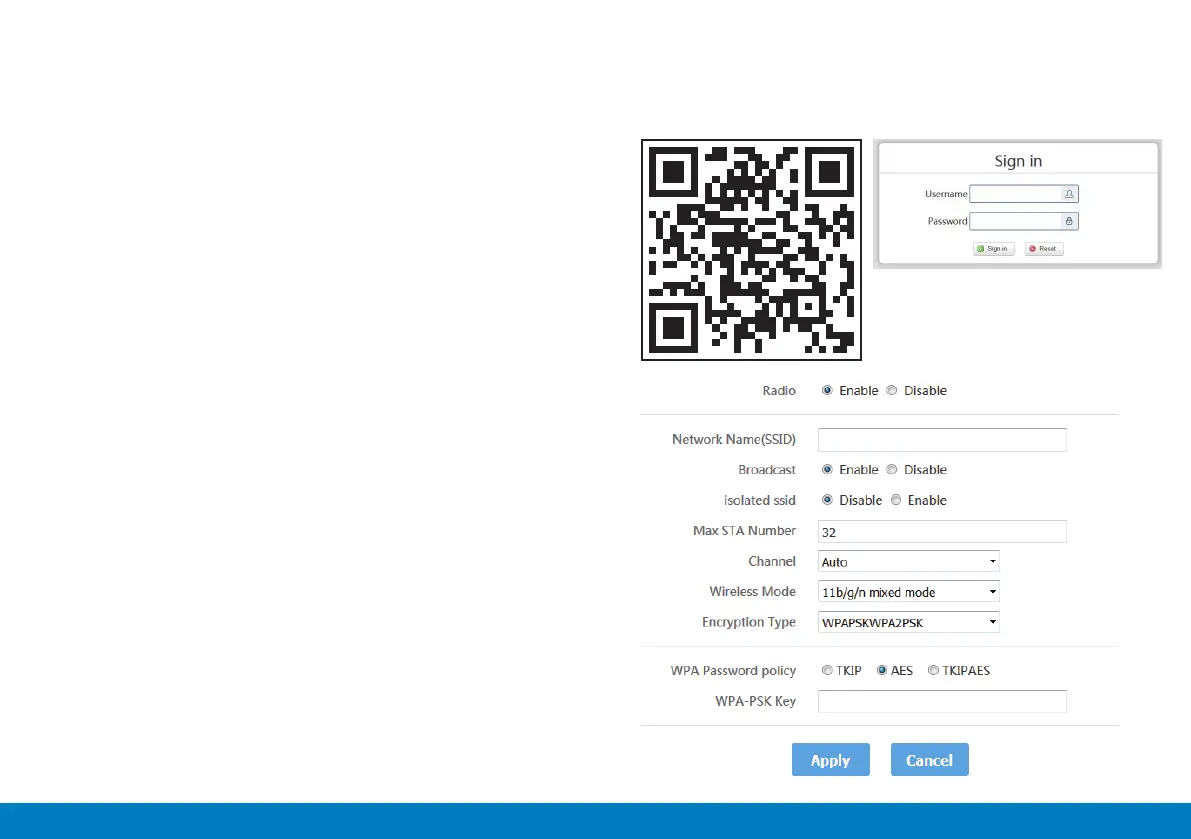
• Scan the QR code as shown or enter: 192.168.188.1 on your
computer to enter the management background.
• Enter the default login username and password. After
successfully logging in, you will access the management
interface where you can set the relevant settings.
• On the management background, select “LAN settings” on
the navigation bar then select “Wi-Fi 2.4G”.
• Enter the desired name under “Network name (SSID)”.
• Select “AES” under “WPA password policy” and enter the
“wpa-psk-key”. Enter the desired passport and select “Apply”
to conrm the setting changes.
Note: after setting up, your connection may be disconnected.
Reconnect using the new Wi-Fi name and password you set.
The routers setup screen may vary slightly after upgrading the
software.
Username: admin
Password: admin


 To Next Page