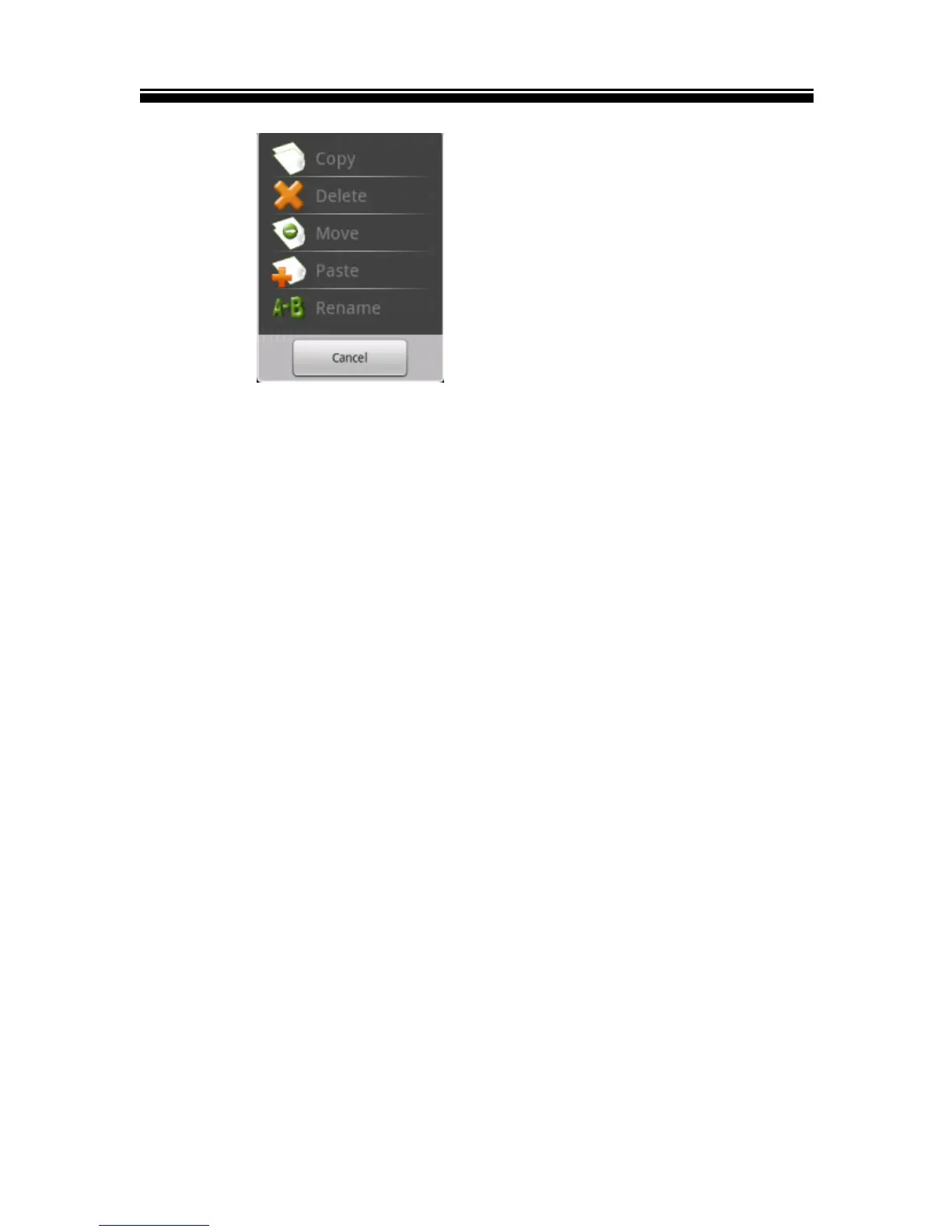
Copy / move the file or folder
In the file list, touch and hold your finger on the desired file or
folder to be moved or copied until Editor File menu appears.
1) Select "Move" or "Copy".
2) Locate the target folder that you want to put the selected
file or folder.
3) Touch and hold your finger on the target folder until the
Editor File Menu appears and then tap Paste.
Delete a file or folder
In the file list, touch and hold your finger on the desired file or
folder to be deleted until the Editor File Menu appears.
1) Select Delete and a dialog box will ask you to confirm that
you wish to delete the file.
2) Select "delete" to confirm the deletion, or select "Cancel".
Rename the file or folder
In the file list, touch and hold your finger on the desired file or
folder to be renamed, until Editor File menu appears.
1) Select "Rename"



 To Next Page