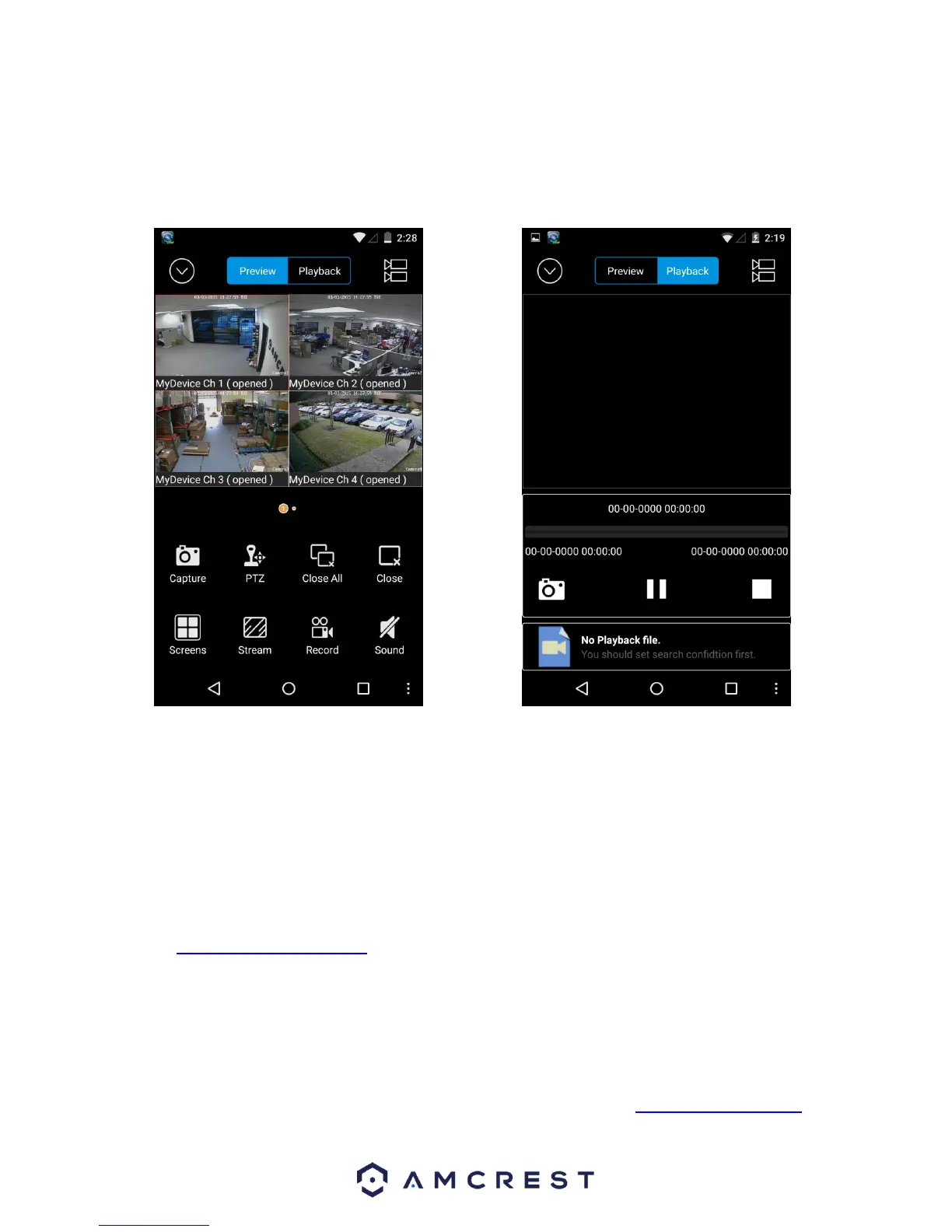
10. Amcrest Link App Interface
Once the app is setup to work with your DVR, it should look like the image below on the left.
To cycle between the preview or playback functions, click either of the buttons for them on the
top of the screen.
Clicking the Devices Icon (The down arrow in a circle) on the top left hand corner will open the
device list to allow selection of a specific connected device. Clicking the Selection Icon (The two
video cameras stacked on top of each other) will open the selection screen to either select which
camera to preview, or to select what to playback.
Note:
For a detailed operational introduction, please refer to our CD included in your
package for the electronic version of the User Manual.
To view setup videos for many of the steps outlined in this guide, go to
http://amcrest.com/videos
This quick start guide is for reference only. Slight differences may be found in the
user interface.
All the designs and software here are subject to change without prior written notice.
All trademarks and registered trademarks mentioned are the properties of their
respective owners.
If you have any questions or concerns, please contact us at support@amcrest.com,
or call us at 888-212-7538.



 To Previous Page