53
• Anonymous Login: This checkbox allows the user to enable the anonymous login feature. This allows all user
account names to remain hidden on this screen.
• Username: This tab shows the usernames available on the camera.
• Group: This tab shows the user groups available on the camera.
• No.: This column shows the user’s number on the user list.
• Username: This column shows the usernames of the different accounts on the camera.
• Group Name: This column shows the group of the different accounts on the camera.
• Description: This column shows a description of the account.
• Modify: This column allows the user to modify the user account.
• Delete: This column allows the user to delete a user account. Note: The admin account cannot be deleted.
• Authority List: This box shows which user rights/authorities are assigned to an account.
• Add User: This button allows the user to add a new user to the camera.
Default Settings
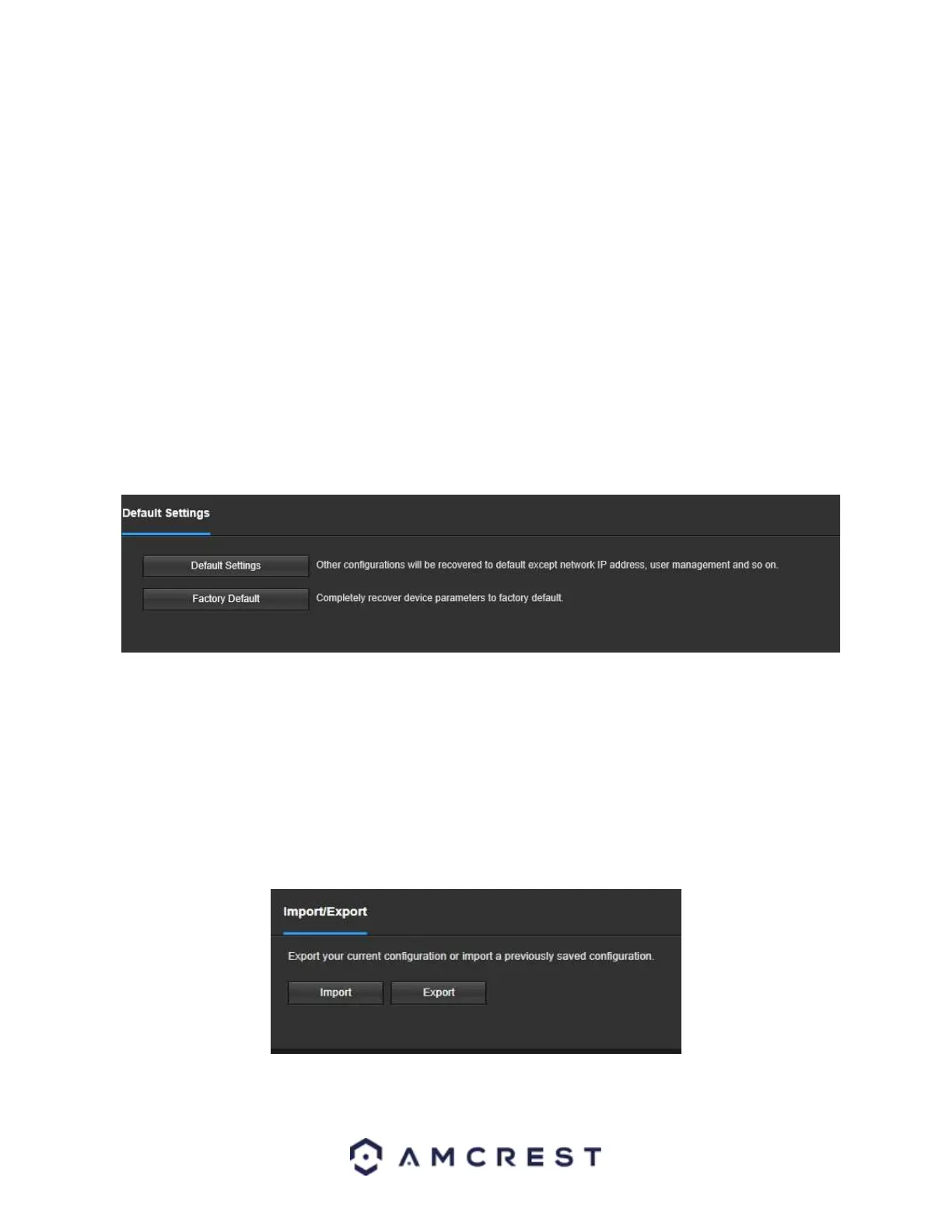
This screen allows the user to reset the camera and all its settings to the factory settings.
Below is a screenshot of the Default screen:
Below is an explanation of the items listed in this field:
Default Settings: Only the IP address, user management, and other settings can be recovered after reset. Factory
Default: Completely resets the camera to factory default settings. No settings can be recovered after the camera
has been returned to its factory default settings.
Import/Export
This screen allows the user to import or export settings from the camera. Below is a screenshot of the
Import/Export screen:
To import settings, click the Import button. To export settings, click the Export button.









 To Next Page