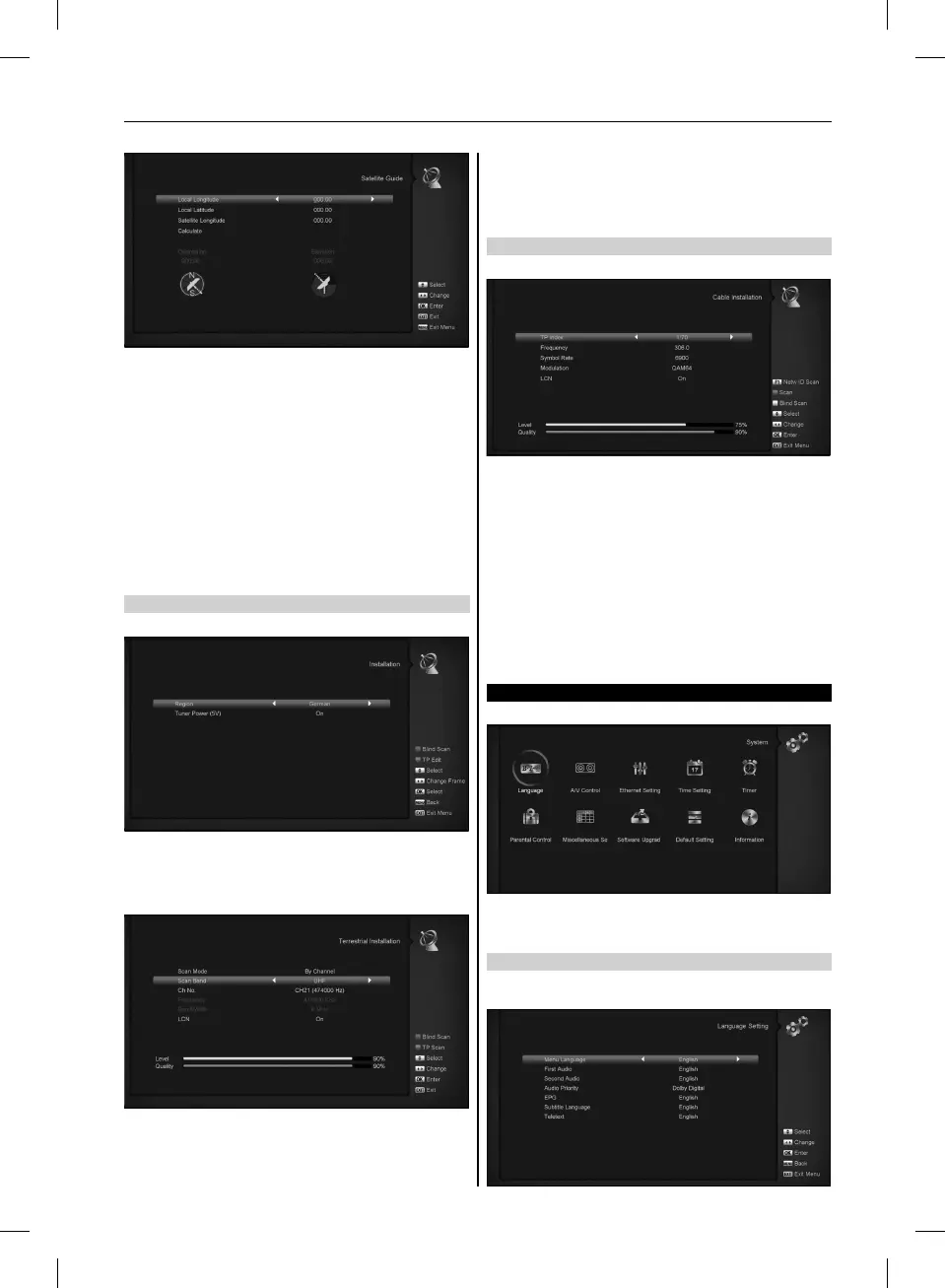
”Satellite Guide” is use for user to enter local longitude; local lat-
itude and satellite longitude. By the evaluation from the receiver
evaluate the antenna azimuth and antenna elevation; user can
follow this guidance to adjust antenna.
1. You can use number keys to input parameters in ”Local
Longitude”, ”Local Latitude” and ”Satellite Longitude”.
2. You can use [Left/Right] key to select east or west in ”Local
Longitude” and ”Satellite Longitude”, select north and south
in ”Local Latitude”.
3. Moving highlight to ”Start” item and press [OK] key. The lower
column on the screen will calculate the corresponding value
automatically.
4. Orientation means the angle between south and satellite.
5. Press [Exit] key to draw back to ”Main” Menu.
10.5 TERRESTRIAL INSTALLATION
Press [OK] key to enter the selected item.
1. You can select the Bandwidth according different country.
2. You can set the Tuner Power ON/OFF.
3. Press [Red] key can directly into blind scan mode to scan the
current programs.
4. Press [Green] key to enter the following menu.
Scan Mode
1. There are two modes. You can scan channel bychannel or
by frequency”.
2. When scan band is UHF and region is ”France”,the range of
Ch No. is from 21 to 69. When scan
3. band is VHF and region is ”France”, the range of Ch No. is
from 1 to 9. (it’s according to region)
4. Press [Red] key to enter blind scan menu, or press [Green]
key to enter TP scan menu.
5. Press [Exit] key to exit the scanning.
10.6 CABLE INSTALLATION
Press [OK] key to enter the selected item.
1. You can select the Scan Mode, Manual Scan or Blind Scan.
2. You can input the Frequency by use the numeric button of
the RCU.
3. You can input the Second Frequency by use the numeric but-
ton of the RCU, if you set the Scan Mode to Blind Scan.
4. You can input the Symbol Rate by use the numeric button of
the RCU.
5. You can select the QAM value among 16QAM, 32QAM,
64QAM, 128QAM and 256QAM.
6. You can turn ON or OFF the NIT Search, if you set the Scan
Mode to Manual Scan.
7. When you complete your modification, press OK button on
Search item to enter Scan menu and then.
8. press OK button, it will begin to scan.
11. SYSTEM
When you enter to ”System” menu, you will see a screen like below:
In ”System” menu:
1. Press[Left/Right]key to select menu items.
2. Press[OK]key to enter the selected item.
11.1 LANGUAGE
When you enter to ”Language” menu, you will see the screen
like below:
21
USER’S MANUAL



 To Next Page