EasyManua.ls Logo

Amped Wireless ATHENA - User Manual

Amped Wireless ATHENA
2 pages
Print Icon
To Next Page IconTo Next Page
Loading...
1
2
Disconnect & Power Off your Existing Router
(if available)
Power Off your Modem
8
Internet Connection Detection
The Wizard will try to detect your Internet settings
and configure the Router. Please be patient.
Once your Wizard has configured your Internet
settings you should see a green check mark.
Click Next to continue.
9
Personalize your Wi-Fi Settings
If there is a problem with your Internet connection
or if your Internet provider requires that you log in
before accessing the Internet, a prompt will appear
notifying you of the issue.
Accessing the setup menu does not require Internet access. The menu is served from the Router.
NOTE: IF YOU HAVE PROBLEMS ACCESSING THE WEB MENU
Disable third-party firewalls such as Norton, ZoneAlarm or Windows Defender.
Disconnect from all wireless networks and use a wired connection to the Router. Try again.
IF YOU HAVE PROBLEMS ACCESSING THE WEB MENU...
Disconnect your existing router from your computer, your
broadband modem, and a power outlet. If you do not have
an existing router please continue to Step 2.
Modem
Router
a
b
3
Connect the Router to your Modem
Use the included Ethernet cable and connect
one end of the cable to your modem.
a
Connect the other end of the cable to the blue
port on the Router.
Modem
b
Do NOT connect the power adapter to the
Router at this time.
Power off the modem by disconnecting the modem’s power
adapter from the power outlet. If your modem has a backup
battery, remove the backup battery from your modem.
Open your Web Browser
If the URL fails to open, then try: http://192.168.3.1
Enter the setup web address into your browser:
6
http://setup.ampedwireless.com
Do NOT power on your modem until Step 4.
Existing Router
Modem
The default ID of your 5GHz Wi-Fi network and
2.4GHz Wi-Fi network is: Amped_Athena_5.0 or
Amped_Athena_2.4
To change it, enter a new name in the SSID field. Users
connecting wirelessly to the Router will use these IDs to
identify your Wi-Fi networks.
The default Security Key of your Wi-Fi networks
is: wireless
To change them, enter a new key for both the 5GHz
and 2.4GHz Wi-Fi networks in the Security Key field.
The keys must be at least 8 characters long.
Attach the antennas to the antenna connectors
on the Router.
a
Connect to the Router's Wi-Fi network:
Amped_Athena_5.0 or Amped_Athena_2.4
Security key: wireless
(see back for detailed instructions)
- or -
Connect an Ethernet cable between your PC and
a green wired port on the back of the Router.
c
Attach the Power Adapter to the Router’s
port and a power outlet.
PWR
b
Attach Antennas, Power On & Connect to your Computer
5
Congratulations, the Router is now successfully
congured and your settings are now saved. You
may now connect additional devices directly to the
4 wired ports on the back panel or connect wire-
lessly to the Router.
The wizard will notify you if there is a newer rmware
for the router. We recommend that you upgrade
your router at this time if an update is available.
10
Setup Summary
GOT QUESTIONS?
Phone: 888-573-8820 or 909-217-3168
Email: techsupport@ampedwireless.com
Web: www.ampedwireless.com/support
?
Once you have completed the Setup Wizard, you
will now see the Dashboard when you access
http://setup.ampedwireless.com. You will not see
the Setup Wizard again. Through the Dashboard
you can further adjust settings and access the
features of the Router. Here you will nd features like
Guest Networks, User Access Controls, Wi-Fi
Coverage Controls, Parental Controls and many
other features.
Dashboard
Create a Password for your Router
This password is NOT your Wi-Fi connection pass-
word. This password is to access the web menu
of the Router to access additional router settings.
Leave this blank if you do not wish to have a
password.
Click Apply to save your settings. The Router will
reboot. This process may take up to 1 minute. The
page will automatically reload after the countdown.
If it does not, you may need to refresh the page
manually or check your connection to the Router.
Modem
Remove
Backup Battery
4
Power On your Modem
Plug in the power adapter and reinsert the backup battery
(if available) to power on the modem.
Allow a minute or two for the modem to initiate.
Modem
Reinsert
Backup Battery
- or -
b
c
a
RTA2 600
v052615
RE AD FI RST
SETUP GUIDE
GOT QUESTIONS?
Phone: 888-573-8820 or 909-217-3168
Email: techsupport@ampedwireless.com
Web: www.ampedwireless.com/support
ATHENA
HIGHPOWER
TM
AC2600 WI-FI
®
ROUTER
WITH
MU-MIMO
If this is your first time setting up the Router, the
Setup Wizard should automatically load.
Double check that the modem is connected to
the Router's Modem port.
Check that your antennas are all attached firmly
to the antenna connectors.
Click Next to continue.
If the Dashboard loads, scroll to the bottom and
click the Setup Wizard button to access the wizard.
If you wish to manually configure your Router you
can also choose to skip the Setup Wizard.
7
Welcome to the Setup Wizard
All manuals and user guides at all-guides.com
all-guides.com
Question and Answer IconNeed help?

Do you have a question about the Amped Wireless ATHENA and is the answer not in the manual?

Summary

Initial Amped Wireless Router Setup

Physical Connection and Powering Steps

Steps to disconnect existing router, power off modem, connect router to modem, and power on modem.

Accessing the Router Configuration

Open a web browser and navigate to the router's setup address or IP.

Setup Wizard Configuration

Follow the guided setup wizard to configure internet connection, Wi-Fi settings, and router password.

Dashboard Overview

Accessing the router's dashboard post-setup for further adjustments and features.

Connecting Devices Wirelessly

Wireless Connection Instructions

Guides for connecting Windows, Mac OS X, iPhone, iPad, and Android devices to the Wi-Fi network.

Router Features and Management

Router Login and Password Settings

Instructions for setting a unique login and password for router management.

Smart Features and Network Controls

Overview of features like access scheduling, user access control, and website blocking.

LED Indicator and Hardware Functions

Information on router LED lights and hardware features like reset and USB ports.

Troubleshooting Router Connectivity

Common Setup Problems and Solutions

Guidance for issues like failing to access the web menu or automatic internet configuration problems.

Summary

Initial Amped Wireless Router Setup

Physical Connection and Powering Steps

Steps to disconnect existing router, power off modem, connect router to modem, and power on modem.

Accessing the Router Configuration

Open a web browser and navigate to the router's setup address or IP.

Setup Wizard Configuration

Follow the guided setup wizard to configure internet connection, Wi-Fi settings, and router password.

Dashboard Overview

Accessing the router's dashboard post-setup for further adjustments and features.

Connecting Devices Wirelessly

Wireless Connection Instructions

Guides for connecting Windows, Mac OS X, iPhone, iPad, and Android devices to the Wi-Fi network.

Router Features and Management

Router Login and Password Settings

Instructions for setting a unique login and password for router management.

Smart Features and Network Controls

Overview of features like access scheduling, user access control, and website blocking.

LED Indicator and Hardware Functions

Information on router LED lights and hardware features like reset and USB ports.

Troubleshooting Router Connectivity

Common Setup Problems and Solutions

Guidance for issues like failing to access the web menu or automatic internet configuration problems.

Overview

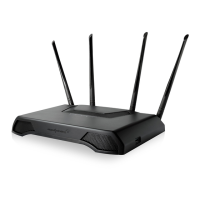
This document describes the setup, usage, and maintenance of the Amped Wireless Athena Highpower AC2600 Wi-Fi Router MU-MIMO (RTA2600).

The Athena RTA2600 is a high-power Wi-Fi router designed to provide extensive wireless coverage and fast internet speeds, particularly for environments with multiple devices. Its primary function is to create and manage a wireless local area network (WLAN) by connecting to a broadband modem, allowing various devices to access the internet and communicate with each other wirelessly or via wired connections. The MU-MIMO technology enables the router to communicate with multiple devices simultaneously, improving efficiency and performance in busy network environments.

Usage Features:

The setup process for the Athena RTA2600 is guided by a user-friendly Setup Wizard, making it accessible even for those with limited networking experience.

  1. Initial Setup:

    • Disconnect Existing Router: The first step involves disconnecting any existing router from your computer, broadband modem, and power outlet.
    • Power Off Modem: The modem must be powered off by disconnecting its power adapter. If it has a backup battery, that should also be removed. It's crucial not to power on the modem until instructed.
    • Connect Router to Modem: An included Ethernet cable is used to connect the modem to the blue "Modem" port on the Athena router. The router's power adapter should not be connected at this stage.
    • Power On Modem: The modem is then powered back on, allowing a minute or two for it to initiate.
    • Attach Antennas, Power On & Connect to Computer: The antennas are attached to the router, and the router's power adapter is connected to the PWR port and a power outlet. Users can connect to the router's Wi-Fi network (Amped_Athena_5.0 or Amped_Athena_2.4 with the default security key "wireless") or via an Ethernet cable to a green wired port.
    • Open Web Browser: The setup process continues by opening a web browser and navigating to http://setup.ampedwireless.com or http://192.168.3.1.
  2. Setup Wizard Guidance:

    • The Setup Wizard automatically loads, guiding the user through the configuration. It checks modem connection and antenna attachment.
    • Internet Connection Detection: The wizard attempts to automatically detect and configure internet settings. If issues arise, prompts will appear, especially if the internet provider requires specific login information.
    • Personalize Wi-Fi Settings: Users can customize the SSID (network name) for both the 5GHz and 2.4GHz Wi-Fi networks and change the default security key ("wireless") to a stronger, personalized password (at least 8 characters long).
    • Create Router Password: A password can be set to access the router's web menu for advanced settings. This is distinct from the Wi-Fi security key.
    • Setup Summary: Upon completion, the wizard confirms successful configuration and may notify the user of available firmware updates, recommending installation.
  3. Connecting Wireless Devices:

    • The manual provides detailed instructions for connecting various devices, including Windows 7/Vista/8, Mac OS X, iPhone, iPad Tablet, and Android Tablet. These instructions typically involve selecting the appropriate Wi-Fi network (Amped_Athena_2.4 or Amped_Athena_5.0) and entering the security key.
    • Wi-Fi Protected Setup (WPS): For WPS-enabled devices, a one-touch setup is available. Users press the WPS button on the router for 3 seconds (the Power LED blinks) and then activate WPS on their device, allowing automatic configuration.
  4. Dashboard and Advanced Features:

    • After the initial setup, accessing http://setup.ampedwireless.com leads to the Dashboard, which provides access to a range of advanced features.
    • Wireless Access Scheduling: Control when Wi-Fi networks are active.
    • User Access Control (MAC/IP): Restrict network access for specific users based on MAC or IP addresses.
    • Wireless Coverage Control: Adjust the range and strength of the wireless network.
    • Block Websites: Prevent access to specific websites.
    • Firewall Settings: Protect the network from external threats.
    • Quality of Service (QoS): Manage and prioritize network bandwidth for different applications or devices.
    • USB Storage Sharing: Connect USB storage devices to the router's USB 2.0 or USB 3.0 ports and configure them for network sharing through the web menu.
    • Power & LED Lights On/Off: Physical buttons are available to quickly turn the router on/off and to toggle the LED indicators on the front panel.

Maintenance Features:

The Athena RTA2600 includes features and guidelines to ensure its continued optimal performance and address potential issues.

  1. Firmware Updates: The Setup Wizard and Dashboard will notify users of available firmware updates. It is recommended to install these updates to benefit from performance improvements, bug fixes, and new features.
  2. LED Indicator Information: The router's LED indicators provide visual feedback on its status:
    • Power LED: Solid when powered on, blinks during WPS activation.
    • 5.0GHz/2.4GHz Wireless Activity LEDs: Blink rapidly during data transmission/reception on respective bands.
    • Internet Connection LED: Indicates connection to the broadband modem, blinks during data transmission.
    • USB Connection LED: Indicates when a USB storage device is connected.
    • Wired Port LEDs: Indicate when a device is connected to a wired port, blink during data transmission, and green LEDs signify an active gigabit connection. Monitoring these LEDs can help diagnose connectivity issues.
  3. Reset to Default Settings:
    • Software Reset: This can be done through the web menu under "More Settings > Management > Save/Reload Settings" by selecting "Reset Settings to Default."
    • Hardware Reset: A physical Reset button is located on the back panel. Holding it down for five to ten seconds (using a pen tip or pin) will restore factory default settings. Pressing it for less than five seconds will only reboot the router while preserving current settings. This is a crucial troubleshooting step if login credentials are forgotten or if the router becomes unresponsive.
  4. Troubleshooting Tips: The manual provides solutions for common problems:
    • Failure to access the Web Menu: Solutions include ensuring proper Ethernet connection, checking router power, disabling other wireless connections, trying different browsers, entering the IP address directly (192.168.3.1), and performing a router reset.
    • Setup Wizard failing to configure Internet connection: Recommendations include resetting the modem, rebooting the router, checking for static IP settings (if required by ISP), and configuring PPPoE login information or MAC address cloning for DSL/Cable modems.
  5. Login and Password Management: Users are strongly advised to change the default login and password for accessing the router's web menu. If forgotten, a router reset to default settings is necessary.
  6. Technical Support: Amped Wireless offers free U.S.-based technical support via phone and email, and additional support resources are available on their website. This ensures users can get assistance if they encounter issues beyond basic troubleshooting.

By following these guidelines, users can effectively set up, utilize, and maintain the Amped Wireless Athena RTA2600 router for a robust and reliable Wi-Fi experience.

Amped Wireless ATHENA Specifications

General IconGeneral
Wireless Standard802.11ac
MU-MIMOYes
ModelATHENA
Frequency Bands2.4 GHz and 5 GHz
Ports1 x Gigabit WAN, 4 x Gigabit LAN
Antennas4 x external high-gain antennas
ProcessorDual-core processor
SecurityWPA/WPA2

Related product manuals